Managing Member Profiles
View and edit member information, set officer roles, manage role preferences, and deactivate members from a single profile page.
Before You Begin
- You must be a club officer (any officer role) to edit member profiles or change roles.
- Regular members can view their own profile but cannot edit it through this page. They manage their own preferences through their personal settings.
Viewing Member Profiles
From the Member List
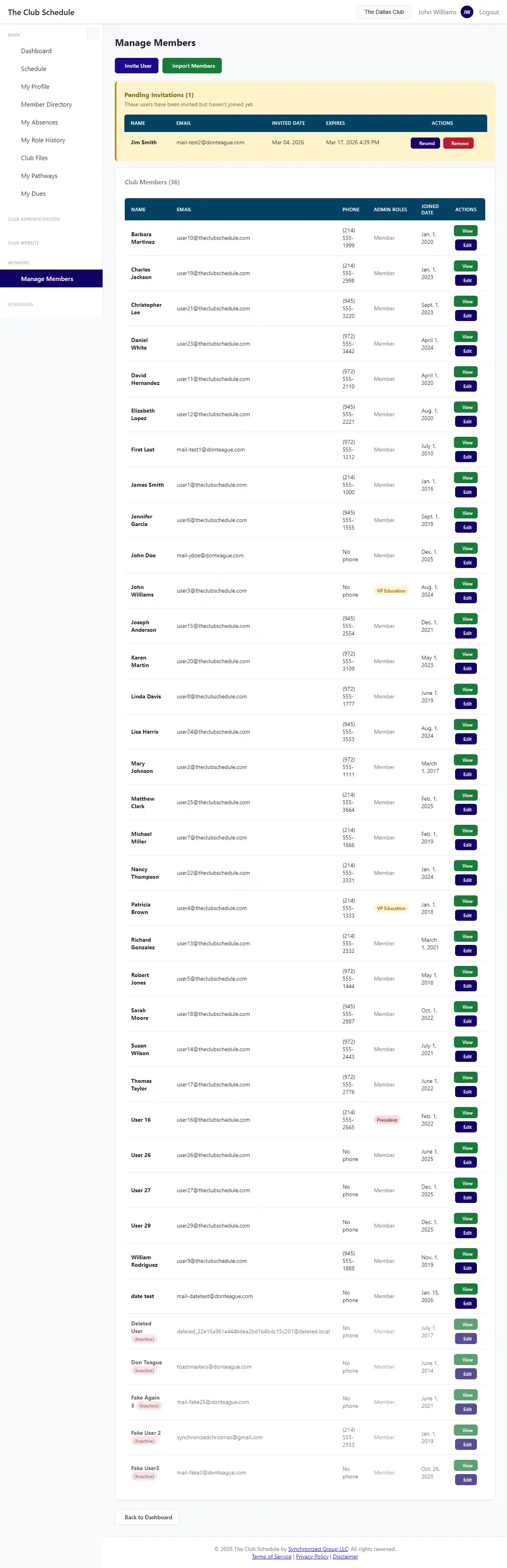
- In the left sidebar under "Club Administration," click Members.
- You will see a list of all active club members.
- Click on any member's name to view their profile.
What the Profile Shows
The member profile page displays:
- Personal information -- Name, email, phone number, Toastmasters member number
- Club membership details -- Join date, membership type, officer roles
- Role history -- A complete record of every meeting role the member has completed
- Role statistics -- How many times the member has performed each role
- Roles never done -- A list of active club roles the member has not yet performed
Members can view their own profile. Officers can view any member's profile within their club.
Editing a Member's Profile
- Navigate to the member's profile page.
- Click the Edit button.
- Make your changes (see editable fields below).
- Click Save to apply changes, or Cancel to discard.
Editable Fields
Personal Information:
- First Name and Last Name
- Email -- This also updates their login username. The email must be unique across all accounts.
- Phone Number
- Toastmasters Member Number
- Address -- Street, city, state, and ZIP code
- Preferred Contact Method
Membership Details:
- Joined Date -- When the member joined the club
- Membership Type -- The member's membership category (e.g., regular, dual)
Role Eligibility:
- Eligible for All Roles -- When checked, the member can be assigned to any role. When unchecked, the scheduling algorithm will only assign them to roles they have prior experience with.
Role Assignment Prevention (Opt-Outs):
- Select specific roles the member should never be assigned to. This is separate from the member's own opt-out preferences.
- Checked roles will not be assigned to this member by the scheduling algorithm.
Managing Officer Roles
Officers can assign or remove officer roles for any member.
- Open the member's profile for editing.
- Check or uncheck the officer role checkboxes:
- President
- VP Education
- VP Membership
- VP Public Relations
- Secretary
- Treasurer
- Sergeant at Arms
- Admin
- Click Save.
All officer roles have identical permissions within The Club Schedule. The role names are for organizational purposes within your club.
Important safeguards:
- Two-officer minimum. Your club must always keep at least two active officers. An edit that would drop the club below two officers is blocked.
- You can't strip a role only you hold. When editing your own profile, you can't remove yourself from a role no one else holds -- assign a co-holder first, then remove yourself. (Another officer can remove you from such a role.)
Deactivating a Member
When a member leaves your club, you can deactivate them rather than deleting them. This preserves their role history for club records.
- Open the member's profile for editing.
- Uncheck the Active checkbox.
- Click Save.
What happens when you deactivate a member:
- They no longer appear in the active member list.
- They are excluded from future schedule assignments.
- Their account still exists and they can log in, but they will not have access to club features.
- Their historical role assignments and history are preserved.
Important: Deactivating a member counts as removing them from their roles. You can't deactivate someone if it would leave the club with fewer than two active officers, and you can't deactivate yourself while you're the only holder of a role -- hand it off first.
Tips
- Keep email addresses current. Members receive assignment notifications, reminders, and schedule updates by email. An outdated email means missed communications.
- Use role opt-outs sparingly. If a member struggles with a role, consider working with them rather than permanently excluding them. Opt-outs reduce scheduling flexibility.
- Review eligibility settings. New members typically start with "Eligible for All Roles" unchecked so the algorithm only assigns them roles they have experience with. As they gain experience, consider enabling full eligibility.
- Deactivate rather than delete. Deactivation preserves club history. If a member returns later, you can reactivate them by checking the Active checkbox again.
- Coordinate officer transitions. Assign the incoming officer's roles before removing the outgoing officer's, so you keep at least two officers and never strip the last holder of a role.
Troubleshooting
I can't edit a member's profile
- You must hold an officer role (any of the eight) with an active subscription.
- If your subscription has lapsed, you will not be able to edit member profiles.
I get an error about email already being in use
- Each account must have a unique email address. The email you entered belongs to another account in the system.
- Check with the member to confirm their correct email address.
I can't remove an officer's roles
- Your club must keep at least two active officers. If removing this member's roles (or deactivating them) would drop below two, assign roles to another member first.
- Editing yourself: you can't remove yourself from a role no one else holds. Add a co-holder first, then remove yourself -- or have another officer remove you.
A deactivated member still shows up somewhere
- Deactivated members are excluded from active lists and scheduling, but their names may still appear in historical schedules and role history. This is by design to preserve club records.
I changed a member's email but they can't log in
- Changing the email also changes their login username. Let the member know their new login is the updated email address. Their password remains the same.