Managing Your Profile
Update your personal information, contact details, and preferences from your profile page.
Before You Begin
- You need to be logged in to The Club Schedule.
- Your email address cannot be changed from the profile page. If you need to update your email, contact a club officer.
Accessing Your Profile
- Log in to The Club Schedule.
- Click your name or profile link in the sidebar navigation.
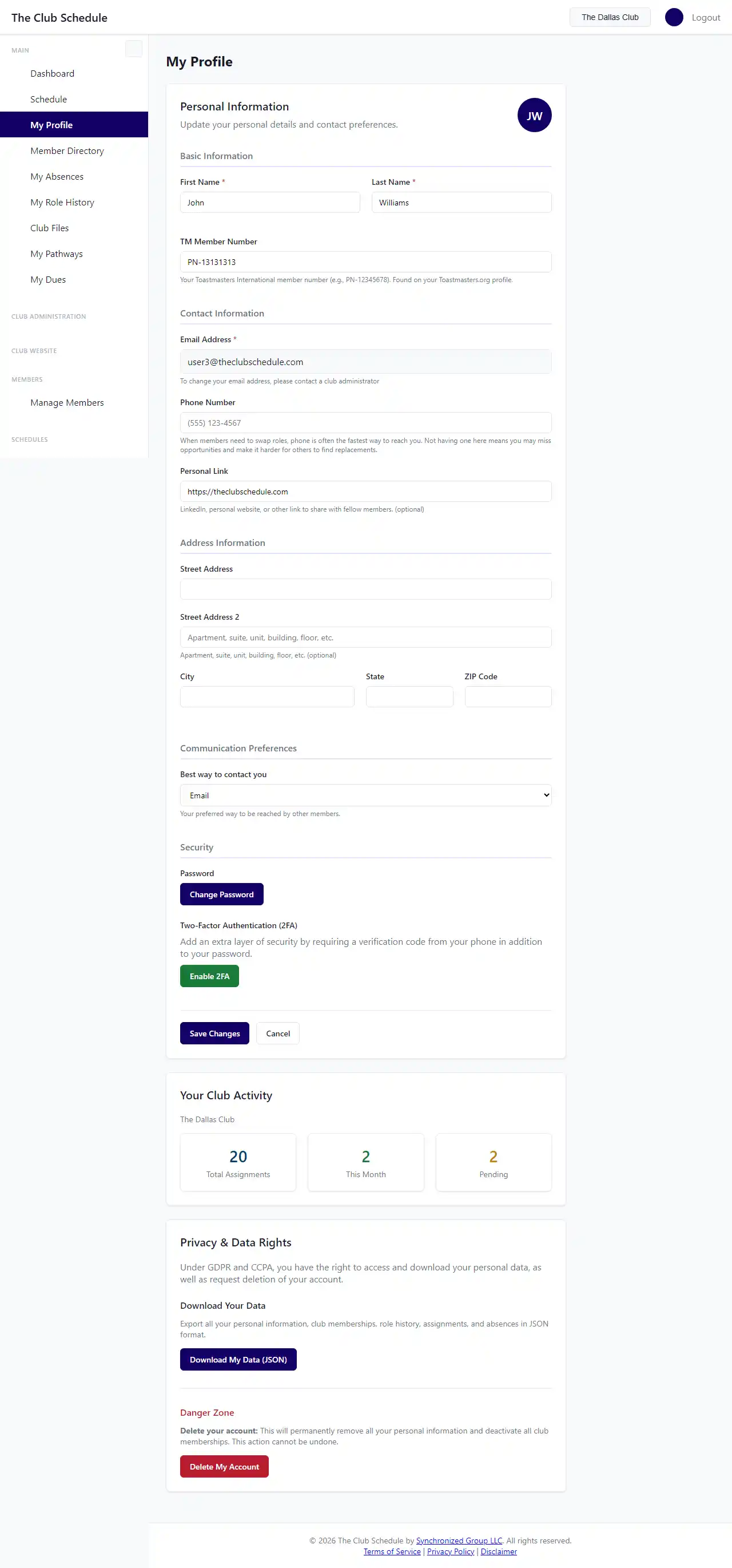
- The profile page displays your current information and a form to make changes.
Updating Your Personal Information
- On the profile page, locate the field you want to update:
- First Name
- Last Name
- TM Member Number -- Your Toastmasters International member number (format: PN-12345678)
- Phone Number
- Personal URL -- A link to your LinkedIn profile or personal website
- Edit the field with your updated information.
- Click Save to apply your changes.
- A success message confirms your profile has been updated.
Updating Your Mailing Address
Your mailing address is stored with your account and may be used by club officers for club correspondence.
- On the profile page, update any of the following fields:
- Street Address
- Street Address Line 2 -- Apartment, suite, or unit number
- City
- State
- ZIP Code
- Click Save to apply your changes.
Setting Your Contact Preference
You can choose how your club officers should contact you outside of the platform.
- Find the Preferred Contact Method dropdown on the profile page.
- Select your preferred method.
- Click Save.
Viewing Your Activity Stats
If you have an active club selected, the profile page shows a compact summary of your club activity:
- Total assignments -- The total number of roles you have been assigned across all time. Click it to open your full role history.
- This month -- How many role assignments you have in the current month. Click it to open your role history filtered to the current month.
- Pending -- How many upcoming assignments are still waiting for your response.
Your Club Membership Expiry
If your Toastmasters club membership has an expiration date on file, the activity summary also shows a line such as "Your [Club Name] membership expires on [date]." This refers to your membership in your Toastmasters club -- not your Club Schedule subscription. If the date looks wrong, ask a club officer to update it on your member record. Members with no expiration date (lifetime members) do not see this line.
Changing Your Password
To change your password, use the password reset flow:
- Log out of your account.
- On the login page, click Forgot your password?
- Enter your email address and submit the form.
- Check your email for a password reset link.
- Click the link and set your new password.
Two-Factor Authentication (MFA)
Your profile page shows whether two-factor authentication is enabled for your account. For instructions on setting up or managing MFA, see the dedicated guide.
Tips
- Your TM Member Number must start with "PN-" followed by your numeric ID. This is the format used by Toastmasters International.
- Your email address is managed by club officers, not from this page. This prevents accidental lockouts and ensures your club has accurate contact information on file.
- Personal URL is a good place to put your LinkedIn profile so fellow club members can connect with you.
Troubleshooting
| Problem | Solution |
|---|---|
| I cannot change my email address | Contact a club officer to update your email through the member management page. |
| My activity stats are not showing | Make sure you have an active club selected. If you belong to multiple clubs, select one from the club selection page. |
| My TM Member Number is rejected | Ensure it follows the "PN-12345678" format. The prefix "PN-" is required. |
| Changes are not saving | Check for any error messages displayed on the page. Make sure all required fields are filled in. |