Viewing Your Role History
Review a complete record of all meeting role completions for your club, with filtering and export options.
Before You Begin
- You must be logged in to The Club Schedule.
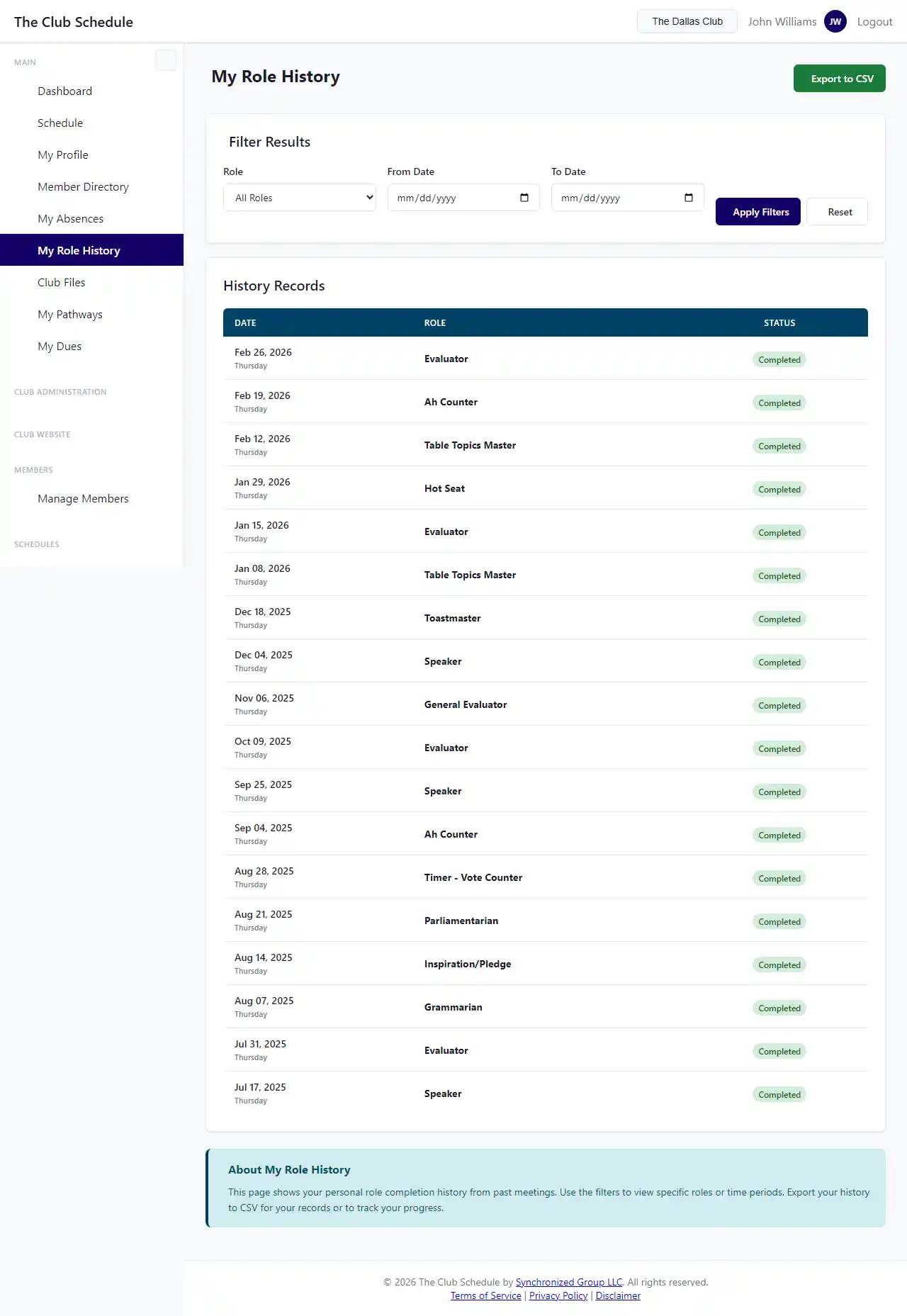
- You must be any club officer to access the club-wide role history page. Members who do not hold an officer role can see their own record from My Role History in the sidebar.
- You need an active club selected.
Accessing Role History
- Log in to The Club Schedule as a club officer.
- Go to your admin dashboard and find the Meetings & Scheduling group.
- Click the Role History card.
- The page displays a paginated list of all role records for your club, with the most recent entries first.
You can also reach it from the Role History button at the top of the Role Configuration page.
Understanding the Role History Table
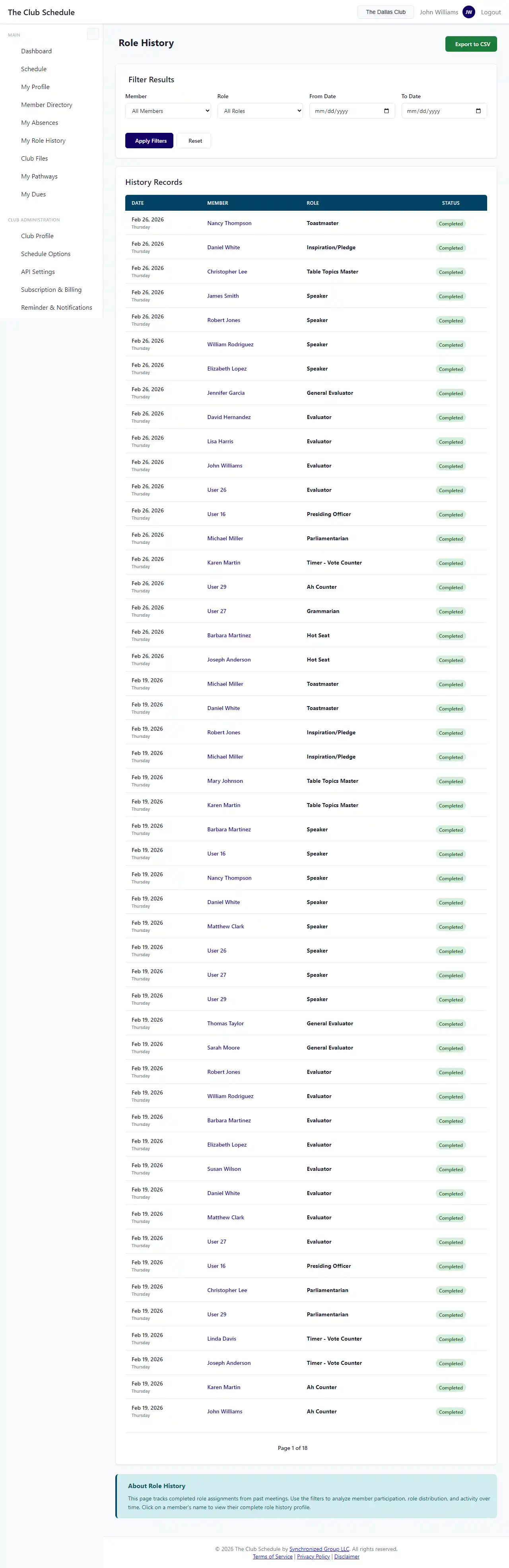
Each row in the role history table shows:
- Date -- The meeting date, with the day of the week underneath.
- Member -- The member who held the role. Click the name to open their member profile.
- Role -- The name of the role (e.g., Timer, Evaluator, Toastmaster).
- Status -- One of three badges:
- Completed -- The role was marked complete.
- Scheduled -- The meeting date is still in the future, so the role has not been completed yet.
- Absent -- The meeting date has passed and the role was never marked complete.
Filtering the History
Use the filter controls to narrow down the results:
Filter by Member
- Use the Member dropdown to select a specific member.
- The table updates to show only that member's role history.
Filter by Role
- Use the Role dropdown to select a specific role.
- The table updates to show only completions for that role.
Filter by Date Range
- Set a Start Date to see records from that date forward.
- Set an End Date to see records up to that date.
- Use both to view a specific date range.
You can combine all filters. For example, filter by a specific member AND a specific role AND a date range to see exactly when that member performed that role.
Exporting to CSV
You can download the role history as a CSV file for use in spreadsheets or external tools.
- Apply any filters you want (the export respects your current filters).
- Click the Export CSV button.
- The CSV file downloads with a filename that includes your club name and the current date.
The exported CSV includes these columns:
| Column | Description |
|---|---|
| Date | Meeting date (YYYY-MM-DD format) |
| Day of Week | Day name (e.g., Thursday) |
| Member Name | Full name of the member |
| Member's email (only if "Include Emails" option is selected) | |
| Role | Name of the role |
| Status | "Completed" or "Absent" |
Note
The Email column is opt-in. You must check the "Include Emails" option before exporting to include email addresses in the CSV. This is for privacy protection.
Pagination
Role history results are paginated at 50 records per page. Use the page navigation controls at the bottom to move between pages.
Tips
- Use date range filters to review a specific schedule period or meeting season.
- Filter by role to see how a particular role has been distributed across members. This can help identify if one member is being assigned the same role too frequently.
- Export regularly to keep offline records for club reporting or Toastmasters district submissions.
- The CSV export respects your filters, so you can create targeted exports (e.g., all Speaker completions for a specific quarter).
Troubleshooting
| Problem | Solution |
|---|---|
| "Only club officers can view role history" | This page is restricted to officers. If you need to see your own history, check your dashboard or ask an officer. |
| No records are showing | Make sure you have the correct club selected. If your club is new, there may not be any completed schedules yet. |
| Filters are not returning expected results | Double-check your date range format (YYYY-MM-DD). Also verify that the member and role you selected exist in the data for that period. |
| CSV export is empty | Your current filter combination may not match any records. Remove some filters and try again. |