Set Up Meeting Types
Learn how to configure different types of meetings with customized role sets, allowing your club to schedule special events like Speaker Nights, Contests, or Workshops.
Note: Only club officers (President, VP Education, Secretary, or Admin) can configure meeting types.
Understanding Meeting Types
Meeting types let you configure different role sets for different kinds of meetings. Instead of every meeting using the same roles, you can create variations to match how your club actually operates.
There are two categories of meeting types:
Modified Regular Meetings
These are meetings that use your club's existing roles but with a customized selection and slot counts.
Examples: - Speaker Night - Extra speaker slots, no Table Topics - Evaluation Workshop - Extra evaluators, reduced speakers - Short Meeting - Fewer roles to fit a compressed schedule
Key features: - Uses roles from your existing "Configure Roles" settings - The algorithm automatically assigns members (same as regular meetings) - Role history is tracked for fair rotation - You choose which roles to include and how many slots each role has
Special Events
These are meetings built around custom slots unique to the event, which can also include some of your regular roles.
Examples: - Speech Contest - Contest Chair, Chief Judge, Ballot Counter, Timers - Club Awards Night - Master of Ceremonies, Award Presenter - Open House - Welcome Host (custom slot) plus 2 Speakers and 2 Evaluators (regular roles) - Joint Meeting - Custom roles for multi-club events
Key features: - You create custom slot names specific to each event type - Custom slots are assigned by hand (VP Education or the Event Admin) and never count toward role history - Optionally, you can add regular roles (Speaker, Evaluator, etc.) that the algorithm fills automatically; these count toward role history like any meeting - Custom slots do not appear on your regular "Configure Roles" page
See Scheduling Special Event Meetings for the full guide.
Accessing Meeting Types
- Log in as a club officer
- Click Settings in the navigation menu
- Select Meeting Types from the menu
Or navigate directly to: Club Settings > Meeting Types
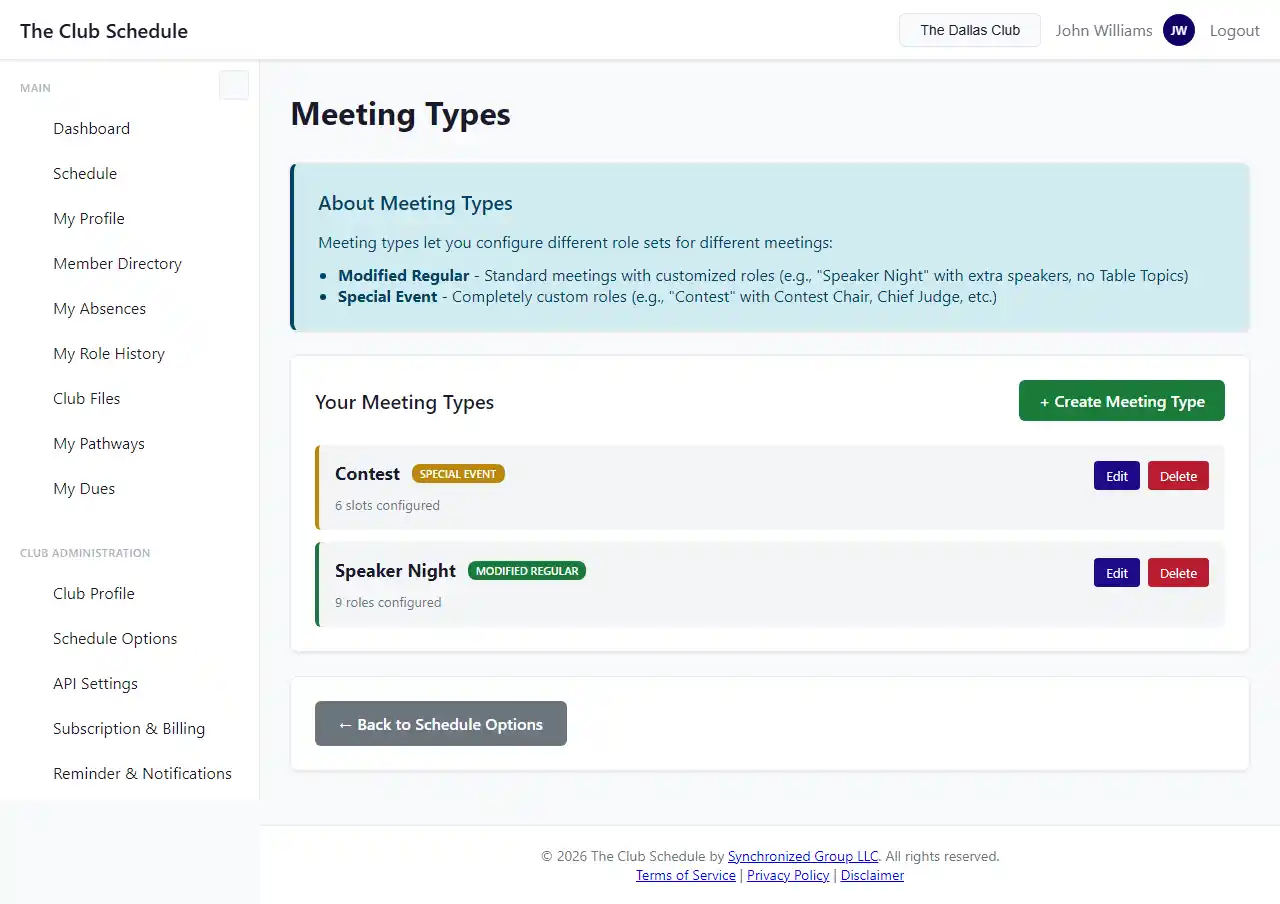
Creating a Meeting Type
Step 1: Access the Create Page
- Go to Club Settings > Meeting Types
- Click + Create Meeting Type
Step 2: Enter Basic Information
Fill in the basic details:
- Name (required) - Give your meeting type a clear, descriptive name (e.g., "Speaker Night", "Contest", "Board Meeting")
- Description (optional) - Add notes about when this type is used
- Set as default - Check this if you want new meetings to use this type by default
Step 3: Choose the Meeting Type Category
Select which category best fits your needs:
Modified Regular (green border) - Choose this when you want to use your existing club roles with different configurations - The algorithm will automatically assign members - Good for routine meeting variations
Special Event (orange border) - Choose this when you need custom slots unique to the event - You assign the custom slots by hand - Can also include regular roles that the algorithm fills - Good for contests, award ceremonies, open houses, and one-off events
Step 4: Configure Roles
For Modified Regular meetings:
- You'll see a list of all your active club roles
- Check the box next to each role you want to include
- Adjust the Slots number to set how many of that role are needed
- Example: Regular meetings might have 3 Speakers, but Speaker Night has 5
For Special Events:
In Define Slots (at least one slot is required):
- Click + Add Slot to create each role slot
- Enter a name for each slot (e.g., "Contest Chair", "Chief Judge")
- Set the number of slots for each role (usually 1)
- Check Event Admin if that role should be able to edit assignments for this meeting
- Drag the handle on the left to reorder slots
Then, optionally, in Regular roles filled automatically:
- Tick any regular roles this event also needs, such as Speaker or Evaluator (every box starts unticked for a Special Event)
- Set the Slots number for each one
Step 5: Save the Meeting Type
Click Create Meeting Type to save your configuration.
You'll be returned to the Meeting Types list where you can see your new type.
Editing a Meeting Type
- Go to Club Settings > Meeting Types
- Find the meeting type you want to edit
- Click Edit
- Make your changes:
- Update name or description
- Change default status
- Add or remove roles (Modified Regular)
- Add, remove, or rename slots, and change the regular roles (Special Events)
- Click Save Changes
Note: You cannot change the category (Modified Regular vs. Special Event) after creation. If you need a different category, create a new meeting type.
When changes take effect: Changes apply the next time the schedule is generated. Published meetings don't change. On a draft, a Special Event meeting picks up newly added regular roles when the draft is extended, or when you click Meeting Types on the draft, re-pick the type for that date, and save. Removing a regular role from a type leaves members already assigned to it in place.
Deleting a Meeting Type
- Go to Club Settings > Meeting Types
- Find the meeting type you want to delete
- Click Delete
- Confirm the deletion
Warning: Deleting a meeting type removes it permanently. Any meetings already assigned this type will revert to regular meetings.
Using Meeting Types in Schedules
During Schedule Creation
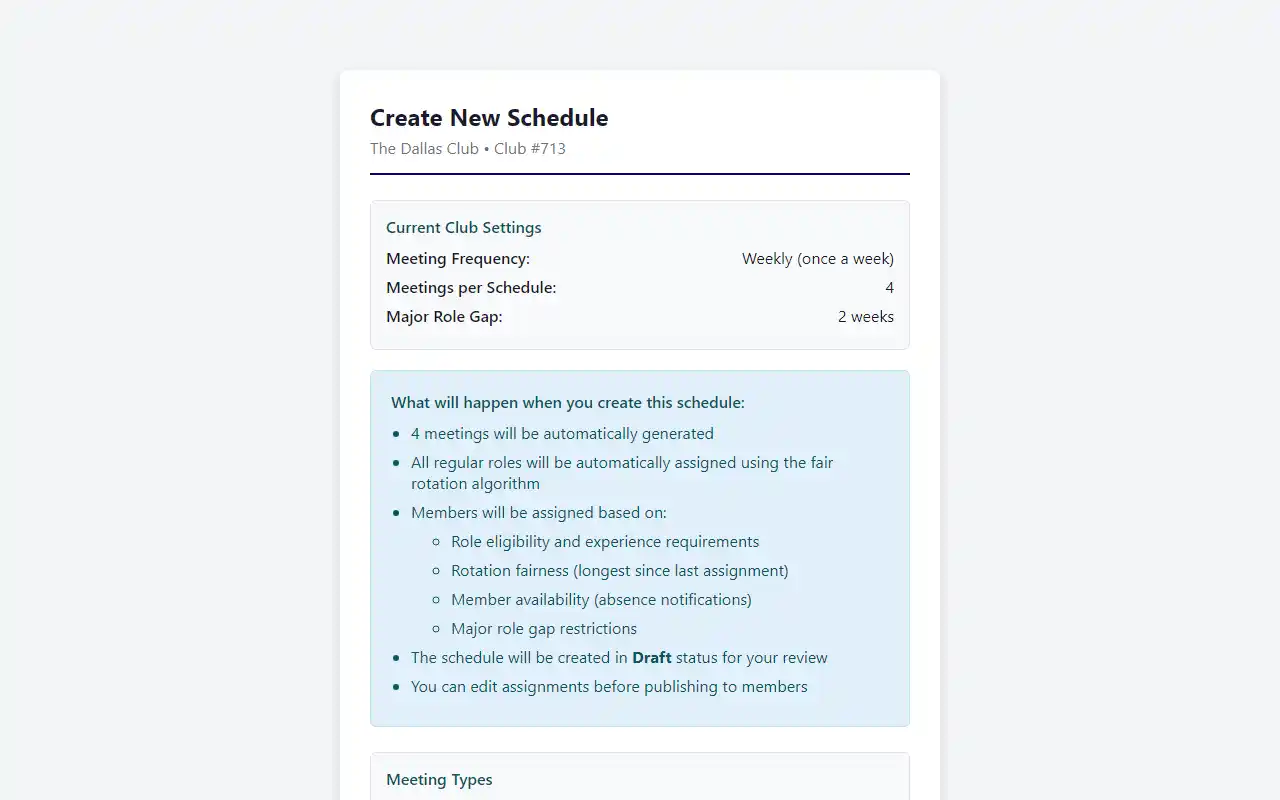
When you create a new schedule, you'll be asked if you want to customize meeting types:
- Click Create Schedule from your dashboard
- If you have meeting types configured, you'll see:
- "Will all meetings be regular?" with Yes/No options
- If you select Yes - All meetings use regular roles (standard behavior)
- If you select No - You'll be taken to a screen where you can assign types to each meeting date
Assigning Meeting Types to Dates
When you choose to customize meeting types:
- You'll see a list of all meeting dates in the schedule
- For each date, select the meeting type from the dropdown:
- Regular (all roles) - Uses all active club roles (default)
- [Your Meeting Types] - Uses the configuration you defined
- Use the Quick Actions buttons to set all meetings to a specific type at once
- Click Save & Continue to Schedule
Changing Meeting Types on Draft Schedules
While editing a draft schedule:
- Click the Meeting Types button at the top of the schedule edit page
- Adjust the meeting type for any date
- Save your changes
What happens: - For Modified Regular types: Existing assignments are preserved where possible, new roles are assigned automatically - For Special Events: That meeting's assignments are replaced. Any regular roles the type includes are filled again automatically; the custom slots start empty for you to assign by hand
Viewing Meeting Types on Schedules
On both draft and published schedules:
- Each meeting column header shows the meeting type badge
- Green badge = Modified Regular meeting type
- Orange badge = Special Event meeting type
- No badge = Regular meeting (uses all active roles)
Working with Special Events
Special Event meetings work differently from regular meetings:
Assigning Members to Special Events
Special Event meetings are edited right in the schedule grid:
- In the schedule grid, find the Special Event meeting column
- Regular roles the type includes appear in the normal rows, already filled by the algorithm
- Each custom slot appears as an extra shaded row labelled with the slot name and the meeting type's badge, filled only in its own meeting's column ("—" in other meetings)
- Assign members to the custom slots the same way you assign any role in the grid
On members' dashboards, custom slots show a Special Event badge with no Accept/Decline. Regular roles in a Special Event work like any other meeting. See Scheduling Special Event Meetings for details.
Event Admin Permission
When creating Special Event roles, you can mark certain slots as "Event Admin":
- Members assigned to Event Admin roles can change every assignment in that one meeting, custom slots and regular roles alike
- They can do this once the schedule is published, for upcoming meetings only, and never in other meetings
- This is useful for delegating contest management to a Contest Chair, for example
- Regular officers still have full editing access
Role History
- Regular roles in a Special Event count toward role history and fair rotation, like any meeting
- Custom slots never create role history entries, so they don't affect rotation fairness or members' "time since last role" counts
Understanding How the Algorithm Handles Meeting Types
Modified Regular Meetings
The automatic assignment algorithm works the same as regular meetings:
- Uses only the roles you've selected for that meeting type
- Uses the slot counts you've specified (not the role's default)
- Considers member eligibility, absences, and opt-outs
- Follows fair rotation based on role history
- Creates role history entries for fair future rotation
Special Event Meetings
When the algorithm encounters a Special Event meeting:
- Creates empty placeholder slots for each custom slot
- Fills any regular roles the type includes, using the same rules as any meeting (fair rotation, Speaker/Evaluator pairing, prerequisites, gaps between major roles, absences, and role restrictions)
- VP Education (or the Event Admin) assigns the custom slots by hand
- Regular roles create role history entries; custom slots never do
Mixed Schedules
When a schedule contains multiple meeting types:
- Each meeting is processed according to its own type
- A member assigned to roles in a Regular meeting is tracked normally
- A member in a Special Event's regular role (e.g., Speaker) is tracked normally
- A member in a Special Event custom slot is not counted
- Fair rotation calculations only consider trackable roles
Best Practices
Creating Effective Meeting Types
- Name clearly - Use names that immediately convey what the meeting is (e.g., "5-Speaker Night" instead of "Special Meeting 1")
- Start simple - Create one or two meeting types first, add more as needed
- Review regularly - Update meeting types if your club's needs change
- Document usage - Use the description field to note when each type should be used
Using Meeting Types in Schedules
- Plan ahead - Know which dates will be special before creating the schedule
- Use sparingly - Too many meeting type variations can confuse members
- Communicate - Let members know when a meeting will be different from usual
- Test first - Create a draft schedule to see how meeting types affect assignments
Managing Special Events
- Assign early - Fill custom slots well before the event date
- Use Event Admins - Delegate management to Contest Chairs or event organizers
- Let rotation fill regular roles - Add Speaker, Evaluator, and similar roles to the type instead of assigning them by hand
- Track custom slots externally - Since custom-slot history isn't tracked, keep your own records if needed
- Confirm custom slots manually - Reach out to members in custom slots, since assignment emails aren't sent for them
Tips
- Default meeting type - If most of your meetings are a custom type, set it as default to save time
- Slot counts matter - Adjusting slot counts affects how many members are assigned to each role
- Preview assignments - After setting meeting types, review the schedule before publishing
- Role order - For Special Events, arrange slots in the order they should appear on the schedule
- Quick actions - Use the "All Regular" and "All [Type]" buttons to quickly set all meetings when creating schedules
Troubleshooting
I don't see the Meeting Types option - Meeting Types is currently only available for Toastmasters clubs - Verify you're logged in as an officer - Check that your subscription is active
My meeting type doesn't show any roles - For Modified Regular: Make sure you've checked at least one role - For Special Events: Make sure you've added at least one slot - Verify your club has active roles configured
Members aren't being assigned to my Modified Regular meeting - Check that members are active and not absent for that date - Verify members haven't opted out of the selected roles - Ensure role prerequisites are met - Review the meeting type configuration for correct role selection
I can't change a meeting type from Modified Regular to Special Event - The category cannot be changed after creation - Create a new meeting type with the correct category - Delete the old meeting type if no longer needed
Assignments disappear when I change meeting types - Changing from one type to another may require reassignment - For Special Events, regular roles are refilled automatically; custom slots need to be assigned by hand - For Modified Regular, the algorithm reassigns if roles change significantly
Special Event members didn't get notification emails - Custom-slot assignments don't send assignment emails - Regular roles in a Special Event send them as usual - Use the email tools to notify members in custom slots