Recording Your Pathways Progress
Track your progress through the Toastmasters Pathways education program, including role completions, speech projects, and presentation requirements.
Before You Begin
- You must be a member of a Toastmasters club on The Club Schedule.
- You need to be enrolled in at least one Pathways path. If you have not enrolled yet, see Enrolling in a Path below.
- Your club must have an active subscription.
How Pathways Tracking Works
The Club Schedule tracks three types of progress toward completing your Pathways levels:
- Role completions -- Meeting roles like Timer, Evaluator, Table Topics Master, etc.
- Speech projects -- The speeches you deliver as a Speaker at meetings.
- Presentation completions -- Presentations from series like the Successful Club Series or Better Speaker Series.
Auto-Tracked vs. Manual Entries
- Auto-tracked roles: When you complete a meeting role (Timer, Evaluator, etc.) and it is recorded in your club's schedule, the system automatically counts it toward your current Pathways level requirements.
- Manual-only roles: Some roles like Specialized Role, Introductory Mentor, and Club Mentor are not part of the regular meeting schedule. You record these manually.
- Speech projects: Always recorded manually by you (or by an officer on your behalf).
- Presentations: Always recorded manually, since they are not part of the standard meeting schedule.
Enrolling in a Path
- Navigate to Pathways in the sidebar.
- Click Enroll in a New Path.
- Select your path from the list of available Pathways paths (e.g., Dynamic Leadership, Effective Coaching).
- Set your start date -- the date you began this path. This can be a past date if you are adding an existing enrollment.
- Set your current level (1-5) -- if you are partway through, select the level you are currently working on.
- Set your level start date -- when you started your current level.
- Click Enroll.
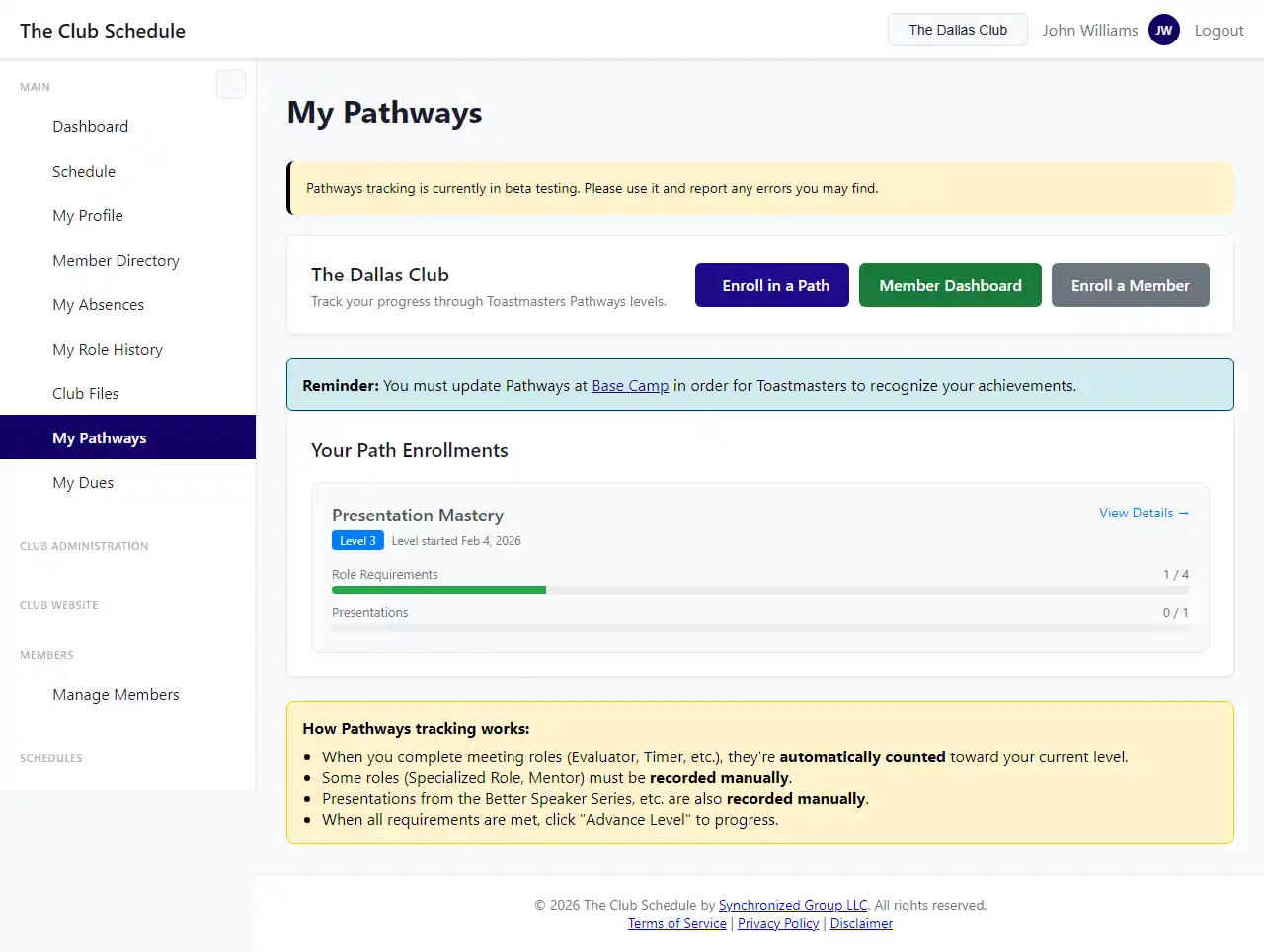
After enrolling, the system automatically scans your existing role history and counts any matching completions toward your current level. If completions are found, you will see a message telling you how many were backfilled.
Viewing Your Progress
- Navigate to Pathways in the sidebar.
- Your enrollments are listed with progress summaries showing how many role and presentation requirements you have completed for your current level.
- Click on an enrollment to see the Level Detail page.
Understanding the Level Detail Page
The level detail page shows:
- Role requirements -- Each required role with how many times you need to complete it. Completed requirements are marked with a checkmark.
- OR groups -- Some requirements are alternatives. For example, "Timer OR Ah-Counter" means completing either one satisfies the requirement. These are grouped together and labeled.
- Presentation requirements -- Required presentations from specific series, with completion counts.
- Speech projects -- Your speech project records for this level.
Recording Role Completions
Automatic Role Completions
Most role completions are recorded automatically. When your club officer marks a schedule as complete, the system:
- Checks your current Pathways level requirements.
- Matches any roles you completed in that meeting.
- Creates completion records automatically.
You do not need to do anything for these -- they appear on your level detail page as they are recorded.
Manual Role Completions
For roles that are not on the regular meeting schedule:
- Go to your Level Detail page.
- Find the manual-only role requirement (marked with a special indicator).
- Click the Record button next to it.
- Enter the completion date (cannot be a future date).
- Optionally add notes about the completion.
- Click Submit.
Recording Speech Projects
Speech projects track the actual speeches you deliver as a Speaker at meetings.
Adding a Speech Project
- Go to your Level Detail page.
- Click Add Speech Project.
- Fill in the details:
- Project number -- The project number within the level (1, 2, 3, etc.).
- Project name -- The name of the project (e.g., "Icebreaker", "Evaluation and Feedback").
- Speech title -- The title of your speech (e.g., "The Power of Persistence").
- Requested time -- The time you need for your speech (e.g., "5-7 minutes").
- Meeting -- Optionally link the speech to a specific meeting on the schedule.
- Speech date -- The date you delivered (or plan to deliver) the speech.
- Notes -- Any additional notes.
- Click Save.
Editing or Deleting a Speech Project
- Go to your Level Detail page.
- Find the speech project you want to modify.
- Click Edit to update details, or Delete to remove it.
Note
Linking a speech project to a meeting allows your Toastmaster and officers to see your speech details (title, project, requested time) when preparing for the meeting.
Recording Presentation Completions
- Go to your Level Detail page.
- Click Record Presentation.
- Select the presentation series (e.g., Successful Club Series, Better Speaker Series).
- Select the specific presentation you delivered from that series.
- Enter the presentation date (cannot be a future date).
- Optionally add notes.
- Click Submit.
Advancing to the Next Level
When all requirements for your current level are met:
- The level detail page shows that all role and presentation requirements are satisfied.
- Click the Advance to Next Level button.
- Your enrollment moves to the next level, and you can begin tracking progress on new requirements.
If you complete Level 5, your path is marked as completed.
Unenrolling from a Path
If you need to stop tracking a path:
- Navigate to Pathways in the sidebar.
- Go to your enrollment's detail page.
- Click Unenroll.
- Your progress is saved (not deleted). If you re-enroll later, you can pick up where you left off.
Transferring History from Another Club
If you have completed requirements at a different club, you can record transfer completions:
- Go to your Level Detail page.
- Use the Transfer History option.
- Enter the role or presentation completions from your previous club with the appropriate dates.
Tips
- Enroll with a past start date if you have been working on a path before joining The Club Schedule. The system will scan your existing role history and automatically count any matching completions.
- Link speech projects to meetings so your Toastmaster can see your speech title and requested time when planning the agenda.
- Check your progress regularly after meetings. Auto-tracked role completions appear once the schedule is marked complete.
- OR group requirements give you flexibility. You only need to complete one of the alternatives in the group, not all of them.
- Officers can also record completions on behalf of members if needed.
Troubleshooting
| Problem | Solution |
|---|---|
| My role completion was not auto-tracked | Auto-tracking happens when the schedule is marked complete. Check with your club officer. Also verify that the role name matches the requirement exactly. |
| "Requirement already satisfied" message | You have already completed this requirement the required number of times. No additional completion is needed. |
| I cannot see the Pathways section | Pathways tracking is only available for Toastmasters clubs. If your club is configured as a different organization type, this feature will not appear. |
| My backfill did not find any completions | Backfill only looks at role history from your start date forward. If your completions were before the start date you entered, try re-enrolling with an earlier date. |
| I completed Level 5 but it still shows as active | Click the Advance button to finalize the completion. The system does not auto-advance levels. |