Track and Manage Club Visitors
Learn how to use the Visitor Tracking dashboard to follow up with people who express interest in your club through your club website's contact form.
Note: Only club officers (President, VP Education, Secretary, or Admin) can access the Visitor Tracking dashboard.
Before You Begin
- You must be a club officer with an active subscription
- Your club website must be set up and published (see Create a Free Website for Your Club)
- Visitors submit their information through the contact form on your website's Visit Us page
How Visitors Enter the System
When someone visits your club's website and fills out the "Let Us Know You're Coming" form on the Visit Us page, the following happens:
- The visitor enters their first name, last name, email, and optionally their phone number and a message or question
- They agree to the Privacy Policy (required) and can opt in to receive meeting reminders if marketing emails are enabled
- They click "Let Us Know You're Visiting"
- A new visitor record is created in your Visitor Tracking dashboard with the status New
- Officers who have email notifications enabled receive an alert about the new submission
You do not need to enter visitors manually. They come in automatically from your website.
Accessing the Visitor Dashboard
- Log in as a club officer
- In the left sidebar, expand the Club Website section
- Click Visitors
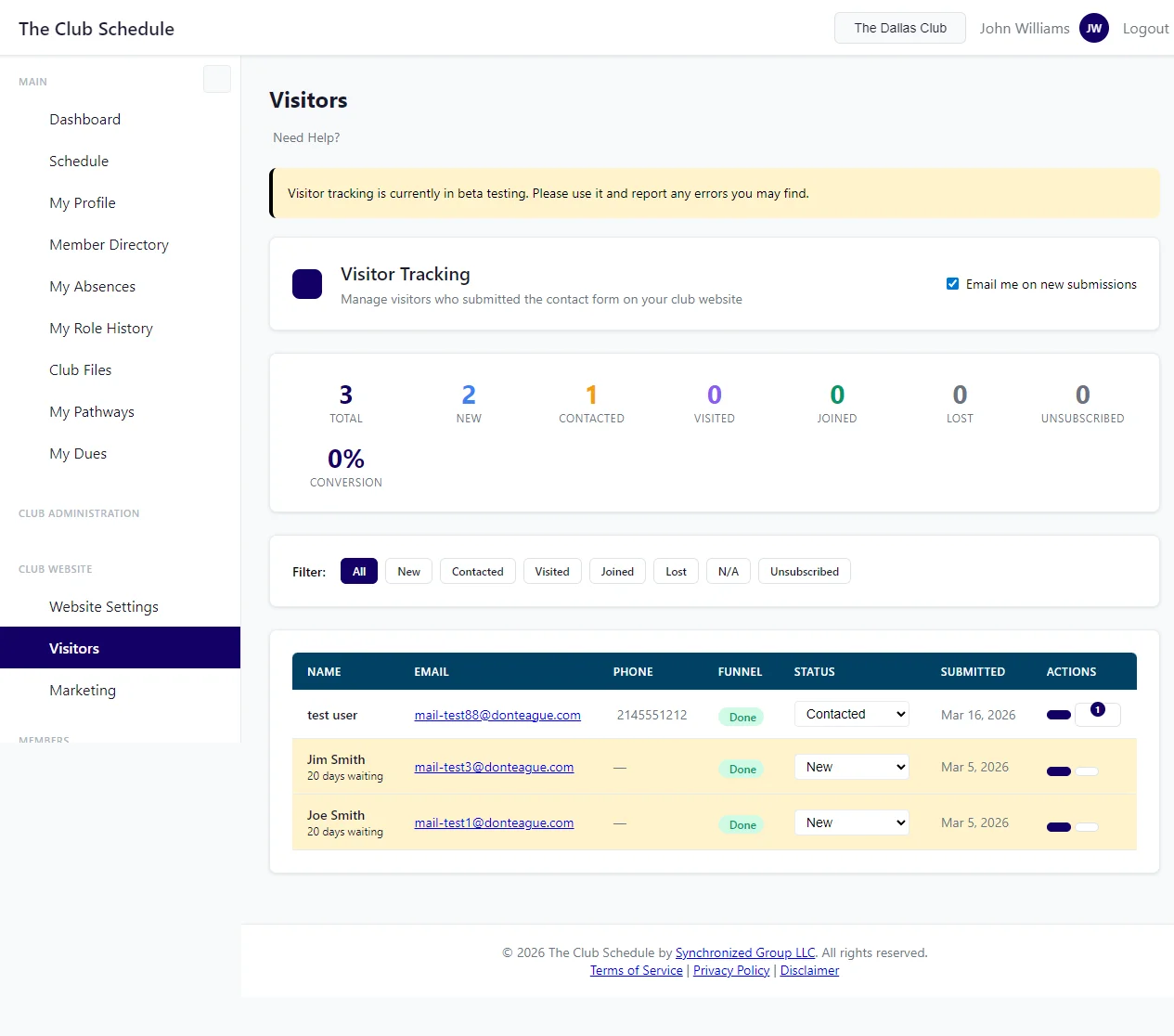
Understanding the Funnel Statistics
At the top of the Visitors page, you will see a row of numbers showing your visitor pipeline at a glance:
| Metric | What It Shows |
|---|---|
| Total | All visitors who have ever submitted the form |
| New | Visitors who have not been contacted yet |
| Contacted | Visitors you have reached out to |
| Visited | Visitors who have attended a meeting |
| Joined | Visitors who became members |
| Lost | Visitors who are no longer interested or unreachable |
| Conversion | Percentage of visitors who joined (excludes N/A visitors from the calculation) |
These numbers update automatically as you change visitor statuses.
Visitor Pipeline Statuses
Each visitor has a status that tracks where they are in the process of potentially joining your club:
New
The visitor has submitted the contact form but no one has reached out yet. Visitors who have been waiting more than 3 days are highlighted with a yellow background and a "days waiting" badge to help you prioritize follow-up.
Contacted
An officer has reached out to the visitor (by email, phone, or other means). When you change a visitor to this status, the system automatically records the date and which officer made the change.
Visited
The visitor has attended a meeting. When you set this status, the system records the visit date.
Joined
The visitor has become a member of your club. When you set this status, the system records the join date.
Lost
The visitor is no longer interested, unreachable, or otherwise will not be joining. Use this for visitors who stopped responding or explicitly said they are not interested.
N/A (Not Applicable)
For submissions that are not real visitors -- spam, duplicate entries, or people who submitted by mistake. N/A visitors are hidden from the default list view and excluded from your conversion rate calculation.
Managing Visitors
Changing a Visitor's Status
- Find the visitor in the list
- Use the status dropdown in the Status column
- Select the new status
- The change saves automatically (no need to click a save button)
The row will briefly flash green to confirm the change was saved.
Adding Notes
Keep track of conversations, follow-up plans, or other details about each visitor:
- Click the notes button (sticky note icon) in the Actions column next to any visitor
- A notes area expands below the visitor's row
- Type your notes in the text area
- Click Save
Notes are visible only to officers -- visitors cannot see them.
If the visitor has been contacted, you will also see the contact date and which officer made the contact below the notes area.
Filtering by Status
To see only visitors with a specific status:
- Use the filter buttons near the top of the page
- Click any status button (All, New, Contacted, Visited, Joined, Lost, N/A) to filter the list
- Click All to return to the full list
By default, the list shows all visitors except those marked as N/A. You can see N/A visitors by clicking the N/A filter button.
Inviting a Visitor to Join Your Club
When a visitor is ready to join, you can send them a club invitation directly from the Visitor Tracking page:
- Click the invite button (person-plus icon) in the Actions column
- You will be taken to the member invitation page with the visitor's name and email pre-filled
- Review the information and click Send Invitation
This saves you from retyping the visitor's details. The visitor will receive an invitation email with a link to create their account and join your club.
See Inviting New Members for more details on the invitation process.
Email Notifications for New Visitors
Each officer can individually choose whether to receive an email alert when a new visitor submits the contact form.
Enabling or Disabling Notifications
- Go to the Visitors page
- In the top-right corner of the header, find the "Email me on new submissions" checkbox
- Check the box to receive notifications, or uncheck it to stop receiving them
- The change saves automatically
What the notification email includes: - Visitor's name - Visitor's email address - A reminder to manage visitors in The Club Schedule
Notifications are sent only to officers who have this setting enabled. By default, this setting is off for new officers.
Understanding the Visitor List
The visitor list displays the following information for each visitor:
| Column | What It Shows |
|---|---|
| Name | First and last name. If the visitor is New and has been waiting more than 3 days, a red "X days waiting" badge appears below their name |
| Clickable email link (opens your email client) | |
| Phone | Visitor's phone number (if provided). Shows a dash if not provided |
| Funnel | Shows whether the visitor has an active marketing email sequence |
| Status | Dropdown to change the visitor's current pipeline status |
| Submitted | Date the visitor submitted the contact form |
| Actions | Invite button (send club invitation) and Notes button (view/edit notes) |
The list is sorted with the most recent submissions at the top.
A Typical Visitor Workflow
Here is a common workflow for managing a visitor from first contact to membership:
- Visitor submits the form -- Status: New. You receive an email notification (if enabled).
- Reach out within 1-3 days -- Send them a welcome email or call them. Change status to Contacted.
- They attend a meeting -- After they visit, change status to Visited. Add notes about the visit.
- They decide to join -- Change status to Joined. Click the invite button to send them a club invitation.
- Or they decide not to join -- Change status to Lost if they are no longer interested.
The 3-day warning badge on New visitors helps you stay on top of follow-ups. Reaching out quickly makes a strong first impression.
Tips
- Follow up quickly -- Visitors who hear back within 1-2 days are more likely to attend a meeting. Watch for the "days waiting" badge on New visitors
- Use notes -- Record details from phone calls or emails so other officers can see the history. Include things like what date they plan to visit or what interested them in the club
- Check the dashboard regularly -- Make it a habit to check the Visitors page at least once a week
- Coordinate with other officers -- If your club has multiple officers, decide who is responsible for visitor follow-up to avoid duplicating outreach or missing someone
- Use the one-click invite -- When a visitor is ready to join, the invite button pre-fills their information and saves you time
- Clean up periodically -- Mark old, unresponsive visitors as Lost or N/A to keep your pipeline accurate and your conversion rate meaningful
- Review visitor messages -- When a visitor submits a message through the contact form, it is automatically saved as a note on their record. Review these to understand what visitors are looking for and tailor your follow-up
Troubleshooting
I do not see the Visitors option in the sidebar - This feature is available when the Club Website feature is enabled - Your club website must be set up first (even if not yet published)
I am not receiving email notifications for new visitors - Check that the "Email me on new submissions" checkbox is checked on the Visitors page - Notifications are per-officer -- each officer must enable it individually - Check your spam or junk folder for emails from The Club Schedule - Verify your email address is correct in your account settings
A visitor submitted the form but does not appear in my list - The default view hides visitors with N/A status. Click All in the filter bar to see every visitor - If the visitor still does not appear, the form submission may have been caught by spam protection. The contact form includes a honeypot field and rate limiting (5 submissions per hour per IP address) to prevent spam
I changed a visitor's status but the page did not update - The status change is saved via a background request. If the row did not flash green, try refreshing the page - Check your internet connection - If the issue persists, try changing the status again
I want to add a visitor manually (not from the website form) - The Visitor Tracking system currently only accepts submissions from the website contact form - You cannot add visitors manually through the interface
The conversion rate seems wrong - The conversion rate is calculated as: Joined / (Total - N/A) x 100 - Visitors marked as N/A are excluded from the calculation - Make sure spam entries and non-visitors are marked as N/A rather than Lost