Set Up and Customize Your Club Website
A complete guide to every setting on the Club Website configuration pages, including how to publish, unpublish, and preview your website.
Note: Only club officers (President, VP Education, Secretary, or Admin) can manage website settings.
Before You Begin
- You must be a club officer with an active subscription
- Your club settings should be up to date (meeting day, time, location, format) -- the website pulls from these
- Having a published schedule helps, since the website displays your next meeting and speakers
Accessing Website Settings
- Log in as a club officer
- In the left sidebar, expand the Club Website section
- Click Website Settings
If this is your first time, you will see a "Set Up Your Club Website" page. If you have already created a website, you will see "Manage Club Website" with your current settings.
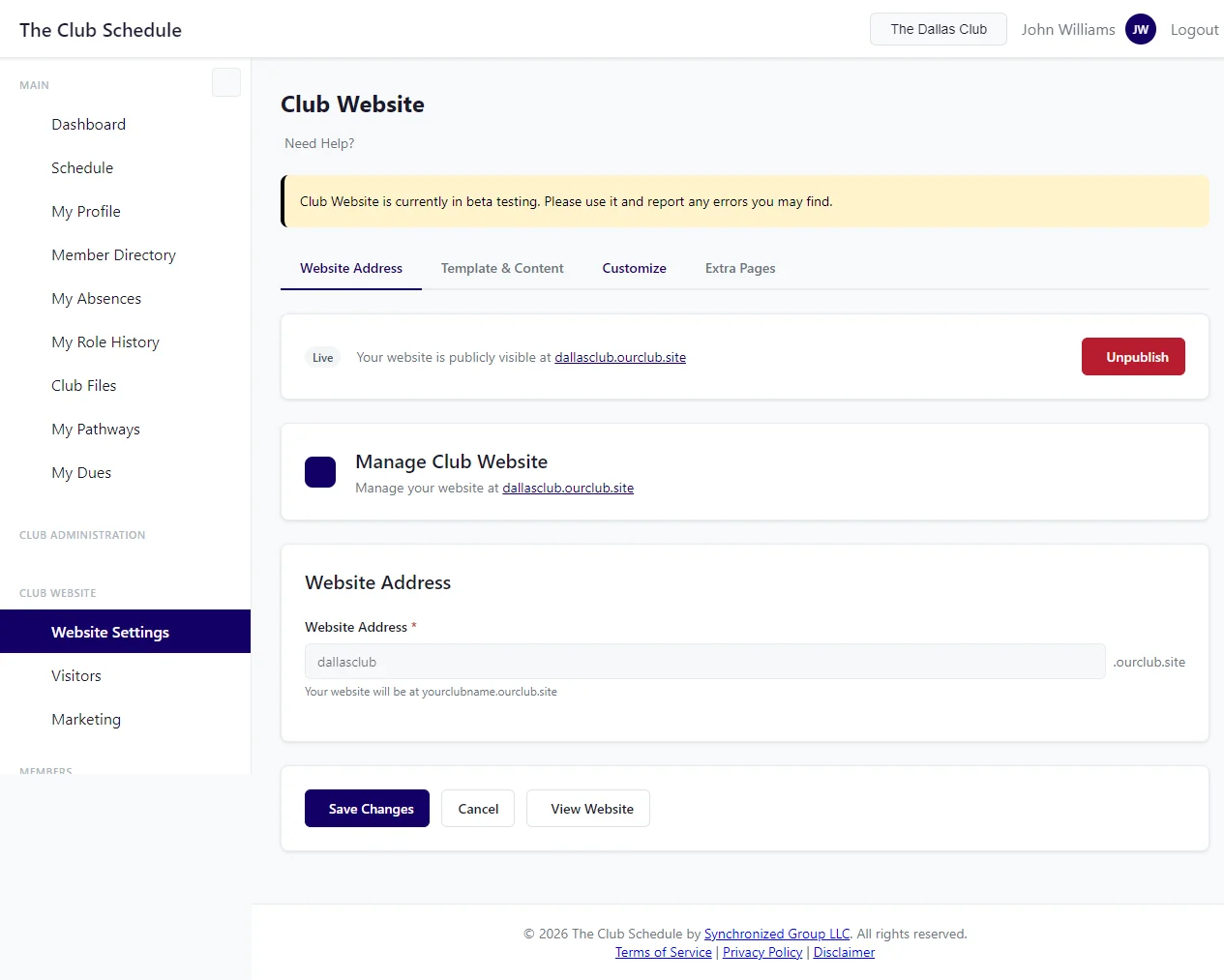
Website Settings Tabs
Website settings are organized into four tabs, accessed through a horizontal tab bar at the top of the page:
| Tab | URL | What It Contains |
|---|---|---|
| Website Address | /club/website/ |
Subdomain, website status, publish/unpublish |
| Template & Content | /club/website/content/ |
Hero tagline, hero image, about text, announcements, visitor info |
| Customize | /club/website/customize/ |
Highlight cards, social media links |
| Extra Pages | /club/website/pages/ |
Club stats page, schedule page, club leadership |
Each tab has its own Save Changes button, so you can save settings on one tab without affecting the others.
First-time setup: When you are creating a website for the first time, only the Website Address tab is visible. After you save your website address, all four tabs appear.
Website Address
Tab: This section is on the Website Address tab (
/club/website/).
The website status badge and publish/unpublish button are displayed at the top of this tab, above the address field. See Publishing and Unpublishing for details.
Your website address is the subdomain that visitors will use to find your club. For example, if you choose bigdtoastmasters, your website will be at bigdtoastmasters.ourclub.site.
Choosing a Subdomain
- Type your desired address in the Website Address field
- The
.ourclub.sitesuffix is added automatically
Subdomain rules:
- Only letters, numbers, and hyphens are allowed
- Cannot start or end with a hyphen
- Must be unique (no other club can have the same address)
- Some common names are reserved (like www, admin, help)
Tips for choosing a good address:
- Use your club's name or a recognizable abbreviation
- Keep it short and easy to type
- Avoid special characters -- stick to letters and hyphens
- Example: sunrise-toastmasters or bigdtm
Once you save your website, you can still change the subdomain later by editing this field and saving again.
Hero Tagline
Tab: This section and the sections that follow (through Visitor Information) are on the Template & Content tab (
/club/website/content/).
The Hero Tagline is a punchy one-liner displayed under the hero heading on your home page. It appears prominently at the top of the website, so keep it short and engaging.
Leave this field blank to use an auto-generated default based on your meeting schedule (something like "Yourclub welcomes guests every Wednesday evening. No RSVP required -- just show up.").
Example taglines: - "Where future leaders find their voice" - "Every Wednesday, we turn nervous speakers into confident communicators" - "Practice. Grow. Lead."
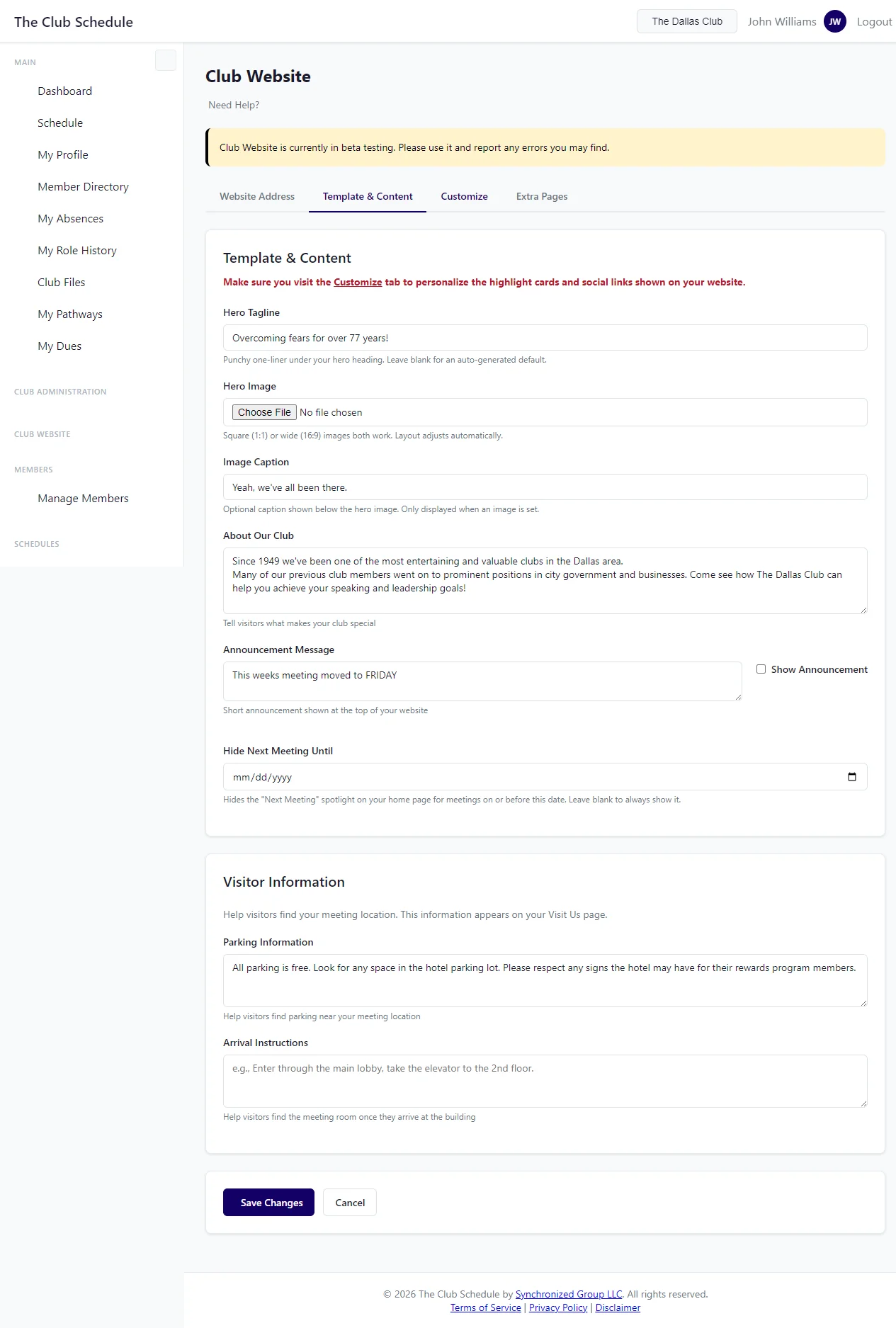
Hero Image
Upload a photo to display in the hero section of your home page. A good hero image makes your website feel personal and inviting.
- Square (1:1) or wide (16:9) images both work -- the layout adjusts automatically
- Images are automatically converted to WebP format for fast loading
- Leave blank to show a text-only hero section (the heading and tagline are centered)
Tips for a good hero image: - A photo of your club meeting in action works well - Group photos at events or celebrations are inviting - Make sure the image is well-lit and not blurry
Image Caption
An optional caption shown below the hero image. Only displayed when a hero image is set.
Example: "Members at our 2024 holiday meeting"
About Our Club
The About Our Club text appears on your home page in the About section. This is your chance to tell visitors what makes your club special.
What to include: - A brief description of your club (1-3 paragraphs works well) - What makes your meetings unique - Who your club is for - How long you have been meeting
Example:
We are a supportive community of professionals who meet every Wednesday to practice public speaking, develop leadership skills, and build confidence. Whether you are preparing for a big presentation or just want to become a better communicator, you will find a welcoming group here ready to help you grow.
Leave this field blank if you prefer not to show an about section on the home page.
Announcement Banner
The announcement banner displays a short message at the top of your website. It is useful for temporary notices like schedule changes, special events, or holiday closures.
Setting Up an Announcement
- Type your message in the Announcement Message field
- Check the Show Announcement checkbox
- Click Save Changes
Example messages: - "We're dark the week of July 4th" - "Join us for our annual speech contest on March 15th!" - "New meeting location starting January -- see Visit Us page for details"
Hiding an Announcement
To remove the banner without deleting the text:
- Uncheck the Show Announcement checkbox
- Click Save Changes
The message text is preserved, so you can re-enable it later without retyping.
Hide Next Meeting Until
The Hide Next Meeting Until setting lets you temporarily suppress the "Next Meeting" spotlight on your home page. This is useful when your club has a gap in meetings (for example, during a holiday break) and you do not want the website to show an outdated or incorrect next meeting.
How It Works
- Set a date in the Hide Next Meeting Until field
- Meetings on or before that date will not appear in the "Next Meeting" spotlight
- Meetings after that date will display normally
- Leave blank to always show the next upcoming meeting
Example
Your club is dark for the last two weeks of December. Your next real meeting is January 8th. Set "Hide Next Meeting Until" to December 31. The website will skip any meetings on or before December 31 and show January 8th as the next meeting.
Visitor Information
The Parking Information and Arrival Instructions fields appear on your website's Visit Us page. They help visitors find your meeting location and know what to do when they arrive.
Parking Information
Describe where visitors can park.
Example: "Free parking in the lot behind the building. Enter from Oak Street."
Arrival Instructions
Explain how to get from the parking area or building entrance to the meeting room.
Example: "Enter through the main lobby, take the elevator to the 2nd floor, and turn right. We meet in Conference Room B."
Both fields are optional. If you leave them blank, the Visit Us page will still show your meeting address and time from your club settings.
Highlight Cards
Tab: This section and Social Media Links below are on the Customize tab (
/club/website/customize/).
Four stat cards are displayed in the About section of your home page, giving visitors a quick snapshot of your club. Each card has a Number field (the bold statistic) and a Text field (a short description).
Leave all fields blank to use auto-generated defaults based on your meeting schedule. The defaults vary by club, but look something like:
| Card | Default Number | Default Text |
|---|---|---|
| Card 1 | "52x" (weekly), "26x" (biweekly), or "12x" (monthly) | "meetings per year -- practice makes progress" |
| Card 2 | "Free" | "to visit -- come as many times as you like" |
| Card 3 | Your meeting time (e.g., "6:30 PM") | Your meeting day and period (e.g., "Wednesday evenings") |
| Card 4 | An infinity symbol | "bad jokes from the Toastmaster of the Day" |
To customize, fill in your own values. Examples:
- "25+" / "active members ready to help you grow"
- "1987" / "the year we were chartered"
- "#1" / "club in our area"
Fill in all four cards or leave all four blank. Partially filled cards use auto-generated defaults for the blank ones.
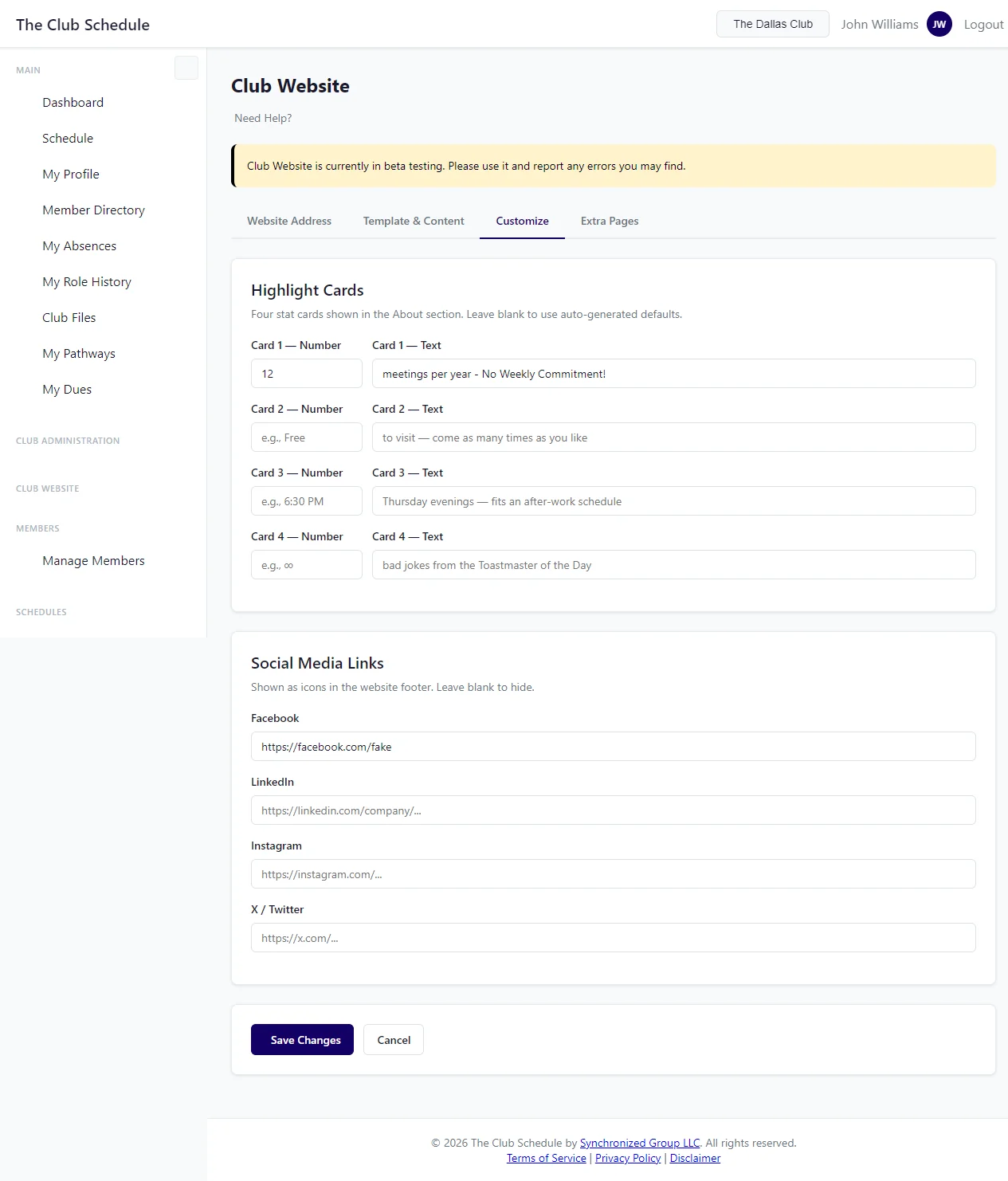
Social Media Links
Social media URLs are shown as icons in the website footer. Leave a field blank to hide that icon.
Four platforms are supported:
- Facebook -- Your club's Facebook page or group URL
- LinkedIn -- Your club's LinkedIn page URL
- Instagram -- Your club's Instagram profile URL
- X / Twitter -- Your club's X (Twitter) profile URL
Enter the full URL including https:// (for example, https://www.facebook.com/groups/yourclub).
Club Stats Page and Schedule Page
Tab: This section and the Club Leadership section below are on the Extra Pages tab (
/club/website/pages/).
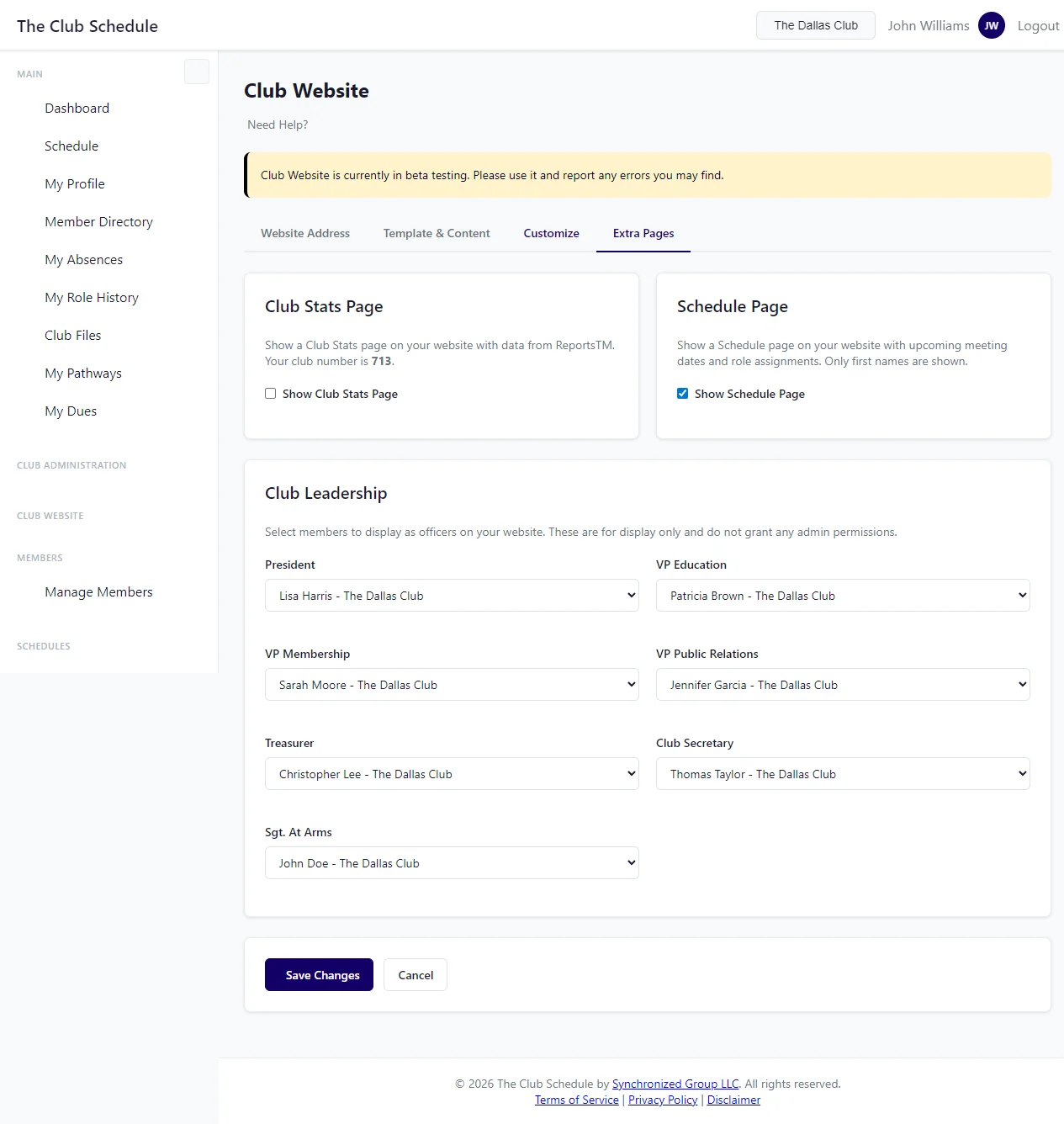
The Extra Pages tab includes two toggles that add optional pages to your website:
- Club Stats Page -- Displays your club's Toastmasters performance statistics. This toggle is only available if your club has a club number set in Club Settings. When enabled, visitors can see your club's membership and achievement data.
- Schedule Page -- Displays your current published meeting schedule on the website, so visitors can see upcoming meeting roles and speakers.
To enable either page:
- Go to the Extra Pages tab
- Toggle the page on
- Click Save Changes
When a page is toggled off, it is hidden from your website navigation and not accessible to visitors.
Club Leadership Display
Tab: This section is on the Extra Pages tab (
/club/website/pages/).
The Club Leadership section lets you select which members to display as officers on your website's home page. This is for display purposes only -- selecting a member here does not grant them any permissions in The Club Schedule.
Available Officer Positions
You can select a member for each of these seven positions:
- President
- VP Education
- VP Membership
- VP Public Relations
- Treasurer
- Club Secretary
- Sgt. At Arms
Setting Up Officer Display
- For each position, select a member from the dropdown
- Choose "-- None --" to leave a position empty (it will not appear on the website)
- Click Save Changes
Only active members of your club appear in the dropdown lists.
Important: These selections are separate from the officer roles in The Club Schedule (President, VP Education, Secretary, Admin). Changing officer display on the website does not affect who has admin permissions in the app, and vice versa. Update these selections when your club elects new officers.
Publishing and Unpublishing
Website Status
After you create your website, it starts in Draft mode. While in draft mode, your website is not publicly visible. You must publish it to make it live.
The status badge and publish/unpublish button are located at the top of the Website Address tab. The current status is displayed as: - Live (green badge) -- Your website is publicly visible - Draft (yellow badge) -- Your website is not published
Publishing Your Website
- Make sure you have saved your settings on each tab (each tab saves independently)
- Go to the Website Address tab
- At the top of the tab, click Publish Website
- You will see a confirmation: "Your website is now live at yourname.ourclub.site"
Once published: - Anyone can visit your website at your chosen address - Your club appears in the OurClub.site directory - The visitor contact form is active and submissions will appear in your Visitor Tracking dashboard
Unpublishing Your Website
To take your website offline:
- Go to the Website Address tab
- At the top of the tab, click Unpublish Website
- Confirm when prompted: "Unpublish your website? It will no longer be visible to visitors."
- You will see: "Your website has been unpublished."
When unpublished: - Visitors will see a "not available" page - Your club is removed from the directory - Your settings and content are preserved -- you can republish at any time
Previewing Your Website
When your website is live, a View Website button appears in the action buttons area. Click it to open your public website in a new tab.
Tips
- Save each tab before publishing -- Each tab saves independently. Make sure you click "Save Changes" on every tab where you made edits before publishing on the Website Address tab
- Upload a hero image -- A photo of your club in action makes the website feel personal and inviting. Square or wide aspect ratios both work
- Personalize your highlight cards -- Custom highlight cards with real numbers (like your member count or founding year) make a stronger impression than the auto-generated defaults
- Add your social links -- If your club has a Facebook group or Instagram page, add the URLs on the Customize tab so visitors can find you on social media
- Preview in multiple browsers -- Check how your website looks on both desktop and mobile devices
- Update seasonally -- Review your about text and announcement banner every few months to keep content fresh
- Coordinate with schedule publishing -- Your website looks best when you have a current published schedule. Try to publish a new schedule before the old one ends
- Keep parking info current -- If your meeting location changes, remember to update the parking and arrival instructions
- Use announcements sparingly -- A permanent banner can become background noise. Use it for time-sensitive information and turn it off when the event has passed
Troubleshooting
I saved my settings but the website still shows old content - Make sure you clicked Save Changes on the correct tab -- each tab saves independently - If you changed club settings (meeting time, location), those changes are saved separately on the Club Settings page - Try refreshing your website in a new browser tab
My website address is taken
- Another club is already using that subdomain
- Try a variation: add your city, abbreviate your club name, or add a hyphen
- Example: if sunrise is taken, try sunrise-tm or sunrise-toastmasters
I do not see the Club Website option in the sidebar - Contact support if you believe this is an error
My officers are not showing on the website - Make sure you selected members in the Club Leadership section on the Extra Pages tab and clicked Save Changes - Only active members appear in the dropdowns -- verify the member is active - Positions set to "-- None --" are not displayed
The "Next Meeting" section is not showing - Check if you have a published schedule with upcoming meetings - Check the Template & Content tab -- the "Hide Next Meeting Until" field may have a date set that is hiding the meeting - Clear the "Hide Next Meeting Until" field on the Template & Content tab and save to always show the next meeting
My parking info and arrival instructions are not showing - These appear on the Visit Us page, not the home page - Make sure you saved the Visitor Information section on the Template & Content tab - Your website must be published for visitors to see these
My highlight cards are not showing custom values - Make sure you saved changes on the Customize tab -- each tab saves independently - If you left all fields blank, auto-generated defaults are used based on your meeting schedule
My social media icons are not showing in the footer
- Enter the full URL including https:// on the Customize tab and click Save Changes
- Fields left blank are hidden from the footer