Create a Free Website for Your Club
Learn how to give your club an auto-updating public website on OurClub.site, complete with visitor tracking, at no additional cost.
Note: Only club officers (President, VP Education, Secretary, or Admin) can set up and manage the club website.
What Is the Club Website?
The Club Website feature gives your club a free, professional public website on OurClub.site. Your website automatically stays up to date with information from The Club Schedule -- when you publish a new schedule, update your club settings, or change officer assignments, your public website reflects those changes without any extra work.
Your website address will look like: yourclubname.ourclub.site
What Visitors See on Your Website
Your public website includes several pages. The Home Page and Visit Us page are always present, with optional pages for your schedule and club stats.
Home Page
- A hero section with your club name, a tagline, and an optional hero image
- A "Next Meeting" badge showing the date and time
- A "What to Expect" section explaining what happens at a first visit
- Meeting details (when, where, format)
- Your "About Our Club" description with highlight cards (four customizable stat cards)
- Club leadership (officers you choose to display)
- An announcement banner (if you have one active)
- Social media links in the footer (if configured)
Schedule Page (optional)
- Upcoming meetings from your published schedule
- Role assignments for each meeting (first names and roles)
- Automatically updates when you publish a new schedule
Visit Us Page
- Meeting details (day, time, format, location)
- Parking and arrival instructions (if you have provided them)
- A step-by-step "Here's What Happens" guide for first-time visitors
- A contact form where visitors can submit their name, email, phone (optional), and a message
When a visitor fills out the contact form, they appear in your Visitor Tracking dashboard inside The Club Schedule. See Track and Manage Club Visitors for details.
How Auto-Updating Works
Your club website pulls information directly from The Club Schedule. You do not need to update the website separately -- it stays current automatically:
| What Updates | Where It Comes From | When It Changes |
|---|---|---|
| Next meeting date and speakers | Your published schedule | When you publish a new schedule |
| Meeting day, time, and location | Club Settings | When you update club settings |
| Meeting format (in-person, online, hybrid) | Club Settings | When you update club settings |
| Zoom link | Club Settings | When you update club settings |
| Upcoming schedule and role assignments | Your published schedule | When you publish a new schedule |
| Hero tagline and hero image | Website settings (Template & Content tab) | When you save website changes |
| Highlight cards | Website settings (Customize tab) | When you save website changes |
| Social media links | Website settings (Customize tab) | When you save website changes |
| Officer names | Website settings (Extra Pages tab) | When you change officer selections |
| About text and announcements | Website settings (Template & Content tab) | When you save website changes |
Key point: The most important thing you can do is keep your schedules published and your club settings accurate. Your website takes care of the rest.
Quick Start: Set Up Your Website in 5 Steps
Step 1: Open Website Settings
- Log in to The Club Schedule as a club officer
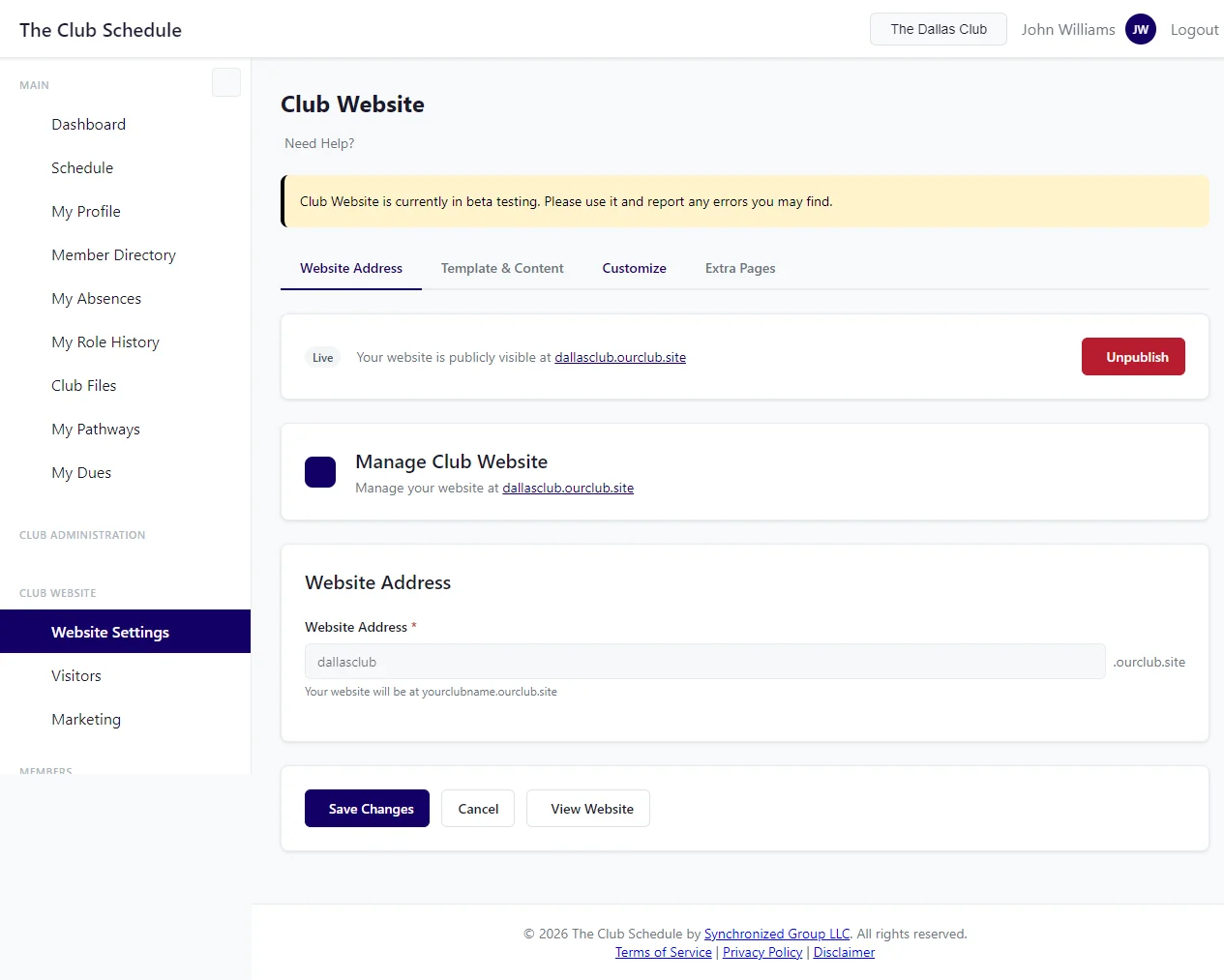
- In the left sidebar, expand the Club Website section
- Click Website Settings
Step 2: Choose Your Web Address
- In the Website Address field, type the subdomain you want (for example,
bigdtoastmasters) - Your full address will be:
yourname.ourclub.site
Only letters, numbers, and hyphens are allowed. The address cannot start or end with a hyphen.
Step 3: Add Your Content
- Go to the Template & Content tab
- Optionally add a Hero Tagline (or leave blank for an auto-generated default)
- Optionally upload a Hero Image -- a photo of your club makes the website inviting
- Write a short About Our Club description
- Optionally add an Announcement Message and check "Show Announcement" to display it
- Visit the Customize tab to personalize your highlight cards and social media links
Step 4: Save Your Settings
- Fill in any additional sections you want (parking info, arrival instructions, officer display)
- Click Create Website (or Save Changes if editing)
Your website is saved in draft mode. It is not publicly visible yet.
Step 5: Publish Your Website
- Go to the Website Address tab
- At the top of the page, click Publish Website
- Your website is now live at your chosen address
You will see a confirmation message: "Your website is now live at yourname.ourclub.site"
What Happens After You Publish
Once your website is live:
- Visitors can find you at your ourclub.site address
- Search engines can index your website (a sitemap is automatically generated)
- Your club appears in the OurClub.site club directory at ourclub.site, where anyone can browse and search for clubs by state
- Visitor contact form submissions appear in your Visitor Tracking dashboard
- Content stays current as you publish schedules and update club settings
You can unpublish your website at any time to take it offline, and republish whenever you are ready.
The Club Directory
All published club websites are listed in a searchable directory at ourclub.site. Visitors can:
- Browse all active clubs
- Filter by state
- See each club's name, city, state, meeting day, time, and format
- Click through to visit any club's website
Your club is automatically added to the directory when you publish your website and removed when you unpublish.
Tips
- Publish a schedule first -- Your website looks best when there is a published schedule to pull meeting and speaker data from
- Fill in your club settings -- Make sure your meeting day, time, location, and format are accurate in Club Settings. The website pulls from these fields
- Upload a hero image -- A good photo of your club in action makes the website feel personal and inviting
- Personalize your highlight cards -- Custom highlight cards with real numbers (like your member count or founding year) make a stronger impression than the defaults
- Add your social links -- If your club has a Facebook group or Instagram page, add the URLs on the Customize tab so visitors can find you
- Keep it simple -- A short, welcoming "About Our Club" paragraph is more effective than a long essay
- Check your website -- After publishing, click "View Website" to see how it looks to visitors
- Update officers -- When your club elects new officers, update the officer selections on the website settings page
Next Steps
- Set Up and Customize Your Club Website -- Detailed guide to every website setting
- Track and Manage Club Visitors -- Learn to use the visitor tracking CRM
- Club Settings Overview -- Make sure your meeting details are accurate
- Creating and Publishing Schedules -- Keep your website up to date by publishing schedules