Inviting New Members
Learn how to invite new members to join your club on The Club Schedule.
Note: Only club officers (President, VP Education, Secretary, or Admin) can invite new members.
Before You Begin
- You must be a club officer
- Your club must have an active subscription
- Have the email addresses of the people you want to invite ready
Understanding Member Invitations
When you invite someone to join your club:
- They receive an email invitation with a secure link
- They click the link to create their account
- They set up their profile and contact preferences
- They automatically join your club
- You can then assign them roles and include them in schedules
Invitation Expiration: Invitations expire after 14 days. You can resend expired invitations.
How to Invite a New Member
Step 1: Access the Invitation Tool
- Log in as a club officer
- Click Manage Members from your dashboard
- Click the Invite New Member button at the top
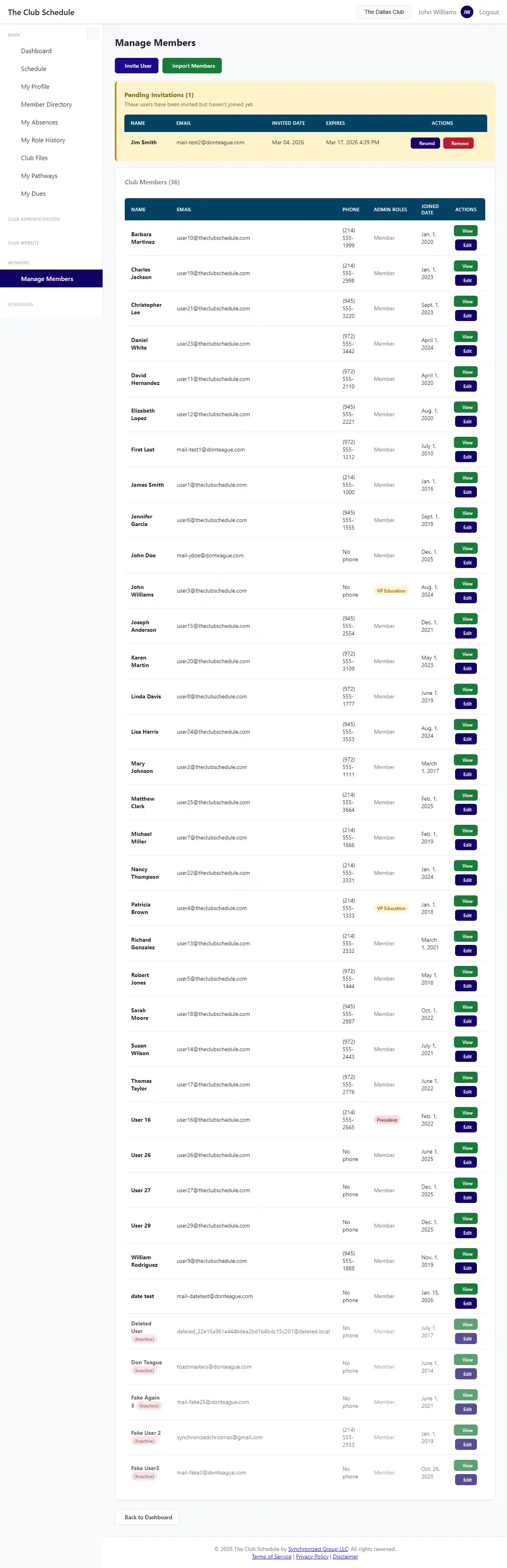
Or: 1. Navigate to Members > Invite Member in the menu
Step 2: Enter Member Information
Fill out the invitation form:
Required fields: - Email Address - The person's email (must be unique, not already in your club) - First Name - Their first name - Last Name - Their last name
Optional fields: - Custom welcome message - Add a personal note to the invitation email
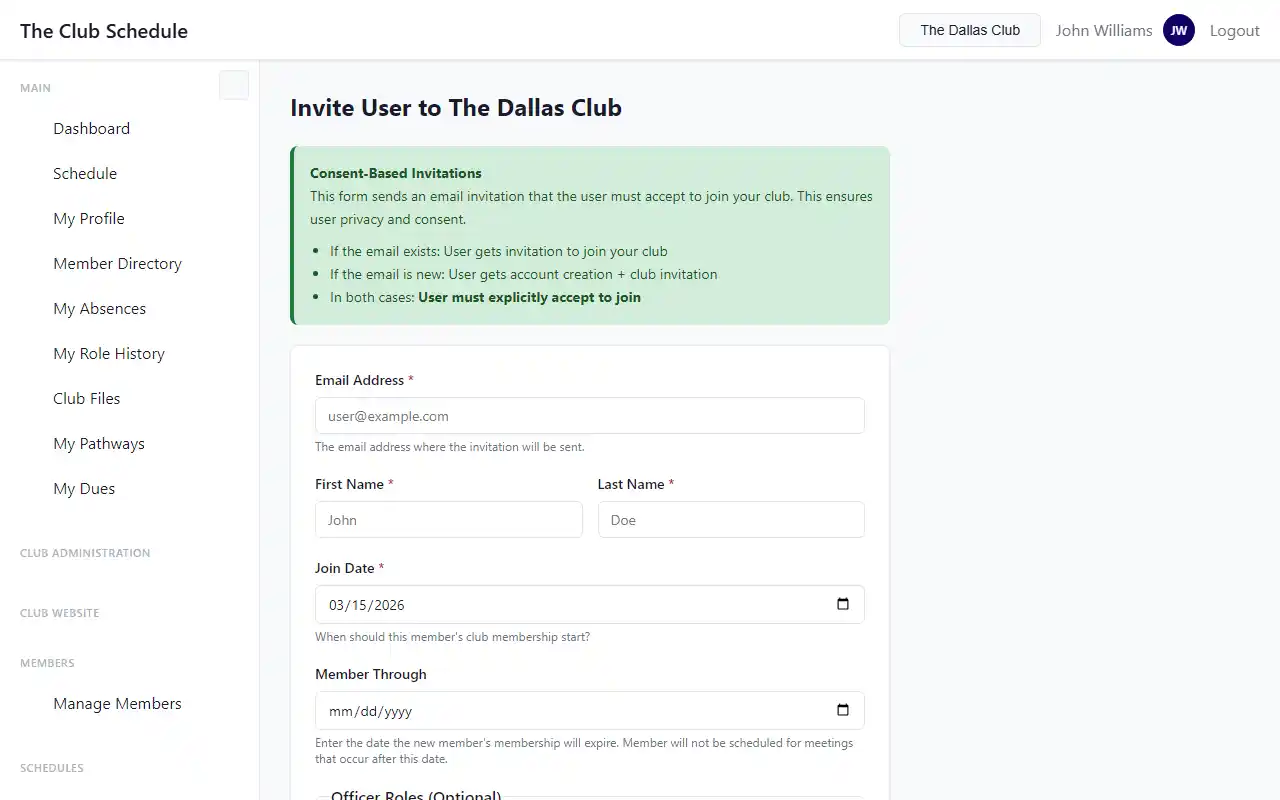
Step 3: Send the Invitation
- Review the information
- Click Send Invitation
- You'll see a confirmation: "Invitation sent to [email]"
The person will receive an email immediately with instructions to join.
What the Invitee Receives
The invitation email includes:
- Welcome message from your club
- Link to create their account (expires in 14 days)
- Your custom message (if you added one)
- Instructions for setting up their profile
[Screenshot: Sample invitation email]
Managing Pending Invitations
Viewing Pending Invitations
To see who has been invited but hasn't joined yet:
- Go to Manage Members
- Look for the "Pending Invitations" section
- You'll see:
- Email address
- Date invited
- Days remaining until expiration
- Option to resend or cancel
Resending an Invitation
If someone didn't receive the invitation or it expired:
- Find the invitation in the Pending Invitations list
- Click Resend Invitation
- A fresh invitation email is sent with a new 14-day expiration
Canceling an Invitation
To cancel an invitation before it's accepted:
- Find the invitation in the Pending Invitations list
- Click Cancel Invitation
- Confirm the cancellation
- The invitation link becomes invalid
After They Accept
When someone accepts your invitation:
- They'll appear in your Members list as an active member
- The pending invitation is removed
- You can now:
- Edit their member profile
- Set role preferences and opt-outs
- Include them in schedule assignments
- Assign them officer roles (if appropriate)
Inviting Multiple Members
To invite several people at once:
Option 1: Send individual invitations - Click Invite New Member - Fill out the form - Click Send Invitation - Repeat for each person
Option 2: Use bulk invite (if available) - Some versions support CSV upload for bulk invitations - Check if your club has this feature enabled - Contact support if you need to invite many members
Setting Up New Members After They Join
After someone accepts and joins:
1. Review Their Profile
- Go to Manage Members
- Click on the new member's name
- Verify their information is complete
2. Configure Role Preferences
- Set role opt-outs if they're not comfortable with certain roles
- Check "Eligible for all roles" if they can skip prerequisites
- Adjust any special preferences
3. Add to Next Schedule
- New members are automatically included in future schedule generation
- If you have a current published schedule, you can manually assign them to open roles
4. Welcome Them
Consider sending a welcome email: - Use Email Members to send a personalized welcome - Introduce them to the club's schedule system - Explain how to respond to assignments - Share any club-specific guidelines
Troubleshooting
The invitee says they didn't receive the email 1. Check spam/junk folders 2. Verify you entered the correct email address 3. Resend the invitation 4. Try a different email address if the problem continues
I can't send an invitation - Confirm you're logged in as an officer - Check that your subscription is active - Verify the email isn't already associated with a member in your club - Ensure all required fields are filled out
The invitation expired - Click Resend Invitation to send a fresh link - Invitations expire after 14 days for security
The person already has an account If they've already used The Club Schedule with another club: - They can use the same email and account - Send the invitation normally - When they accept, they'll be added to your club too - They can switch between clubs using the club selector
I sent an invitation to the wrong email 1. Cancel the pending invitation 2. Send a new invitation to the correct email 3. Contact the person at the wrong email (if needed) to ignore it
Best Practices
Timing
- Send invitations when you're ready to include members in schedules
- Allow at least a week for people to accept before creating schedules
- Follow up with people who haven't accepted after a few days
Communication
- Add a custom welcome message to make invitations more personal
- Email or text the person to let them know an invitation is coming
- Provide context about what The Club Schedule is and how your club uses it
- Be available to answer questions about the platform
Onboarding
- Have a welcome process for new members
- Explain how schedules work and how to respond to assignments
- Show them how to mark absences
- Introduce them to the dashboard features
Organization
- Keep track of who you've invited in a separate list
- Follow up on pending invitations before they expire
- Remove cancelled invitations that are no longer needed
- Regularly review your member list to ensure it's current
Tips
- Batch invites - Invite all new members at once when you have several to add
- Personal touch - Use the custom message field to welcome members personally
- Set expectations - Let new members know they'll receive assignment notifications
- Check spam - Remind invitees to check spam folders if they don't see the email
- Mobile-friendly - The invitation process works on mobile devices
- Track responses - Keep notes on who accepted and who needs follow-up