Update Your Payment Method
Change the credit or debit card on file for your club's subscription through the Stripe billing portal.
Before You Begin
- You must be a club officer (President, VP Education, Secretary, or Admin).
- Your club must have an active or trialing subscription with billing set up through Stripe.
- Even if your subscription has lapsed, officers can still access billing settings to update payment information.
How to Update Your Payment Method
- Log in to The Club Schedule as a club officer.
- In the left sidebar, click Billing & Subscription (under Club Administration).
- On the Subscription Management page, find the Billing Management section at the bottom.
- Click Manage Payment Methods & Billing.
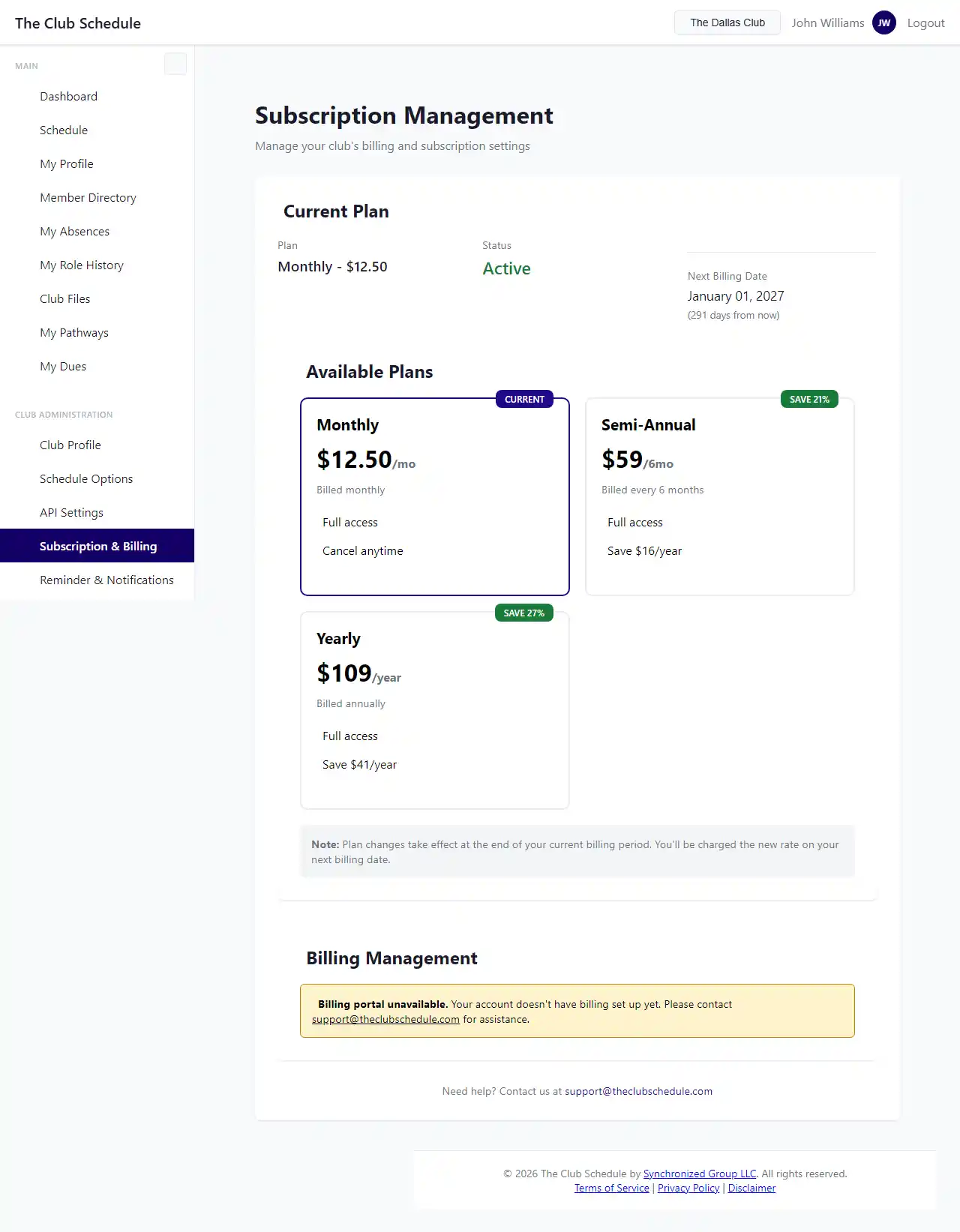
This opens the Stripe billing portal in a new page. From the Stripe portal you can:
- Add a new credit or debit card
- Remove an old payment method
- Set a new default payment method
-
View past invoices and download receipts
-
Follow the prompts in the Stripe portal to update your card.
- When finished, click the link to return to The Club Schedule.
Accepted Payment Methods
The Club Schedule accepts:
- Visa
- Mastercard
- American Express
- Discover
- Debit cards with a Visa or Mastercard logo
All payments are processed securely through Stripe. The Club Schedule never sees or stores your full card number.
When to Update Your Payment Method
- Before your card expires. Expired cards are the most common cause of payment failures.
- After receiving a failed payment notice. If your payment fails, you have a 5-day grace period to update your card before your subscription is affected.
- When switching to a different card. For example, if your club treasurer changes and the new officer wants to use a different club card.
Tips
- Update before expiration. Check the expiration date on your current card and update it before it expires to avoid a payment failure.
- Use a club card if possible. Using a club-owned credit card avoids complications when officer roles change.
- Keep at least two officers informed. Make sure multiple officers know how to access billing in case the primary billing contact is unavailable.
- Check the billing portal periodically. The Stripe portal also shows your billing history, upcoming charges, and invoice PDFs.
Troubleshooting
I don't see the "Manage Payment Methods & Billing" button
- This button only appears if your club has a Stripe customer account. If your club is still in the free trial setup phase, complete the trial signup process first by choosing a plan on the Subscription Management page.
- If the button is missing and your club has an active subscription, try refreshing the page. If it still does not appear, contact support@theclubschedule.com.
The Stripe portal shows an error
- This can happen if your session has expired. Go back to the Subscription Management page and click the button again to generate a fresh portal link.
- If the error persists, contact support@theclubschedule.com.
My payment is still failing after updating my card
- Make sure the new card is set as the default payment method in the Stripe portal.
- Verify the card has sufficient funds and has not been blocked by your bank.
- Contact your bank to ensure they are not declining charges from Stripe.
- If the issue continues, contact support@theclubschedule.com with your club name.
I updated my card but the grace period warning is still showing
- After updating your card, Stripe will automatically retry the failed payment. The grace period warning clears once the payment succeeds. This may take a few hours.