Cancel or Reactivate Your Subscription
Learn how to cancel your club's subscription, what happens when it lapses, and how to reactivate if you decide to come back.
Before You Begin
- You must be a club officer (President, VP Education, Secretary, or Admin).
- Cancellation and reactivation are managed through the Stripe billing portal, accessible from the Subscription Management page.
- Even when your subscription is lapsed, officers can still access billing settings.
Canceling Your Subscription
How to Cancel
- Log in to The Club Schedule as a club officer.
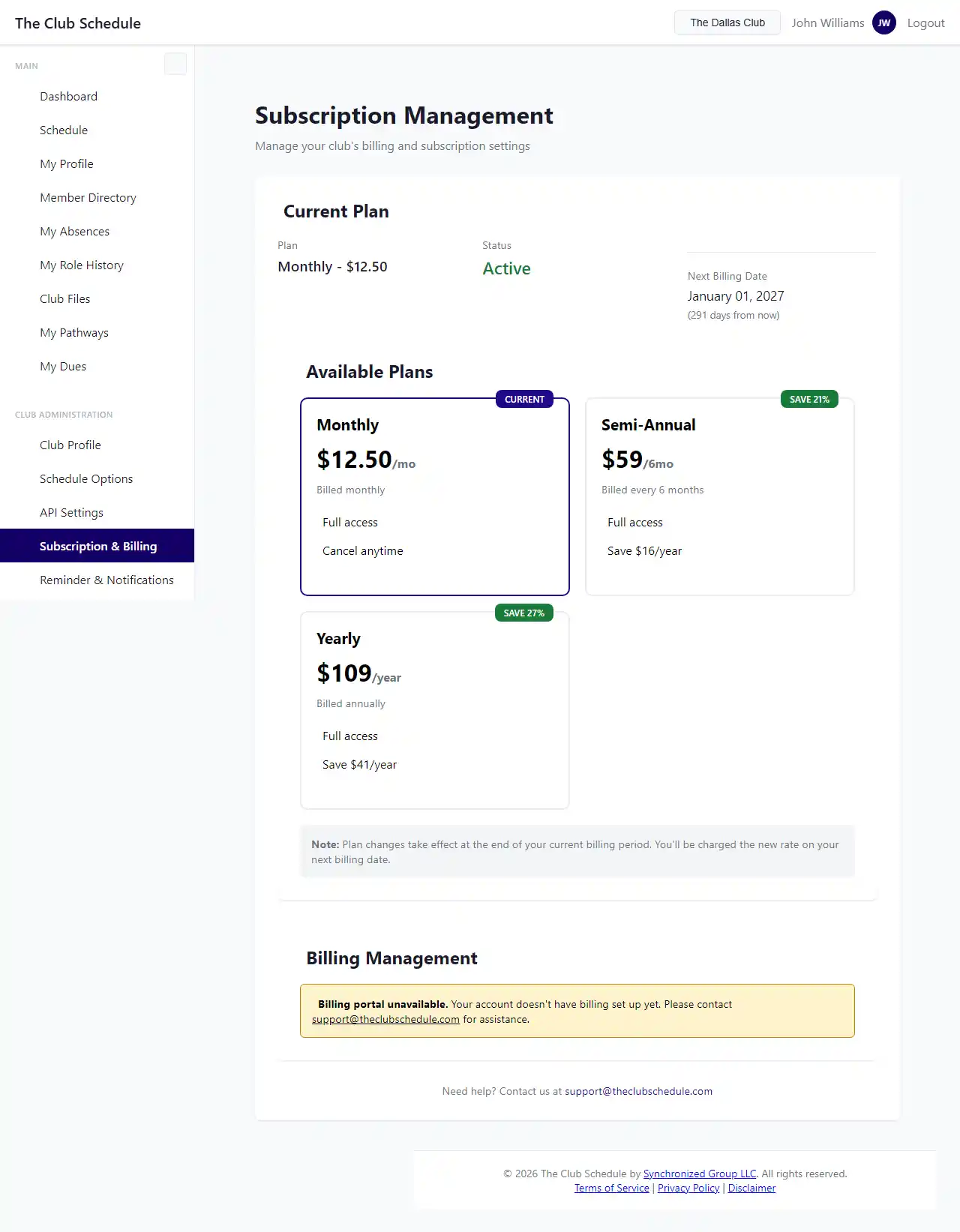
- In the left sidebar, click Billing & Subscription.
- Click Manage Payment Methods & Billing to open the Stripe billing portal.
- In the Stripe portal, find the option to cancel your subscription.
- Confirm the cancellation.
What Happens When You Cancel
- Your subscription is scheduled for cancellation at the end of your current billing period. You are not charged again.
- You retain full access to all features until your paid period ends.
- A banner on the Subscription Management page confirms the cancellation date: "Your subscription will end on [date]."
- Your data is not deleted. All schedules, member information, role history, and settings are preserved.
During Your Remaining Paid Period
After canceling but before your paid period ends, everything works normally:
- Create and publish schedules
- Send emails and reminders
- Manage members and assignments
- Use all features without restriction
What Happens When Your Subscription Lapses
When your paid period ends (after cancellation) or a payment fails and the grace period expires, your club enters read-only mode.
What You Can Still Do
- View existing schedules
- Access member information
- View role history and assignments
- Export your data
- Access billing settings to reactivate
What You Cannot Do
- Create new schedules
- Edit existing schedules
- Send more than 2 emails total
- Add new members
- Modify role assignments
Grace Period (Failed Payments)
If a payment fails (as opposed to a deliberate cancellation), you get a 5-day grace period:
- Full access continues for 5 days.
- Stripe automatically retries the payment.
- You will see a warning banner on the Subscription Management page with the grace period end date.
- Update your payment method before the grace period ends to avoid interruption.
After the 5-day grace period, if the payment is still unresolved, your club enters read-only mode.
Reactivating Your Subscription
If your subscription has been canceled or has lapsed, you can reactivate at any time.
How to Reactivate
- Log in to The Club Schedule as a club officer.
- In the left sidebar, click Billing & Subscription.
- Click Manage Payment Methods & Billing to open the Stripe billing portal.
- In the Stripe portal, update your payment method if needed and resubscribe.
- Your subscription resumes immediately with full access.
If your subscription was canceled but has not yet reached the end of the paid period, you may be able to reverse the cancellation through the Stripe portal without any interruption.
What Happens When You Reactivate
- Full access to all features is restored immediately.
- Your data is exactly as you left it -- schedules, members, role history, and settings are all preserved.
- You can resume creating schedules and sending emails right away.
- Your billing cycle restarts based on the plan you select.
Canceling During Your Free Trial
If your club is in the 45-day free trial:
- You can cancel at any time with no charge.
- Go to the Subscription Management page and use the Stripe portal to cancel.
- After the trial period ends without payment, your club enters read-only mode.
- You can choose to start paying at any time during or after the trial by selecting a plan.
Tips
- Think about timing. If you are considering canceling, remember that you keep access until the end of your paid period. There is no advantage to canceling early in a billing cycle versus late.
- Export your data first. Before your subscription lapses, consider having members export their personal data and officers download any schedules they want to keep.
- Try a different plan. If cost is a concern, switching to a longer billing cycle (semi-annual or yearly) significantly reduces the per-month cost. See the Subscription and Billing Guide for plan details.
- Keep payment info current. Most "accidental" lapses happen because a credit card expired. Update your card before it expires to avoid the grace period process entirely.
- Multiple officers should know billing access. If the officer who manages billing becomes unavailable, other officers need to be able to access the Subscription Management page.
Troubleshooting
I canceled but want to undo it
- If your paid period has not ended yet, you may be able to reverse the cancellation through the Stripe portal. Open Billing & Subscription > Manage Payment Methods & Billing and look for a reactivation option.
My club is in read-only mode but I didn't cancel
- A failed payment may have triggered the lapse. Go to Billing & Subscription to check your subscription status.
- Update your payment method and Stripe will automatically retry the charge.
I reactivated but features are still restricted
- Try logging out and logging back in. The subscription status may need to refresh.
- If the issue persists, contact support@theclubschedule.com with your club name.
I want to switch plans when reactivating
- When you reactivate through the Stripe portal, you can select a different plan (monthly, semi-annual, or yearly) at the same time.
I was charged after I thought I canceled
- Check that the cancellation was confirmed in the Stripe portal. If you see a cancellation date on the Subscription Management page, the cancellation is scheduled and you will not be charged after that date.
- If you believe you were charged in error, contact support@theclubschedule.com with your club name and invoice number.
Can I get a refund?
- Contact support@theclubschedule.com with your club name and invoice details. Refund requests are handled on a case-by-case basis.