Viewing Your Role History
Review a complete record of all meeting role completions for your club, with filtering and export options.
Before You Begin
- You must be logged in to The Club Schedule.
- You must be a club officer (President, VP of Education, Secretary, or Admin) to access the role history page. Regular members can see their own assignment history on their dashboard.
- You need an active club selected.
Accessing Role History
- Log in to The Club Schedule as a club officer.
- Navigate to Role History from the sidebar under Club Administration.
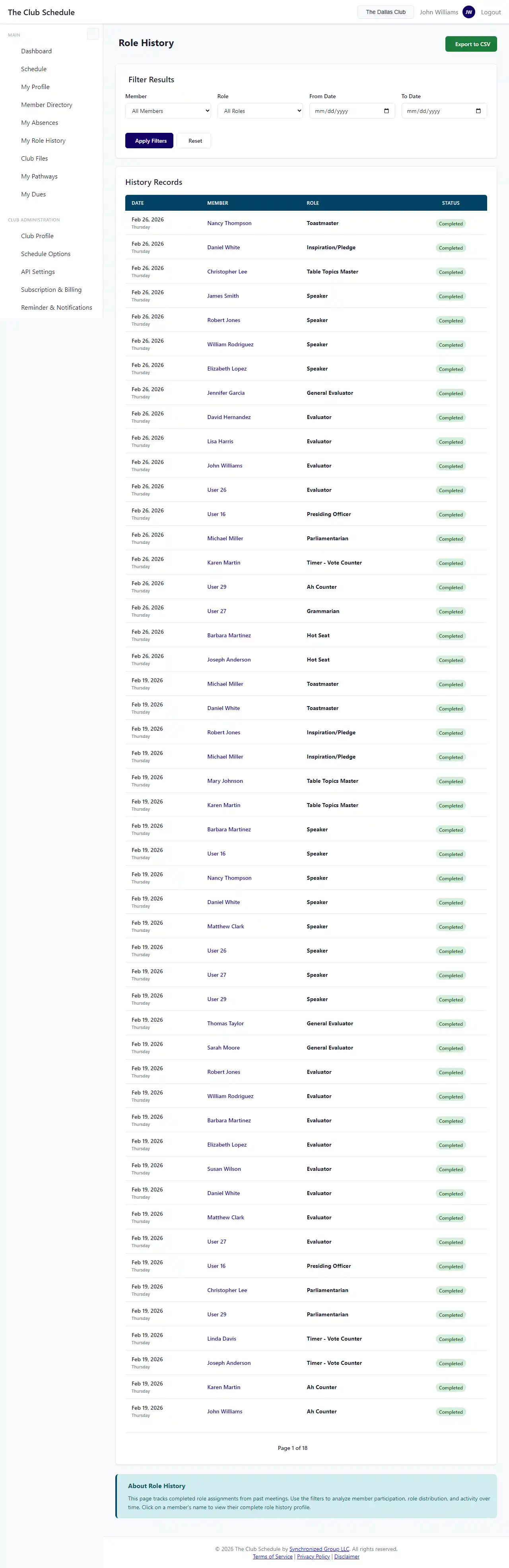
- The page displays a paginated list of all role completions for your club, with the most recent entries first.
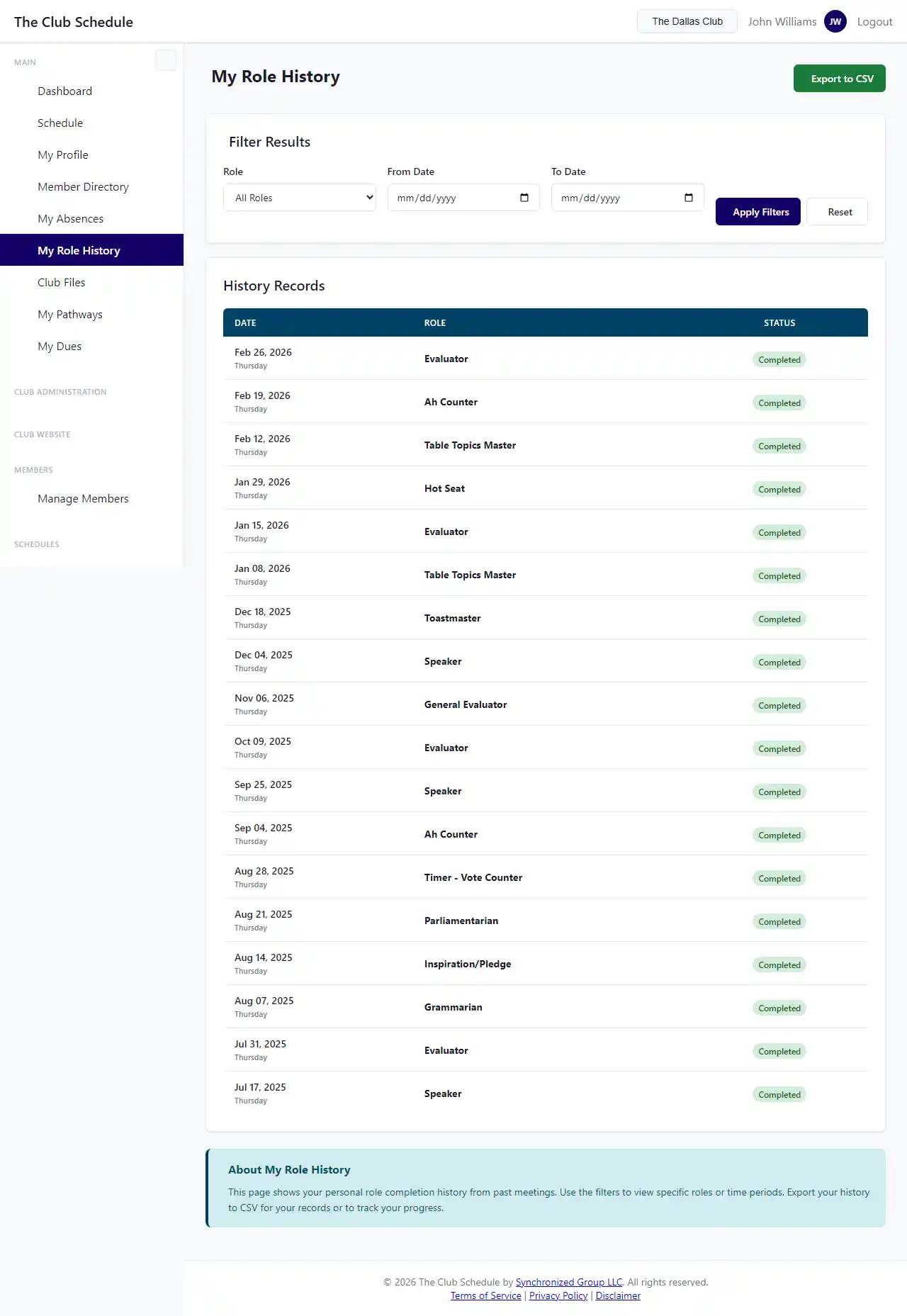
Understanding the Role History Table
Each row in the role history table shows:
- Date -- The meeting date when the role was performed.
- Member Name -- The member who completed the role.
- Role -- The name of the role (e.g., Timer, Evaluator, Toastmaster).
- Status -- Whether the role was "Completed" or the member was "Absent".
Summary Statistics
At the top of the page, you will see a summary of the currently displayed data:
- Total records -- The total number of role history entries matching your filters.
- Completed -- How many of those were marked as completed.
- Unique members -- How many different members appear in the results.
- Unique roles -- How many different roles appear in the results.
Filtering the History
Use the filter controls to narrow down the results:
Filter by Member
- Use the Member dropdown to select a specific member.
- The table updates to show only that member's role history.
Filter by Role
- Use the Role dropdown to select a specific role.
- The table updates to show only completions for that role.
Filter by Date Range
- Set a Start Date to see records from that date forward.
- Set an End Date to see records up to that date.
- Use both to view a specific date range.
You can combine all filters. For example, filter by a specific member AND a specific role AND a date range to see exactly when that member performed that role.
Exporting to CSV
You can download the role history as a CSV file for use in spreadsheets or external tools.
- Apply any filters you want (the export respects your current filters).
- Click the Export CSV button.
- The CSV file downloads with a filename that includes your club name and the current date.
The exported CSV includes these columns:
| Column | Description |
|---|---|
| Date | Meeting date (YYYY-MM-DD format) |
| Day of Week | Day name (e.g., Thursday) |
| Member Name | Full name of the member |
| Member's email (only if "Include Emails" option is selected) | |
| Role | Name of the role |
| Status | "Completed" or "Absent" |
Note
The Email column is opt-in. You must check the "Include Emails" option before exporting to include email addresses in the CSV. This is for privacy protection.
Pagination
Role history results are paginated at 50 records per page. Use the page navigation controls at the bottom to move between pages.
Tips
- Use date range filters to review a specific schedule period or meeting season.
- Filter by role to see how a particular role has been distributed across members. This can help identify if one member is being assigned the same role too frequently.
- Export regularly to keep offline records for club reporting or Toastmasters district submissions.
- The CSV export respects your filters, so you can create targeted exports (e.g., all Speaker completions for a specific quarter).
Troubleshooting
| Problem | Solution |
|---|---|
| "Only club officers can view role history" | This page is restricted to officers. If you need to see your own history, check your dashboard or ask an officer. |
| No records are showing | Make sure you have the correct club selected. If your club is new, there may not be any completed schedules yet. |
| Filters are not returning expected results | Double-check your date range format (YYYY-MM-DD). Also verify that the member and role you selected exist in the data for that period. |
| CSV export is empty | Your current filter combination may not match any records. Remove some filters and try again. |