Managing Your Role Assignments
Learn how to respond to role assignments, claim available roles, and understand your assignment status.
Understanding Assignment Statuses
When you're assigned to a role in an upcoming meeting, the assignment has one of these statuses:
- Pending - Waiting for your response (you need to confirm or decline)
- Accepted - You've confirmed the assignment
- Rejected - You've declined the assignment
- Not Applicable - The assignment doesn't require a response
Responding to Assignments
From Your Dashboard
- Log in to The Club Schedule
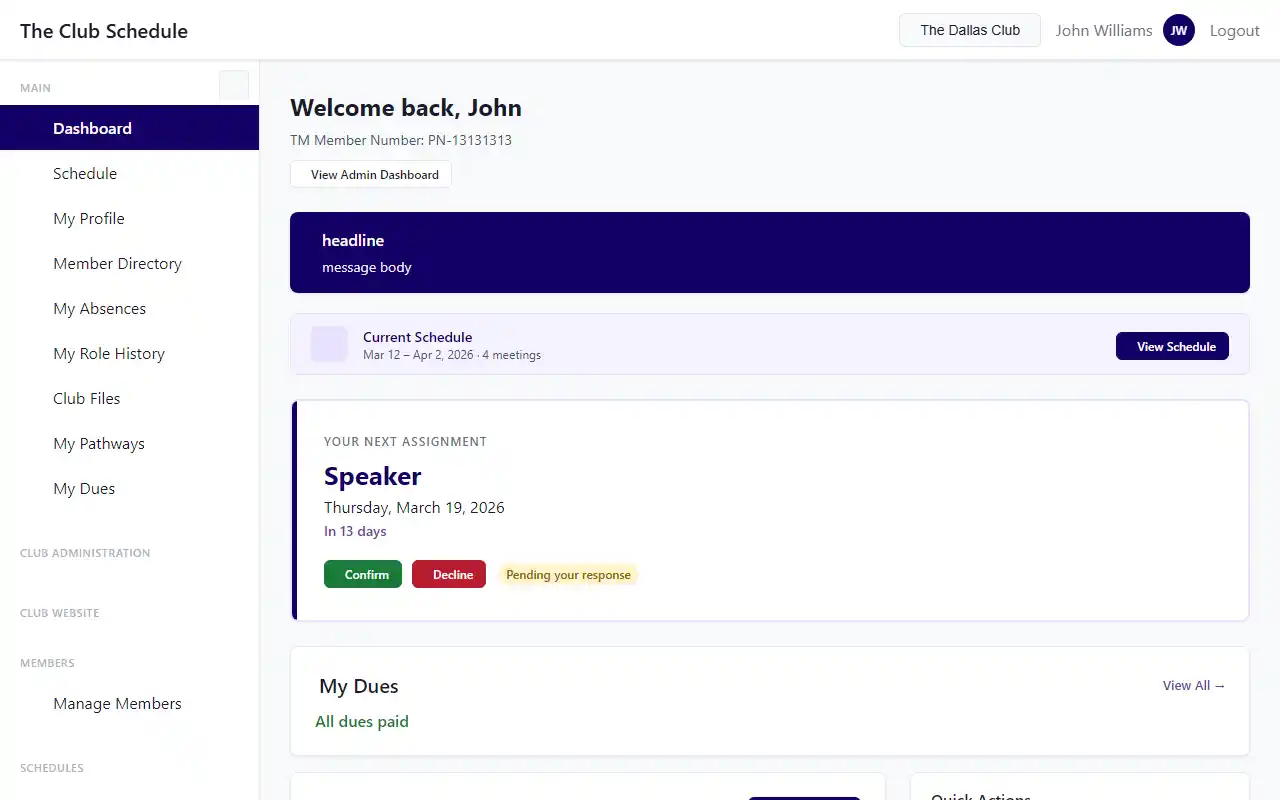
- Look for the "Your Upcoming Assignments" section on your dashboard
- Find the assignment you want to respond to
- Click one of these buttons:
- Confirm - Accept the role assignment
- Reject - Decline the role assignment
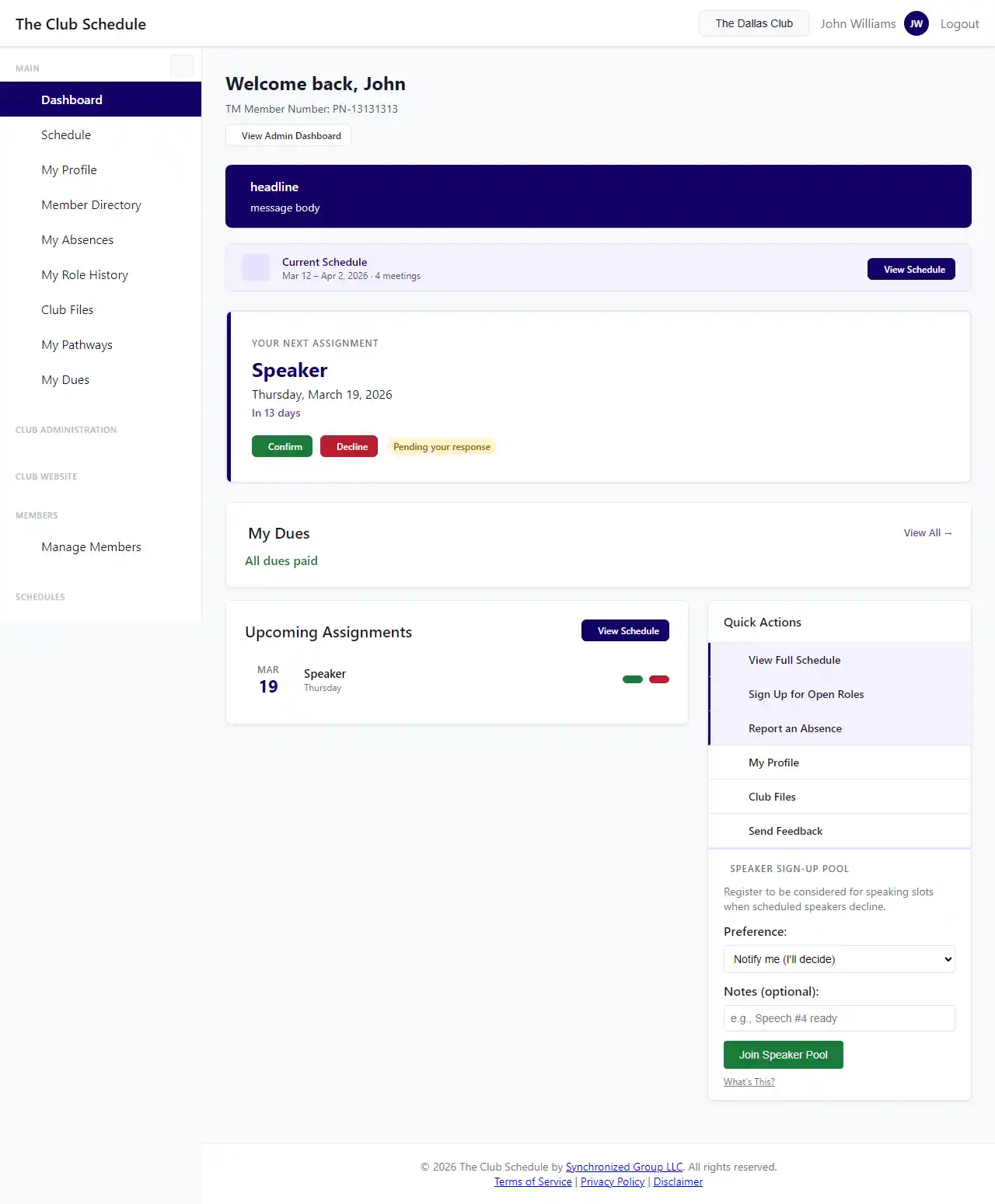
The assignment status will update immediately after you click.
From Email Notifications
When you receive an assignment notification email:
- Open the email from The Club Schedule
- Click either:
- Accept Assignment - Confirms the role
- Decline Assignment - Rejects the role
- The link will take you to the app and automatically update your status
Claiming Available Roles
If your club has enabled role claiming, you can claim roles that other members have declined.
How to Claim a Role
- Go to the schedule page
- Look for roles marked as "Available" or "Declined"
- Click the Claim Role button next to the assignment
- Confirm that you want to claim the role
Note: You can only claim roles if: - Your club has enabled role claiming in settings - The role has been declined by the original assignee - You're not marked as absent for that meeting - You meet any prerequisites for the role
Role Claiming Restrictions
Some clubs may disable role claiming. If you don't see a "Claim Role" button, this feature is not enabled for your club. Contact a club officer if you'd like to take an available role.
What Happens When You Decline a Role
When you decline a role assignment:
- The assignment status changes to "Rejected"
- Club officers are notified
- If role claiming is enabled, the role becomes available for other members to claim
- If your club uses the Speaker Signup Pool, a replacement may be automatically assigned from the pool
Viewing Your Assignment History
To see your past and upcoming assignments:
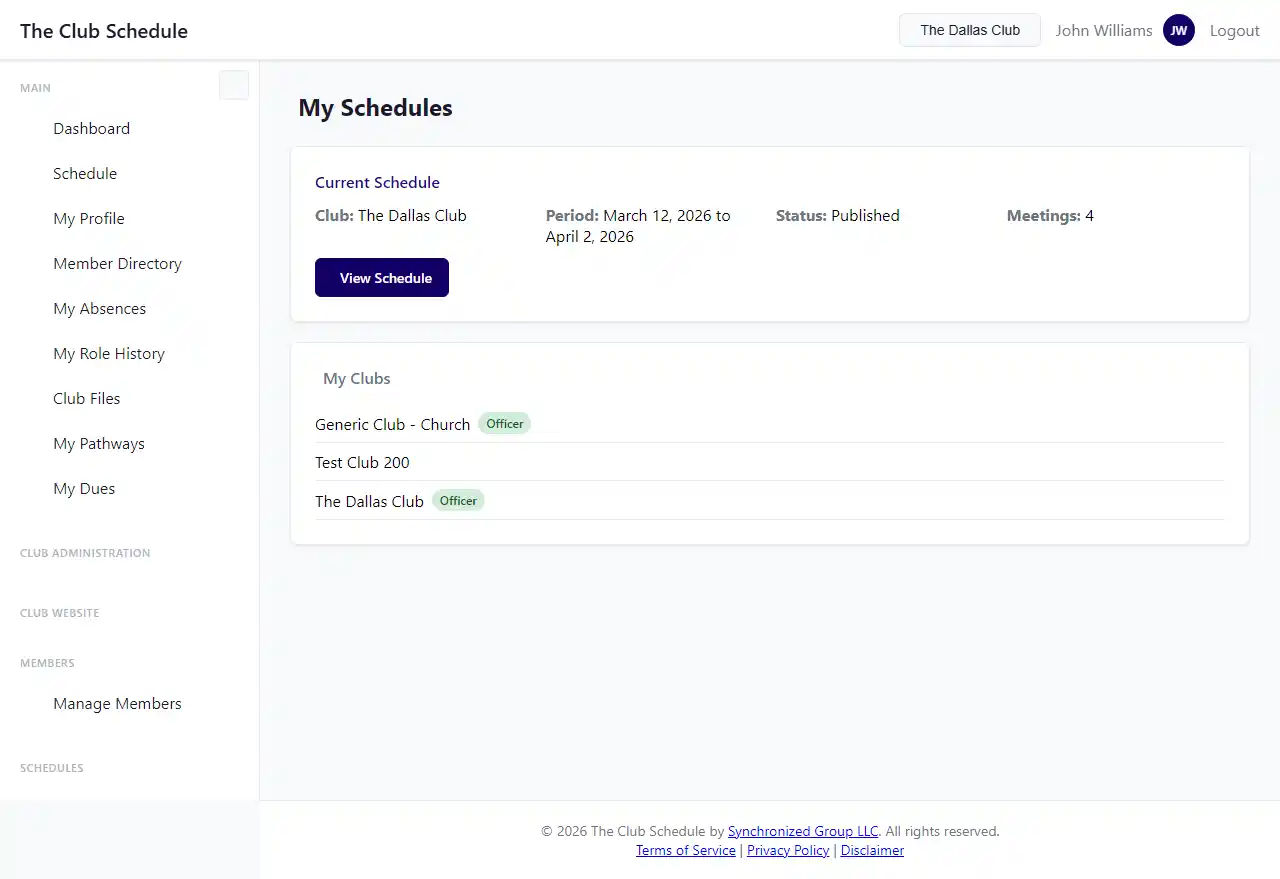
- Click View Schedule from your dashboard
- Scroll through the meetings to see your assignments
- Assignments show your role and status for each meeting
Tips
- Respond promptly - Club officers need time to find replacements if you decline
- Check email regularly - You'll receive notifications when assigned to new roles
- Mark absences in advance - If you know you'll be away, add an absence so you won't be assigned roles during that time
- Communication matters - If you need to decline multiple assignments, consider talking to a club officer about adjusting your role preferences
Troubleshooting
I don't see Confirm/Reject buttons - The assignment may have already been responded to - You may not be logged in as the correct user - The assignment may have a "Not Applicable" status that doesn't require a response
I clicked Confirm but want to change my mind - Contact a club officer - they can update your assignment status on your behalf - You cannot change an accepted assignment yourself once confirmed
I declined but no one else claimed the role - If role claiming is enabled, the role will remain available until someone claims it or an officer assigns someone - If role claiming is disabled, club officers may assign a replacement manually
Related Articles
- Creating an Absence
- Understanding Your Dashboard
- Officer Roles and Permissions (for officers managing assignments)