Setting Up Role Opt-Outs
Learn how to prevent specific members from being automatically assigned to certain roles.
Important: Only Club Officers (President, VP Education, Secretary, or Admin) can modify role opt-out settings.
What Are Role Opt-Outs?
Role opt-outs allow you to exclude specific members from automatic assignment to specific roles. This is useful when:
- A member is not comfortable performing a particular role
- A member doesn't have the experience needed for a role
- A member has personal preferences about which roles they prefer
- A role requires special skills that not all members have
Note: Role opt-outs only affect automatic assignment. Officers can still manually assign opted-out members to roles if needed.
Before You Begin
- You must be a club officer (President, VP Education, Secretary, or Admin)
- Your club must have an active subscription
- Know which member and role you want to configure
Setting Up a Role Opt-Out
Option 1: From the Member Profile
- Click Manage Members from your dashboard or navigation menu
- Find the member you want to configure
- Click on their name to view their profile
- Scroll to the "Role Opt-Outs" section
- Click Add Role Opt-Out
- Select the role from the dropdown menu
- Click Save
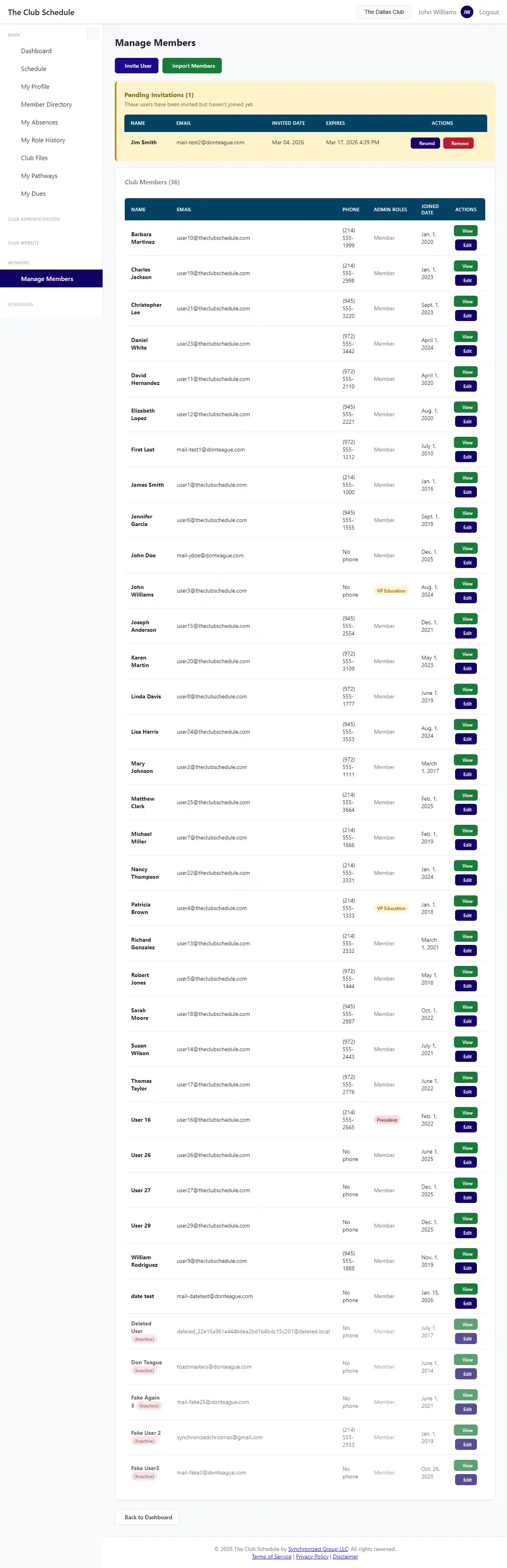
Option 2: From the Members List
- Go to Manage Members
- Find the member in the list
- Click the Edit button next to their name
- Navigate to the "Role Preferences" section
- Check the boxes next to roles you want them to opt out of
- Click Save Changes
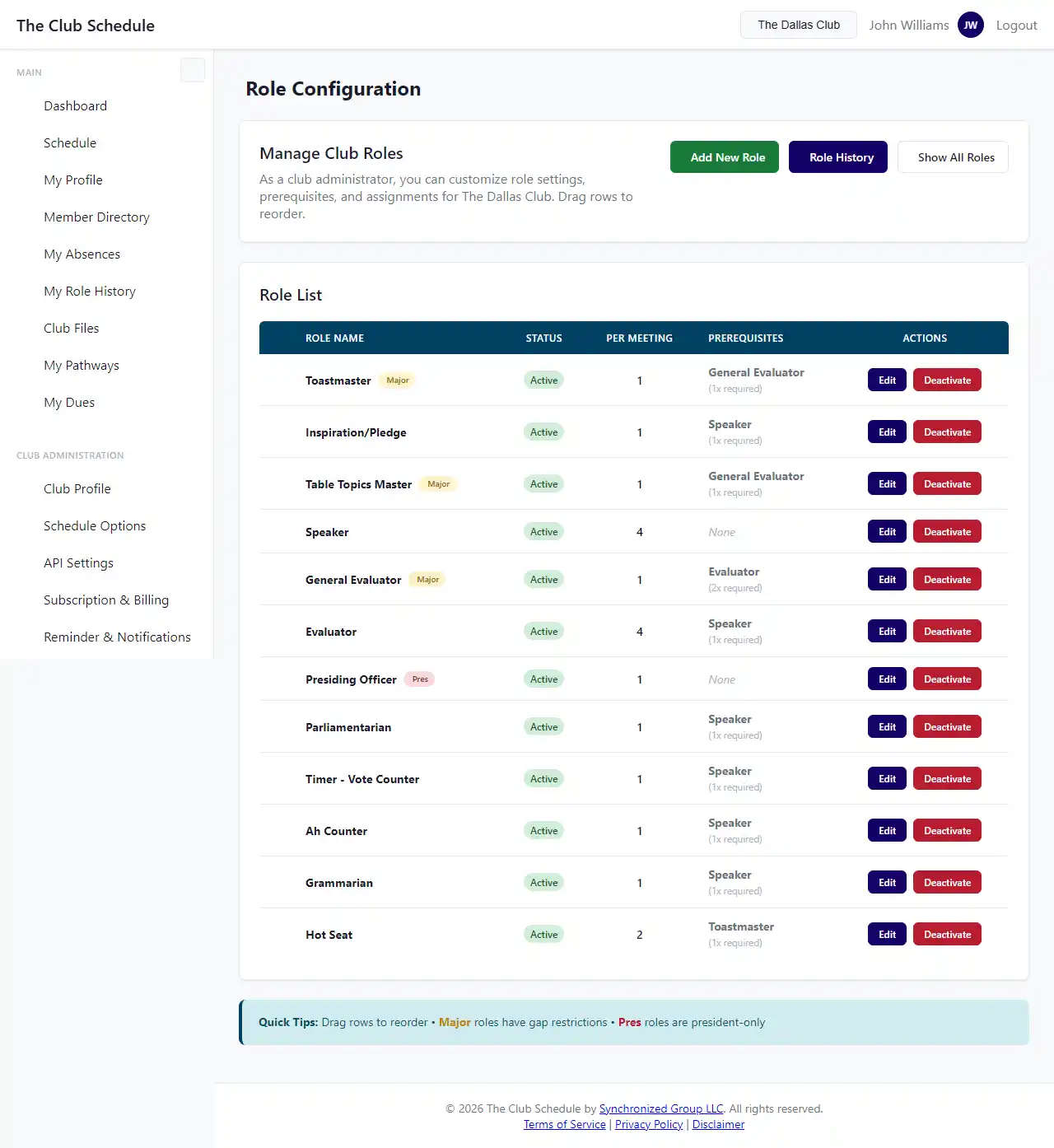
Removing a Role Opt-Out
To allow a member to be assigned to a role again:
- Go to the member's profile or edit page
- Find the "Role Opt-Outs" section
- Click the Remove or Delete button next to the opt-out you want to remove
- Confirm the removal
Viewing All Role Opt-Outs
To see which members have opted out of which roles:
- Click Manage Members
- Look for members with a note or badge indicating role opt-outs
- Click on individual members to see their specific opt-outs
You can also check role opt-outs when creating a schedule - the system will show you why certain members weren't assigned to specific roles.
How Role Opt-Outs Affect Scheduling
When you create a new schedule:
- The automatic assignment algorithm skips members who have opted out of a role
- If no other eligible members are available, the role may be left as a "placeholder" (unassigned)
- You'll see warnings if multiple members have opted out of the same role, making it hard to fill
Best Practice: Avoid having too many members opt out of the same role, especially major roles. This can make it difficult to create balanced schedules.
Role Opt-Outs vs. Role Prerequisites
These are different features:
| Feature | What It Does | Set By |
|---|---|---|
| Role Opt-Out | Prevents a specific member from being assigned to a specific role | Officers, for individual members |
| Role Prerequisites | Requires members to have done other roles before being eligible | Officers, configured in role settings |
| Eligible for All Roles | Allows a member to bypass role prerequisites | Officers, set on member profile |
Tips
- Be strategic - Too many opt-outs can make scheduling difficult
- Communicate - Explain to members why certain opt-outs might not be possible
- Review regularly - Member preferences change; check opt-outs every few months
- Use prerequisites first - For roles that require experience, set up prerequisites rather than opt-outs
- Document reasons - Keep notes on why opt-outs were set up (in your own records)
Troubleshooting
I don't see the option to add role opt-outs - Confirm you're logged in as a club officer - Check that your subscription is active (not lapsed) - The feature should be available on member profile and edit pages
The opt-out isn't working in schedules - Make sure you saved the opt-out - Regenerate the schedule after adding the opt-out - Existing published schedules won't be affected - opt-outs only apply to new schedules
A member wants to opt out but I disagree - Remember, you have final control as an officer - Consider the member's comfort level and experience - Discuss alternatives, like spacing out assignments for that role - You can always manually reassign roles after schedule creation