Pathways Administration
Manage your club members' Pathways education progress, enroll members in paths, and view club-wide Pathways status from a single dashboard.
Before You Begin
- You must be a club officer (President, VP Education, Secretary, or Admin).
- Your club must be set up as a Toastmasters organization. Pathways tracking is not available for other organization types.
- Members can manage their own Pathways progress individually (see Pathways Progress Tracking), but the features described here are officer-only administration tools.
Accessing the Pathways Admin Dashboard
- Log in to The Club Schedule as an officer.
- Click My Pathways in the navigation menu.
- Click the Member Dashboard button at the top of the page.
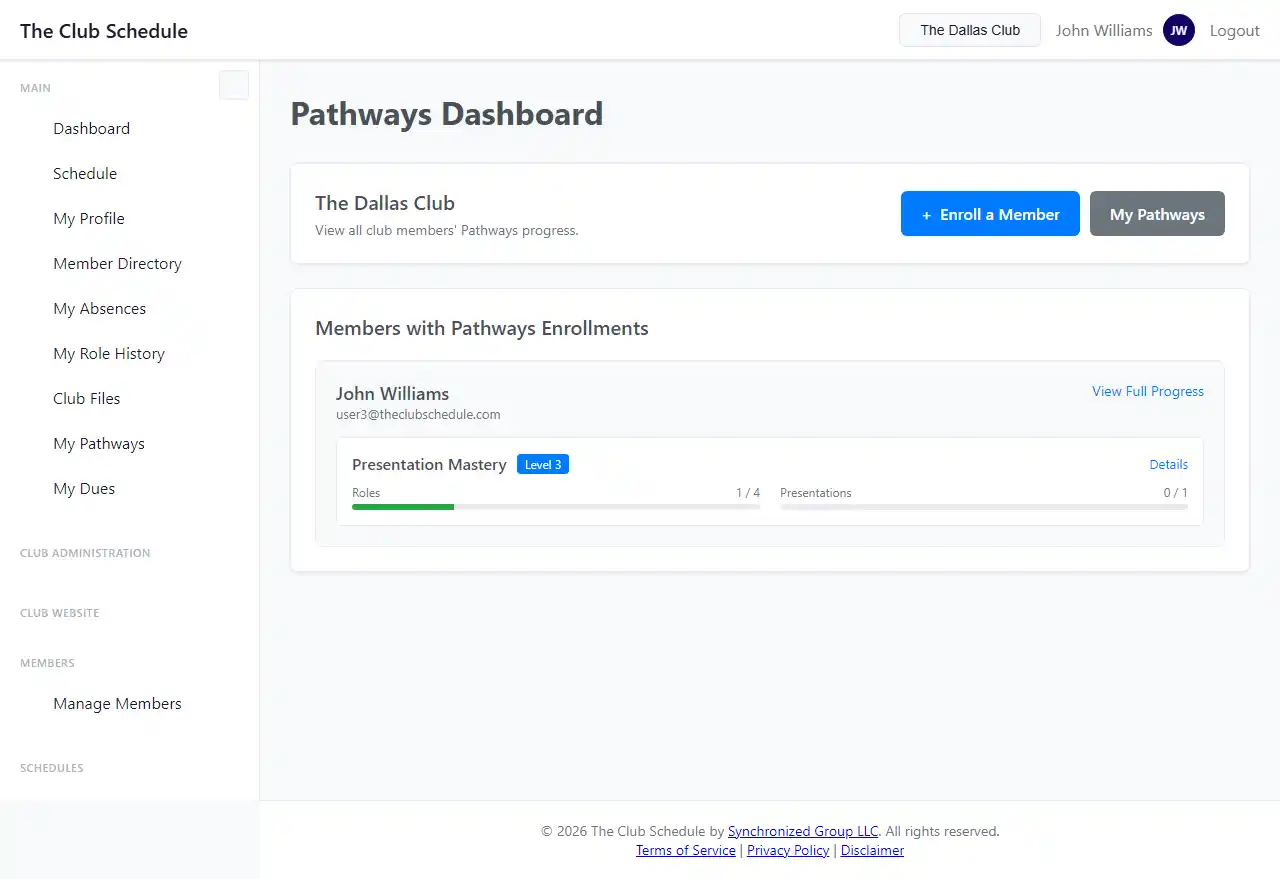
The admin dashboard shows all club members who have active Pathways enrollments, organized by member. For each member, you can see:
- Their enrolled path(s) (e.g., Dynamic Leadership, Presentation Mastery)
- Current level for each path
- Role completion progress (e.g., "3/5 roles complete")
- Presentation completion progress
- A "Ready to Advance" indicator when a member has completed all requirements for their current level
Enrolling a Member in a Path
Officers can enroll any active club member in a Pathways path on their behalf.
- From My Pathways or the Admin Dashboard, click Enroll a Member.
- Select the member from the dropdown list.
- Select the path they are working on (e.g., Innovative Planning, Visionary Communication).
- Set the start date -- the date the member began this path. This can be a past date if the member has been working on the path before joining The Club Schedule.
- Set the current level (1-5) -- if the member is already partway through a path, set this to the level they are currently working on.
- Set the level start date -- when the member began working on their current level.
- Click Enroll Member.
When you enroll a member with a historical start date, the system automatically scans the member's existing role history and backfills any matching role completions toward their current level. You will see a message like "Found 4 existing role completion(s)" if any are found.
If the member was previously enrolled in the same path and unenrolled, enrolling them again reactivates their enrollment and restores their progress.
Viewing a Member's Pathways Progress
- From the Admin Dashboard, click on any member's name.
- You will see their complete Pathways progress, including:
- All enrollments (active and inactive)
- Progress bars for each level
- Role completion history with dates and sources (auto, manual, or transfer)
- Presentation completions
- Speech projects
Managing Speech Projects
Officers can add, edit, and delete speech projects for any member in the club.
Adding a Speech Project for a Member
- Navigate to the member's Level Detail page.
- Click Add Speech.
- Enter the Project Name (e.g., "Icebreaker"), Speech Title, and Requested Time.
- Optionally link the speech to an upcoming meeting where the member is assigned as Speaker.
- Click Add Speech Project.
Editing or Deleting a Speech Project
- On the member's Level Detail page, find the speech project.
- Click Edit to update the title, time, delivery date, or meeting link.
- Click Delete to remove the speech project entirely. Only officers can delete speech projects.
Transferring Role History
For members who have Pathways progress from before they started using The Club Schedule, officers can transfer that history.
- Navigate to the member's Level Detail page.
- Click Transfer History.
- Enter role completions and presentation completions with their original dates.
- Transferred completions appear with a "transfer" badge so they are distinguishable from automatically tracked completions.
This is useful when onboarding a club to The Club Schedule -- it lets you bring in historical progress so members don't start from scratch.
Tips
- Enroll members early. Role completions are only auto-tracked after enrollment, so enroll members as soon as they start a Pathways path to avoid missing automatic credits.
- Use historical start dates. When enrolling a member who has been working on a path, set the start date to when they actually began. The system will backfill completions from their existing role history.
- Check the dashboard regularly. Look for members with "Ready to Advance" indicators and remind them to advance to the next level.
- Coordinate with your VP Education. The VP Education typically manages Pathways tracking, but any officer can use these tools.
- Transfer history for new clubs. When your club first starts using The Club Schedule, use the transfer feature to bring in existing Pathways progress for all members.
Troubleshooting
I don't see the Pathways admin options
- You must have an officer role (President, VP Education, Secretary, or Admin).
- Your club must be a Toastmasters organization. Other organization types do not have Pathways features.
A member's role completion wasn't auto-tracked
- The member must be enrolled in a path before the meeting date for the role to count.
- The role name in the club's role configuration must match the Pathways role requirement exactly (e.g., "Evaluator" not "Speech Evaluator").
- Only roles for the member's current level are tracked. Roles that match a different level's requirements are not counted.
I enrolled a member but no backfill completions were found
- The start date must be before or on the date of the role history entries.
- The member must have completed roles that match requirements for their current level.
- Only roles marked as completed in the role history are eligible for backfill.
A member is enrolled in the wrong path
- Have the member (or an officer viewing their detail page) unenroll from the incorrect path.
- Then re-enroll them in the correct path using the admin enrollment form.
The "Advance Level" button isn't showing for a member
- All role requirements for the current level must be satisfied, including OR group requirements.
- All presentation requirements must be complete.
- The member advances their own level from their personal Pathways page -- officers cannot advance levels on behalf of members.