Managing Member Profiles
View and edit member information, set officer roles, manage role preferences, and deactivate members from a single profile page.
Before You Begin
- You must be a club officer (President, VP Education, Secretary, or Admin) to edit member profiles or change roles.
- Regular members can view their own profile but cannot edit it through this page. They manage their own preferences through their personal settings.
Viewing Member Profiles
From the Member List
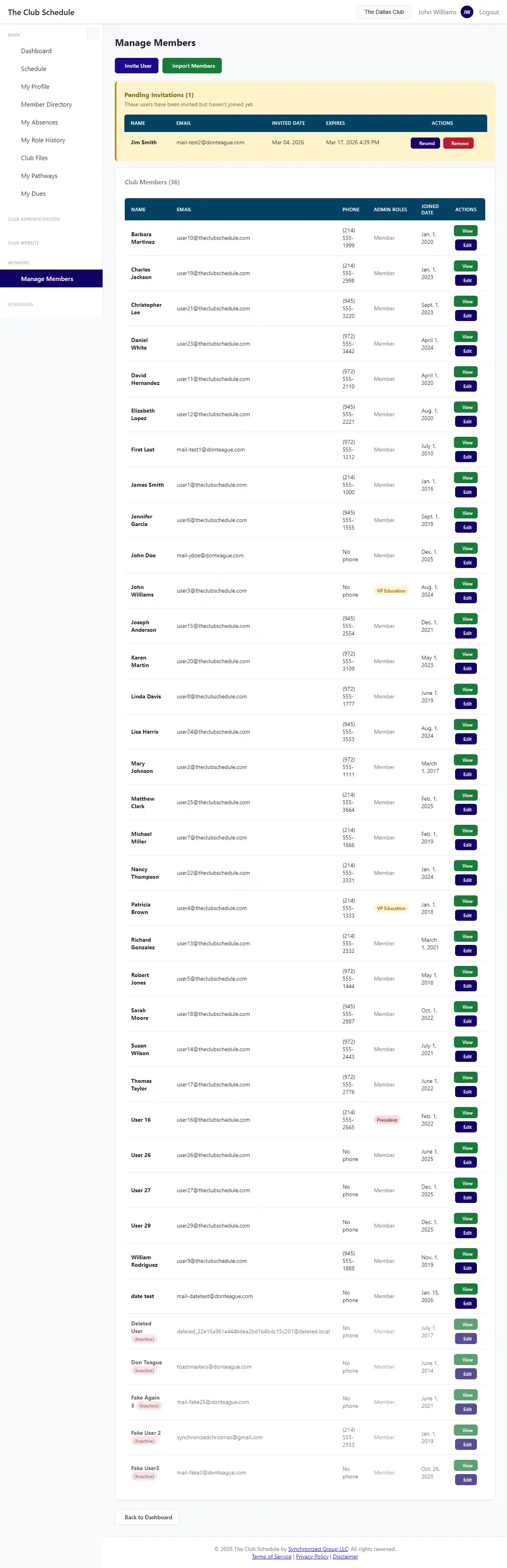
- In the left sidebar under "Club Administration," click Members.
- You will see a list of all active club members.
- Click on any member's name to view their profile.
What the Profile Shows
The member profile page displays:
- Personal information -- Name, email, phone number, Toastmasters member number
- Club membership details -- Join date, membership type, officer roles
- Role history -- A complete record of every meeting role the member has completed
- Role statistics -- How many times the member has performed each role
- Roles never done -- A list of active club roles the member has not yet performed
Members can view their own profile. Officers can view any member's profile within their club.
Editing a Member's Profile
- Navigate to the member's profile page.
- Click the Edit button.
- Make your changes (see editable fields below).
- Click Save to apply changes, or Cancel to discard.
Editable Fields
Personal Information:
- First Name and Last Name
- Email -- This also updates their login username. The email must be unique across all accounts.
- Phone Number
- Toastmasters Member Number
- Address -- Street, city, state, and ZIP code
- Preferred Contact Method
Membership Details:
- Joined Date -- When the member joined the club
- Membership Type -- The member's membership category (e.g., regular, dual)
Role Eligibility:
- Eligible for All Roles -- When checked, the member can be assigned to any role. When unchecked, the scheduling algorithm will only assign them to roles they have prior experience with.
Role Assignment Prevention (Opt-Outs):
- Select specific roles the member should never be assigned to. This is separate from the member's own opt-out preferences.
- Checked roles will not be assigned to this member by the scheduling algorithm.
Managing Officer Roles
Officers can assign or remove officer roles for any member.
- Open the member's profile for editing.
- Check or uncheck the officer role checkboxes:
- President
- VP Education
- Secretary
- Admin
- Click Save.
All four officer roles have identical permissions within The Club Schedule. The role names are for organizational purposes within your club.
Important safeguard: The system will not allow you to remove all officer roles from every member. At least one active member must hold an officer role at all times. If you try to remove the last officer's roles, you will see an error message.
Deactivating a Member
When a member leaves your club, you can deactivate them rather than deleting them. This preserves their role history for club records.
- Open the member's profile for editing.
- Uncheck the Active checkbox.
- Click Save.
What happens when you deactivate a member:
- They no longer appear in the active member list.
- They are excluded from future schedule assignments.
- Their account still exists and they can log in, but they will not have access to club features.
- Their historical role assignments and history are preserved.
Important: If the member holds officer roles and you deactivate them, the system checks whether at least one other active officer remains. You cannot deactivate the last officer.
Tips
- Keep email addresses current. Members receive assignment notifications, reminders, and schedule updates by email. An outdated email means missed communications.
- Use role opt-outs sparingly. If a member struggles with a role, consider working with them rather than permanently excluding them. Opt-outs reduce scheduling flexibility.
- Review eligibility settings. New members typically start with "Eligible for All Roles" unchecked so the algorithm only assigns them roles they have experience with. As they gain experience, consider enabling full eligibility.
- Deactivate rather than delete. Deactivation preserves club history. If a member returns later, you can reactivate them by checking the Active checkbox again.
- Coordinate officer transitions. When changing officer roles, assign the new officer's roles before removing the outgoing officer's roles to avoid being blocked by the "last officer" safeguard.
Troubleshooting
I can't edit a member's profile
- You must be an officer (President, VP Education, Secretary, or Admin) with an active subscription.
- If your subscription has lapsed, you will not be able to edit member profiles.
I get an error about email already being in use
- Each account must have a unique email address. The email you entered belongs to another account in the system.
- Check with the member to confirm their correct email address.
I can't remove an officer's roles
- At least one active member must hold an officer role. Assign the role to another member first, then remove it from the current one.
- If the member is being deactivated, remove their officer roles and save before deactivating them, or assign the roles to someone else in the same edit.
A deactivated member still shows up somewhere
- Deactivated members are excluded from active lists and scheduling, but their names may still appear in historical schedules and role history. This is by design to preserve club records.
I changed a member's email but they can't log in
- Changing the email also changes their login username. Let the member know their new login is the updated email address. Their password remains the same.