Managing Holidays
Learn how to mark holidays so your club doesn't schedule meetings on those dates.
Note: Only club officers (President, VP Education, Secretary, or Admin) can manage holidays.
What Are Club Holidays?
Club holidays are dates when your club does not meet. Common examples include:
- National holidays (Christmas, Thanksgiving, New Year's Day, etc.)
- Club-specific events or breaks
- Summer breaks or seasonal pauses
- Venue closures
- Special circumstances
When you add a holiday, The Club Schedule automatically skips that date when generating meeting schedules.
Adding a Holiday
Step 1: Access Holiday Settings
- Log in as a club officer
- Go to Club Settings > Holidays
- Or navigate to Settings > Manage Holidays
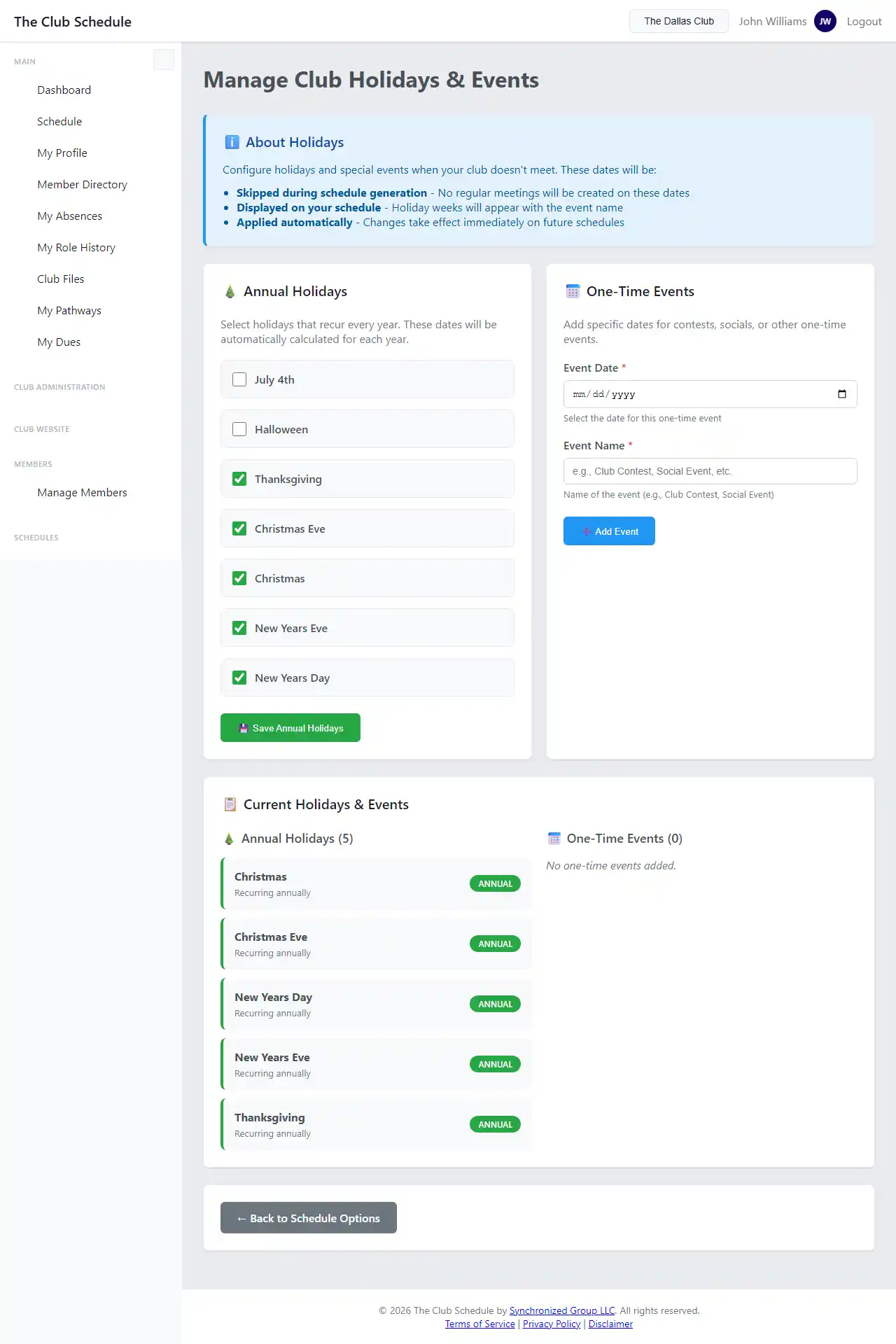
Step 2: Create the Holiday
- Click Add Holiday button
- Fill out the holiday information:
- Date: The specific date of the holiday
- Name: What holiday it is (e.g., "Christmas Day", "Club Anniversary")
-
Description: (Optional) Additional notes about why there's no meeting
-
Click Save Holiday
Step 3: Confirmation
You'll see a confirmation message: "Holiday added successfully!"
The holiday now appears in your holidays list and will be considered when creating schedules.
Viewing Your Holidays
To see all holidays for your club:
- Go to Club Settings > Holidays
- You'll see a list of all holidays, showing:
- Date
- Holiday name
- Description (if added)
- Edit and Delete options
Holidays are listed in chronological order.
Editing a Holiday
To change holiday details:
- Go to Club Settings > Holidays
- Find the holiday you want to edit
- Click Edit next to that holiday
- Make your changes
- Click Save Changes
Deleting a Holiday
To remove a holiday:
- Go to Club Settings > Holidays
- Find the holiday you want to remove
- Click Delete next to that holiday
- Confirm the deletion
Important: Deleting a holiday does NOT automatically add meetings to published schedules. It only affects future schedule generation.
How Holidays Affect Schedules
During Schedule Creation
When you create a new schedule: - The system automatically skips any dates marked as holidays - If a regular meeting would fall on a holiday, it's not created - The system moves to the next regular meeting date instead
Example: - Your club meets every Thursday - You mark December 25 (a Thursday) as a holiday - When generating a schedule covering December, no meeting is created for December 25 - The next meeting after December 18 would be January 1 (or the next non-holiday Thursday)
For Published Schedules
Adding a holiday to an existing published schedule: - Does NOT remove meetings already created - You'll need to manually delete or mark meetings as holidays in the published schedule - See Editing Published Schedules for details
Planning Ahead for Holidays
Best Practices for Holiday Planning
Add holidays before creating schedules: - Review the full year for holidays - Add all known holidays at the beginning of the year - Update as needed when special circumstances arise
Common holidays to consider: - National/federal holidays in your country - Religious holidays relevant to your members - Local holidays specific to your area - Club anniversary or special events - Scheduled venue closures
For recurring annual holidays: - Add them each year (holidays don't automatically repeat) - Consider setting a reminder to add next year's holidays
Creating a Holiday Calendar
Many officers find it helpful to:
- Create a list of all annual holidays at the start of the year
- Add them all to The Club Schedule at once
- Keep a club calendar (separate from the app) for reference
- Review quarterly to ensure upcoming holidays are marked
Holiday vs. Cancelled Meeting
There's a difference between a holiday and a cancelled meeting:
| Holiday | Cancelled Meeting |
|---|---|
| Known in advance | Unexpected circumstance |
| Added before schedule creation | Happens after schedule is published |
| Schedule generation skips the date | Meeting is created but then removed or marked |
| No notification needed | Members should be notified |
For unexpected cancellations: 1. Don't add as a holiday retroactively 2. Instead, edit the published schedule to remove or mark the meeting 3. Email members about the cancellation using Email Members
Tips
- Review annually - At the start of each year, add all known holidays
- Check your venue - Ask if your meeting venue has scheduled closures
- Consider member input - Ask if there are important dates when most members can't attend
- Don't overuse - Only mark dates when the club definitely won't meet
- Document reasons - Use the description field to note why it's a holiday
- Test schedules - After adding holidays, create a test schedule to ensure they're working correctly
Troubleshooting
I added a holiday but the schedule still has a meeting on that date - The holiday was added after the schedule was created - You'll need to manually edit or delete that meeting in the published schedule - Future schedules will automatically skip the holiday
I deleted a holiday but meetings don't appear on that date - Deleting a holiday only affects future schedule generation - If you want to add a meeting on a former holiday date, manually add it to the published schedule - Or regenerate the schedule (for draft schedules only)
I can't add holidays - Confirm you're logged in as an officer - Check that your subscription is active - Ensure you're in the correct club (check the club selector)
Holidays aren't showing in chronological order - Refresh the page - The system should automatically sort by date - Contact support if the problem persists
Related Articles
- Creating and Publishing Schedules
- Club Settings Overview
- Editing Published Schedules
- Email Communication Tools (for notifying members of unexpected cancellations)