Create and Send Invoices
Generate invoices for individual members or all members in a dues period, then send them by email.
Before You Begin
- You must be a club officer.
- For bulk invoicing, you need a dues period and at least one invoice template already set up.
Create a Single Invoice
- Go to Dues & Invoices in the left sidebar.
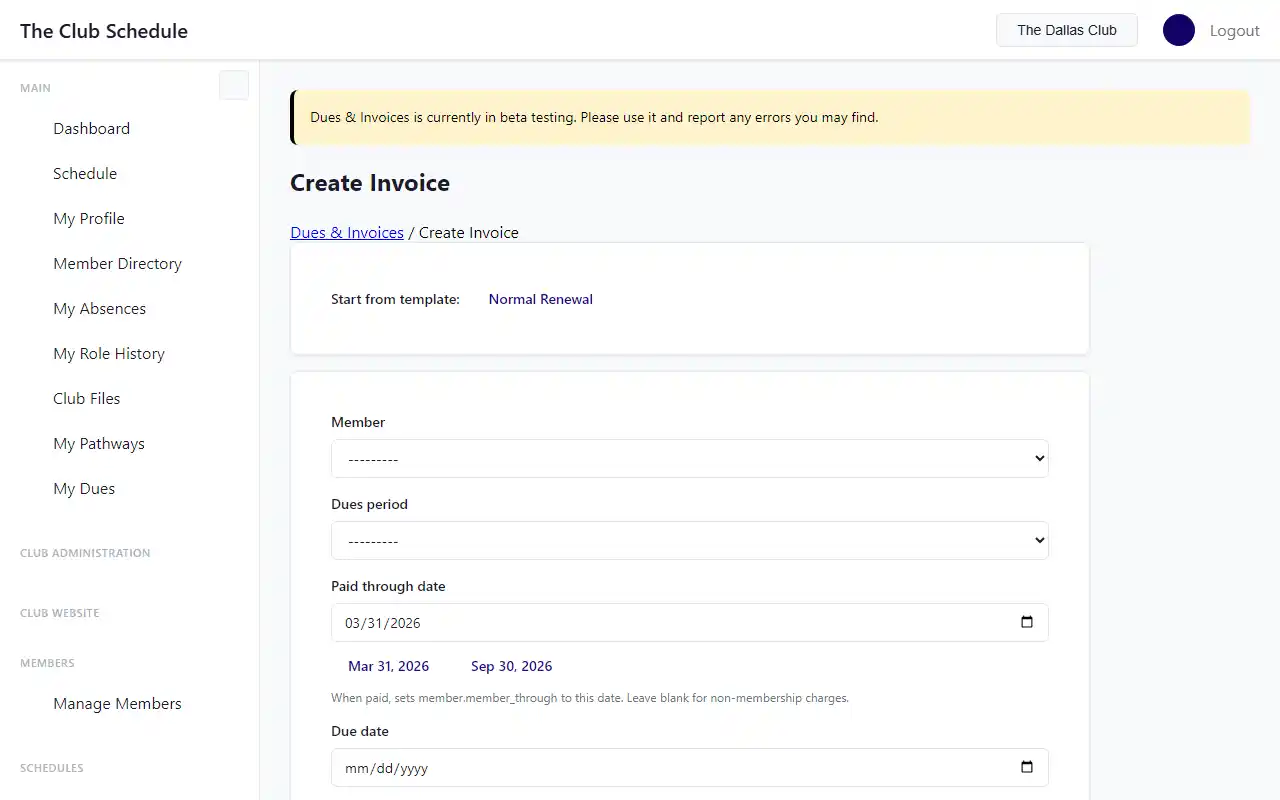
- Click Create Invoice.
- Optionally click a template name at the top to pre-fill line items.
- Fill in the invoice details:
- Member: Select the member this invoice is for.
- Dues Period: Select the billing period (or leave blank for an ad-hoc invoice).
- Paid Through Date: The date the member's membership will be extended to once paid. Quick-set buttons appear for the next Toastmasters semi-annual cycle dates (March 31 or September 30).
- Due Date: When payment is expected.
- Internal Notes: Notes visible only to officers.
- Member Memo: A message that appears on the invoice the member sees.
- Under Line Items, add or edit the charges:
- Description: What the charge is for.
- Unit Price: The price per unit.
- Qty: Number of units.
- Order: Display order on the invoice.
- Click Add Line Item to add more rows. Check Remove to delete a row.
- Click Create Invoice.
The invoice is created in Draft status. It is not visible to the member until you send it.
Create Invoices in Bulk
- Open a dues period.
- Select an invoice template from the dropdown.
- Click Create All.
- Draft invoices are created for every active member who does not already have an invoice in that period.
Send an Invoice
- Open the invoice detail page.
- Click Send Invoice (or Resend if already sent).
- The member receives an email with the invoice details and a link to view it in the app.
- The invoice status changes from Draft to Sent.
Send All Draft Invoices in a Period
- Open the dues period.
- Click Send All next to the draft count.
- All draft invoices in that period are sent at once.
Edit a Draft Invoice
- Open the invoice detail page.
- Click Edit.
- Update the member, period, dates, notes, or line items.
- Click Save Changes.
Only Draft invoices can be edited. Once an invoice is sent, it cannot be modified.
Invoice Statuses Explained
| Status | Meaning |
|---|---|
| Draft | Created but not yet sent to the member. Can be edited. |
| Sent | Emailed to the member. Waiting for payment. |
| Partially Paid | Some payment has been received, but a balance remains. |
| Paid | Fully paid. The member's "Paid Through" date is automatically updated. |
| Void | Cancelled. Not visible to the member. |
| Uncollectible | Payment is not expected to be received. |
Tips
- Each member can have only one invoice per dues period. For additional charges, create an ad-hoc invoice (leave the dues period blank).
- You can resend a "Sent" invoice if the member needs another copy.
- The "Paid Through Date" on the invoice controls what date the member's membership is extended to when the invoice is fully paid. It defaults to the next Toastmasters semi-annual cycle end date.
Troubleshooting
"Only draft invoices can be edited." Once an invoice has been sent, you cannot change its line items. If you made an error, void the invoice and create a new one.
A member does not appear in the member dropdown. Only active members are shown. Check that the member is not deactivated.