Set Up Invoice Templates
Create reusable invoice templates so you can quickly generate invoices with standard line items like TI dues and club dues.
Before You Begin
- You must be a club officer.
- You should know the amounts for each line item you want to include (e.g., TI dues per member, club dues).
Create an Invoice Template
- Go to Dues & Invoices in the left sidebar.
- Click Invoice Templates (or navigate to Dues & Invoices > Manage Templates).
- Click Create Template.
- Enter a Template Name (e.g., "Standard Renewal" or "New Member Dues").
- Optionally check Is Default to make this the default template.
- Under Line Items, add one or more rows:
- Description: What the charge is for (e.g., "TI Dues", "Club Dues", "New Member Fee").
- Unit Amount: The price per unit.
- Qty: Default quantity (usually 1).
- Order: Display order on the invoice (0 = first).
- Click Add Line Item to add more rows.
- Click Create Template.
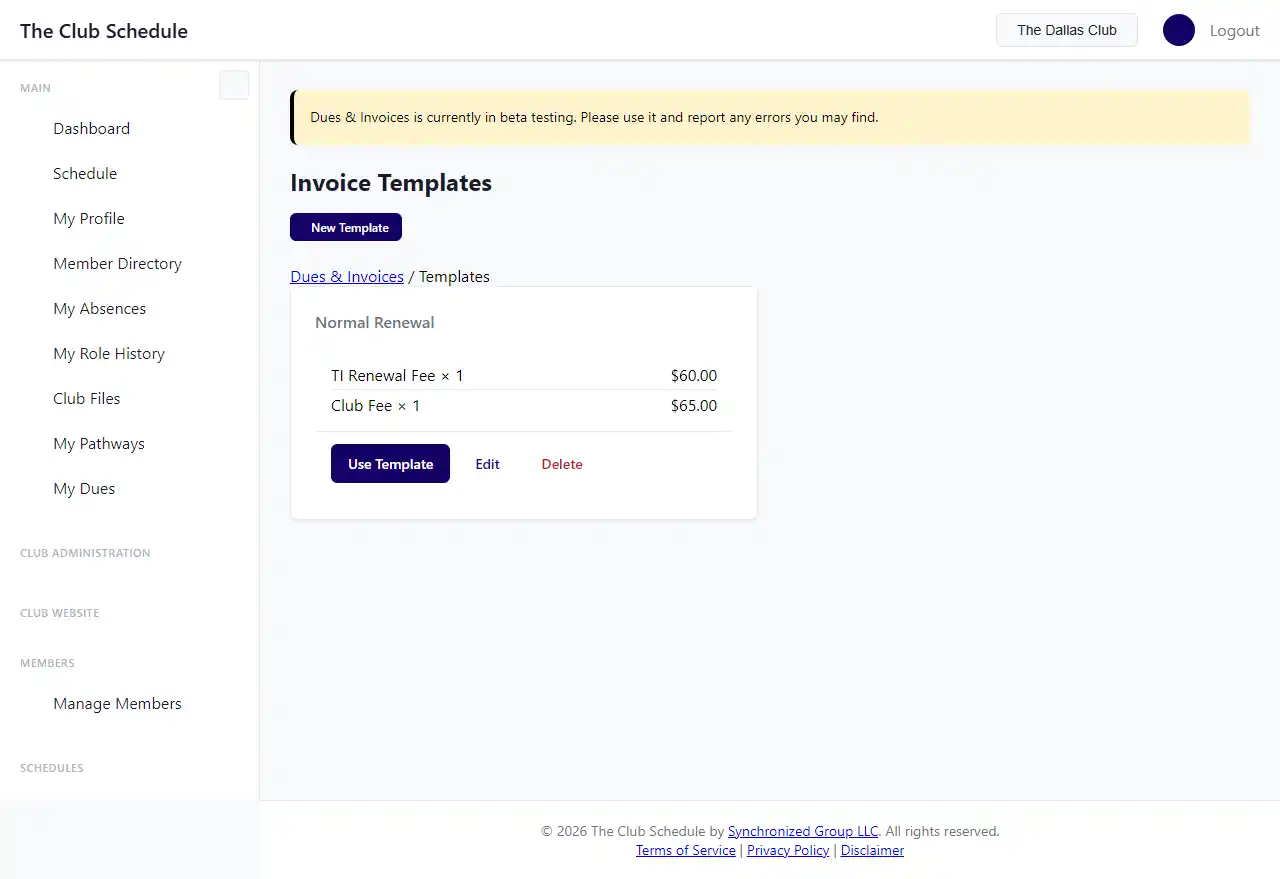
Example Template: Semi-Annual Renewal
| Description | Unit Amount | Qty |
|---|---|---|
| Toastmasters International Dues | $60.00 | 1 |
| Club Dues | $25.00 | 1 |
Edit a Template
- Go to Dues & Invoices > Invoice Templates.
- Click Edit next to the template you want to change.
- Update the name, line items, or amounts.
- To remove a line item, check the Remove checkbox next to it.
- Click Save Changes.
Delete a Template
- Go to Dues & Invoices > Invoice Templates.
- Click Delete next to the template.
- Confirm the deletion.
Deleting a template does not affect invoices that were already created from it.
Tips
- Create separate templates for different scenarios: renewals, new members, or special assessments.
- Template names must be unique within your club.
- When you create an individual invoice, you can choose to start from a template, which pre-fills the line items. You can then add, remove, or edit line items before saving.