Importing Members in Bulk
Import your entire club roster at once using a CSV file exported from Toastmasters International.
Before You Begin
- You must be a club officer (President, VP of Education, Secretary, or Admin) with an active subscription.
- You need a membership export CSV file from Toastmasters International (tm.org).
- The CSV file must be 5 MB or smaller.
Step 1: Export Your Roster from Toastmasters International
- Log in to tm.org.
- Navigate to Club Central.
- Go to Club Roster.
- Click Export to download your membership data as a CSV file.
- Save the file to your computer.
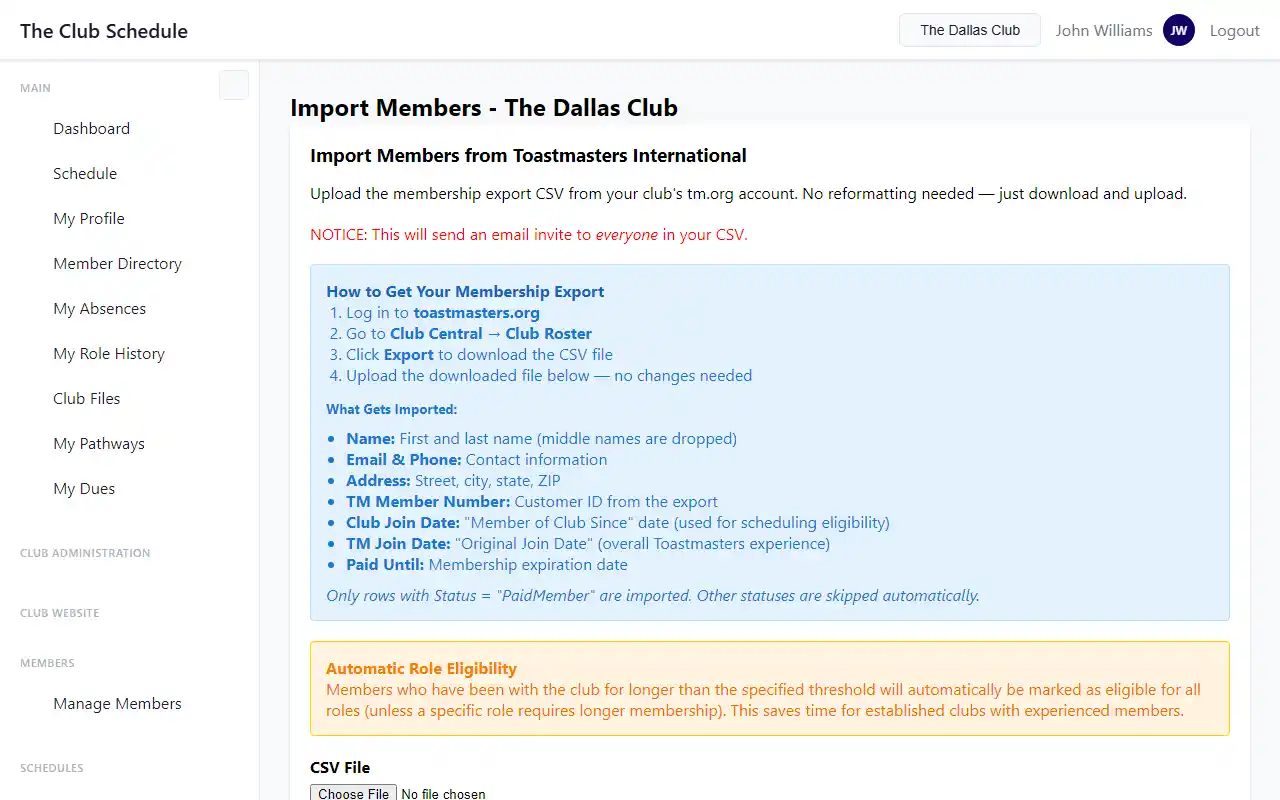
Step 2: Open the Import Page
- Log in to The Club Schedule as a club officer.
- In the sidebar, navigate to the member management area.
- Click Import Members.
Step 3: Configure Import Settings
Before uploading, set your import preferences:
Auto-Eligible Threshold
- Set the Auto-Eligible Threshold (months) field. The default is 8 months.
- Members whose club membership is this many months or longer will be automatically marked as eligible for all standard roles.
- Members with shorter membership will need to build eligibility through completing prerequisite roles.
Update Existing Profiles
- Optionally check Update existing member profiles.
- When enabled, if a member in your CSV already exists in the club, their profile information (name, address, phone) will be updated from the CSV data.
- When unchecked, existing members are skipped.
Step 4: Upload and Import
- Click Choose File and select your CSV file.
- Click the upload/submit button.
- Wait for the import to complete.
What Happens During Import
The import process does the following for each row in the CSV:
- Filters by status -- Only rows with a "PaidMember" status are imported. Non-paid members are skipped.
- Skips blank rows -- Empty padding rows at the end of the TM export are ignored.
- Creates invitations -- New members receive an email invitation to join the club and set up their account.
- Skips existing members -- Members who are already active in the club are skipped (unless "Update existing profiles" is checked).
- Sets eligibility -- Members meeting the auto-eligible threshold are marked as eligible for all standard roles.
After the Import
You will see a summary of what happened:
- Invitations sent -- Number of new members who received invitation emails.
- Members updated -- Number of existing members whose profiles were updated (if enabled).
- Members skipped -- Number of members already in the club who were not changed.
- Errors -- Any rows that could not be processed, with details.
If there are roles in your club with membership requirements longer than the auto-eligible threshold, a note will list those roles so you can set up eligibility for individual members if needed.
After a successful import, you are redirected to the Member List page where you can see all your club members.
CSV Format Requirements
The import expects the standard Toastmasters International export format with these columns:
| Column | Description |
|---|---|
| Customer ID | TM member number |
| Name | Full name (Last, First format) |
| Addr L1 | Street address line 1 |
| Addr L2 | Street address line 2 |
| City | City |
| State/Province | State or province |
| zip-code | ZIP or postal code |
| Email address | |
| Mobile Phone | Phone number |
| Member of Club Since | Date member joined this club |
| Original Join Date | Date member originally joined TM |
| Paid Until | Membership paid through date |
| Status (*) | Must be "PaidMember" to be imported |
Warning
Do not modify the column headers in the CSV file. The import relies on exact column name matching (case-insensitive). Duplicate column headers will cause an error.
Tips
- Import early in your setup. Importing your roster is typically the first thing you do after creating your club on The Club Schedule.
- Use the default threshold of 8 months unless you have a specific reason to change it. This gives newer members time to complete prerequisite roles before being assigned advanced ones.
- Re-import periodically with "Update existing profiles" checked to keep member information in sync with Toastmasters International records.
- Invitations are visible in the Pending Invitations section of your member management area, where you can track who has accepted.
Troubleshooting
| Problem | Solution |
|---|---|
| "Missing required columns" error | Make sure you are using the unmodified CSV export from tm.org. Do not rename or remove columns. The error message will list which columns are missing and which ones were found. |
| "Duplicate column headers" error | Your CSV has two columns with the same name. Open the file in a text editor and remove the duplicate. |
| "CSV parsing error" | The file may not be a valid CSV. Make sure you downloaded the correct file from tm.org and that it has not been corrupted. |
| File size too large | The CSV must be under 5 MB. A typical club roster CSV is well under this limit. If yours is larger, check that you downloaded the correct file. |
| Some members were skipped | Members already active in the club are skipped by default. This is expected behavior. Check the "Update existing profiles" option if you want to update their information. |
| Members are not receiving invitation emails | Check that the email addresses in the CSV are correct. You can also view pending invitations and resend them from the member management area. |