Email Communication Tools
Learn how to use The Club Schedule's email features to communicate with your club members effectively.
Note: Only club officers (President, VP Education, Secretary, or Admin) can send emails to members.
Types of Email Communication
The Club Schedule provides several ways to communicate with members:
1. Manual Club-Wide Emails
Send custom messages to all members or selected groups.
2. Automated Notifications
System-generated emails that send automatically based on events: - Schedule publication notifications - Meeting reminder notifications - Assignment notifications
3. Individual Assignment Emails
Emails sent when individual assignments are created or changed.
Sending Manual Emails to Members
Accessing the Email Tool
- Log in as a club officer
- Click Email Members from your dashboard
- Or navigate to Communication > Email Members in the menu
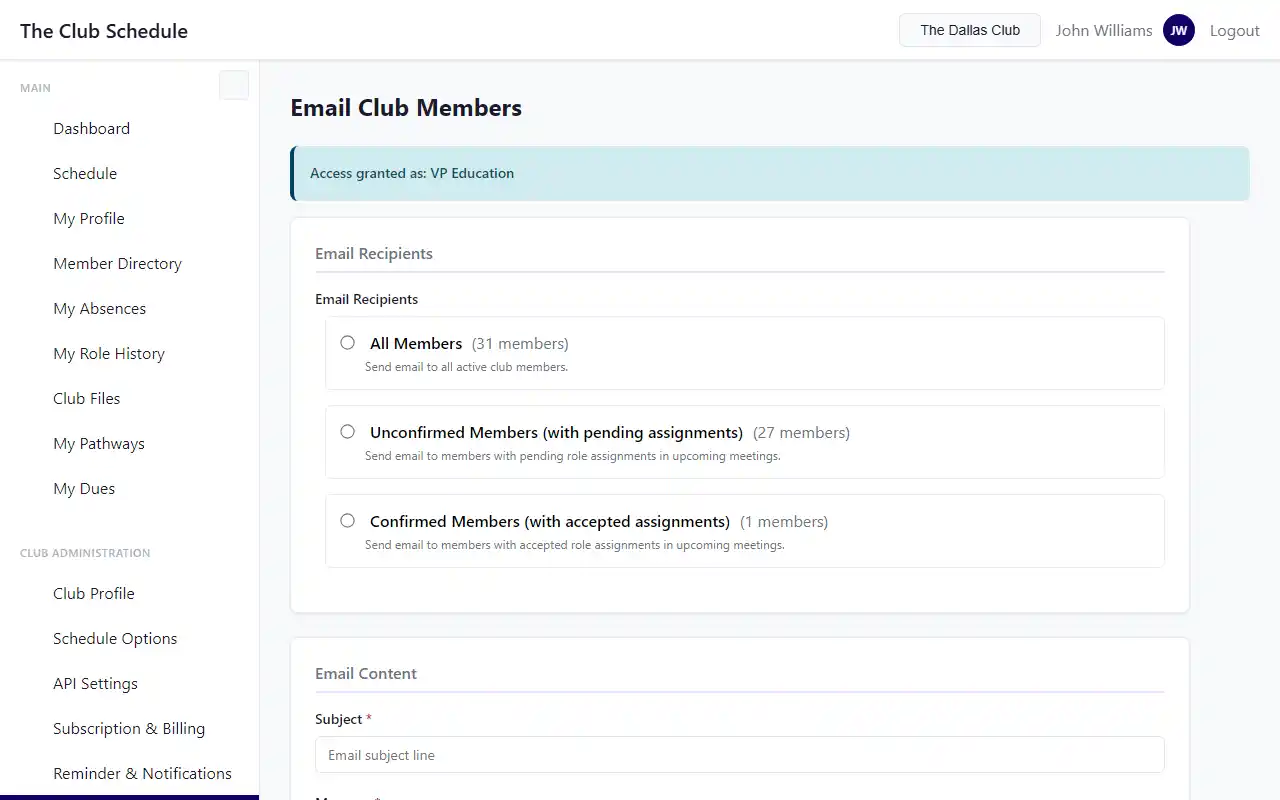
Composing Your Message
- To: Select recipients
- All active members
- Only officers
- Members with specific roles
-
Custom selection (coming soon)
-
Subject: Enter your email subject line
- Keep it clear and concise
- Include relevant dates or topics
-
Example: "Important: Meeting Moved to Next Week"
-
Message: Write your email content
- Use the text editor to format your message
- Keep it concise and actionable
-
Include any necessary links or attachments (if supported)
-
Preview: Review how the email will look to recipients
-
Send: Click Send Email to deliver the message
Email Sending Limits
To prevent spam and protect your club's reputation:
Active Subscription: - Unlimited emails to members - Automatic notifications work normally
Lapsed Subscription (Grace Period Ended): - Limited to 2 emails per week - Automatic notifications are disabled - Reactivate your subscription to restore full email access
Automated Email Notifications
Schedule Publication Notifications
When you publish a schedule, members can be automatically notified.
To enable: 1. Go to Club Settings > Email Preferences 2. Check "Notify all members when a new schedule is published" 3. Click Save Settings
What members receive: - Email with the schedule name and date range - Link to view the full schedule - List of their assignments (if any) - Instructions for responding to assignments
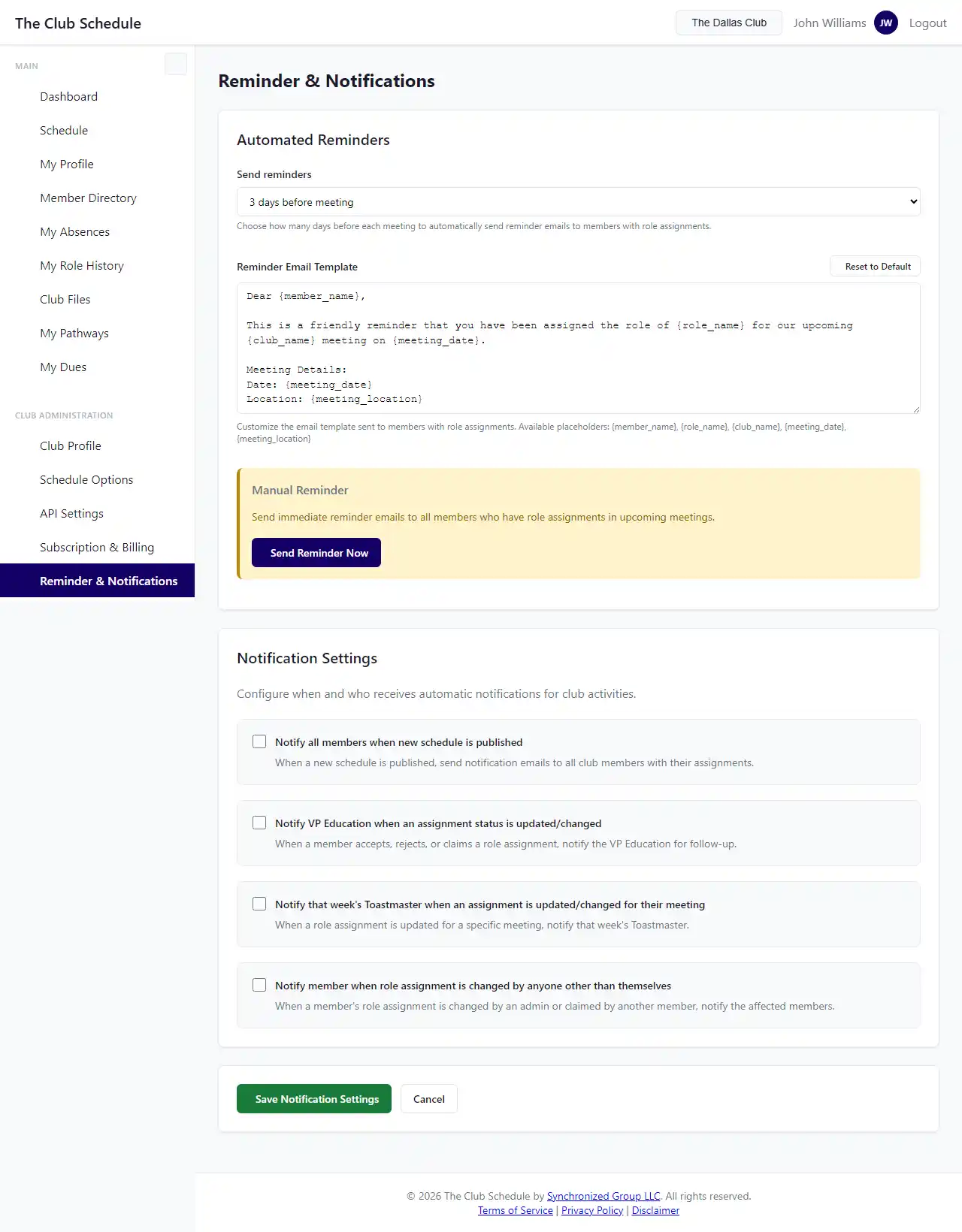
Meeting Reminder Notifications
Set up automatic reminders sent before each meeting.
To configure: 1. Go to Communication > Meeting Notifications 2. Choose reminder timing: - 3 days before meeting - 1 week before meeting - 2 weeks before meeting - Custom timing 3. Customize the reminder message template 4. Click Save Settings
What members receive: - Reminder about the upcoming meeting - Their role assignments for that meeting - Meeting date, time, and location (if configured) - Link to view the full schedule
Assignment Notifications
Members automatically receive emails when: - They're assigned to a new role - An officer changes their assignment - They need to respond to an assignment
Email content includes: - Role name and meeting date - Accept/Decline buttons (one-click response) - Link to view the schedule - Deadline for responding (if configured)
These notifications are automatic and cannot be disabled (they're essential for the system to work).
Email Best Practices
When to Use Manual Emails
- Announcements: Important club news or changes
- Reminders: Special events or deadlines
- Updates: Changes to published schedules
- Emergency communications: Last-minute meeting cancellations
- Club business: Officer elections, club votes, etc.
When to Use Automated Notifications
- Regular meeting reminders: Set it once and forget it
- New schedule releases: Ensure everyone sees their assignments
- Assignment confirmations: Let the system handle routine communications
Writing Effective Emails
Subject Lines: - Be specific: "Meeting Cancelled This Thursday" vs "Update" - Use dates: "Schedule for March 2025 Published" - Indicate urgency when needed: "URGENT: Change to Tomorrow's Meeting"
Message Content: - Start with the most important information - Use short paragraphs - Include specific dates and times - Provide clear action items - Add a friendly closing
Example Structure:
Hi everyone,

[Main announcement or information]

[Details or context]

[Action required, if any]

Thanks,
[Your name]
[Your officer title]
Timing Your Emails
- Avoid late nights/early mornings - Send during business hours
- Give adequate notice - At least 24-48 hours for important changes
- Don't over-communicate - Too many emails lead to members ignoring them
- Consolidate information - Send one comprehensive email instead of multiple short ones
Managing Email Preferences
Member Email Preferences
Members control their own email preferences: - Assignment notifications: On/Off - Reminder notifications: Frequency - Club announcement emails: On/Off
Note: Officers cannot override individual member preferences. Members who opt out won't receive certain emails.
Club-Wide Email Settings
As an officer, you control: - Whether schedule publication sends notifications - Meeting reminder timing and content - Default email templates
Access these in Club Settings > Email Preferences.
Troubleshooting Email Delivery
Emails Not Being Received
Check these common issues:
- Member email addresses
- Go to Manage Members
- Verify members have valid email addresses
-
Check for typos in email addresses
-
Spam/Junk folders
- Ask members to check spam folders
- Whitelist emails from @theclubschedule.com
-
Add The Club Schedule to contacts
-
Email preferences
- Check if the member has opted out of certain emails
-
View member profile > Contact Preferences
-
Subscription status
- Verify your subscription is active
- Check if you've hit the lapsed subscription email limit
Bounced Emails
If an email bounces (delivery fails): - You'll see a warning in the Recent Activity log - Update the member's email address - Contact the member through another channel to get their correct email
Delayed Emails
Some emails may take a few minutes to arrive: - Large email batches are queued to prevent spam filters - Background processing ensures reliable delivery - Check the notification job status in Recent Activity
Email Compliance and Privacy
What We Track
- Email delivery status (sent, failed, bounced)
- Email open rates (anonymized)
- Link clicks (anonymized)
What We Don't Do
- Share member email addresses with third parties
- Send marketing emails without consent
- Include member emails in CC/BCC that exposes them to others
Member Rights
Members can: - Opt out of non-essential emails - Request a copy of all emails sent to them - Update their email address at any time - Request deletion of their email from the system
Advanced Email Features
Email Templates (Coming Soon)
Save frequently used messages as templates: - Meeting cancellation template - New member welcome email - Monthly newsletter template
Scheduled Sending (Coming Soon)
Schedule emails to send at a specific time: - Prepare emails in advance - Send during optimal times - Coordinate with other club activities
Email Analytics (Coming Soon)
Track email effectiveness: - Open rates - Click-through rates - Response rates to assignments
Tips
- Test first - Send a test email to yourself before sending to all members
- Mobile-friendly - Keep emails short; members often read on phones
- Include links - Make it easy for members to take action
- Be consistent - Use similar formatting for all club emails
- Save important emails - Keep copies of critical communications
- Respect preferences - Honor member opt-out requests
Related Articles
- Creating and Publishing Schedules
- Inviting New Members
- Club Settings Overview
- Subscription and Billing Guide (for email limits during lapsed subscriptions)