Connect Stripe for Online Payments
Let your members pay dues online with a credit or debit card by connecting your club's Stripe account. When enabled, invoice emails include a "Pay Now" link that takes members to a secure Stripe payment page.
Before You Begin
- You must be a club officer.
- Your club needs a Stripe account. If you do not have one, sign up at stripe.com.
- Stripe online payments is a separate feature that may not yet be enabled for all clubs. If you do not see the Stripe Payments card on your Dues Dashboard, this feature is not yet available.
Step 1: Create a Restricted API Key in Stripe
- Log in to your Stripe Dashboard.
- Go to Developers > API Keys > Restricted keys.
- Click Create restricted key.
- Give it a name (e.g., "The Club Schedule").
- Set these permissions:
- Core > Balance -- Read
- Core > Customers -- Read and Write
- Billing > Invoices -- Read and Write
- Billing > Invoice Items -- Read and Write
- Click Create key.
- Copy the restricted key (it starts with
rk_live_).
Important: Use a restricted key, not your secret key. A restricted key limits what The Club Schedule can do with your Stripe account to only what is needed.
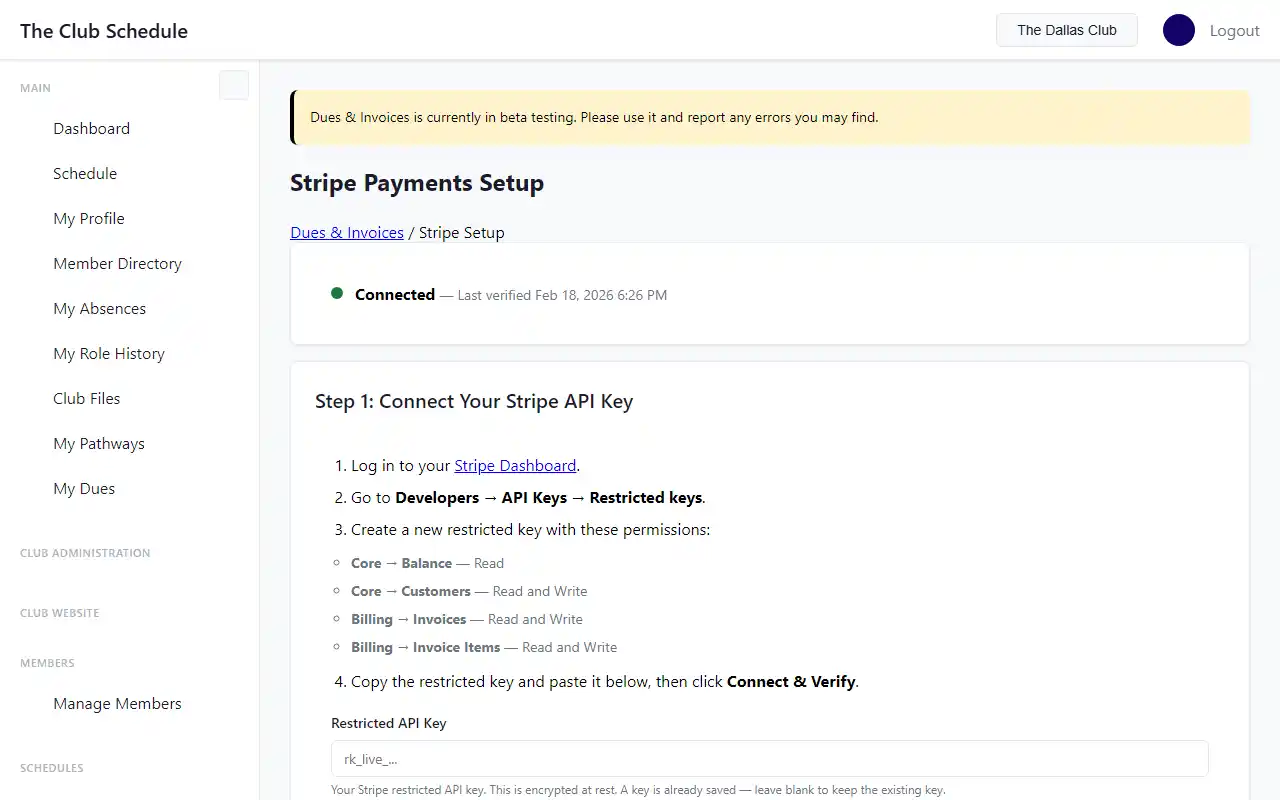
Step 2: Connect the Key in The Club Schedule
- Go to Dues & Invoices in the left sidebar.
- Click Stripe Payments > Setup (or go to Dues & Invoices > Stripe Setup).
- Paste your restricted API key into the Restricted API Key field.
- Click Connect & Verify.
- If the key is valid, you will see a green "Connected" status.
Step 3: Set Up the Webhook
After connecting your API key, a webhook URL will appear on the Stripe Setup page. This webhook allows Stripe to notify The Club Schedule when payments are received.
- In your Stripe Dashboard, go to Developers > Webhooks.
- Click Add endpoint.
- Paste the webhook URL shown on the Stripe Setup page.
- Select these events:
invoice.paidinvoice.payment_failedinvoice.voided- Click Add endpoint.
- Copy the Signing secret (it starts with
whsec_). - Go back to the Stripe Setup page in The Club Schedule.
- Paste the signing secret into the Webhook Signing Secret field.
- Click Update & Verify.
How It Works
Once connected:
- When you send an invoice, a corresponding Stripe invoice is created automatically.
- The invoice email includes a Pay Now link pointing to Stripe's hosted payment page.
- When a member pays through Stripe, the payment is automatically recorded in The Club Schedule and the invoice status updates.
- Members see a "Pay Now" button on their My Dues page for any unpaid invoices.
Tips
- Your API key is encrypted at rest. It is never displayed after you save it.
- If you need to change your API key, enter the new key and click Update & Verify. Leave the field blank to keep the existing key.
- The webhook signing secret is also encrypted. Without it, payments will not auto-sync -- you would need to record them manually.
- If Stripe invoice creation fails for any reason (e.g., network issue), the email invoice is still sent. You will see a warning message.
Troubleshooting
"Stripe payments are not currently available." The Stripe feature has not been enabled for your account yet. Contact support for access.
The webhook URL does not appear. Complete Step 1 first. The webhook URL is generated after your API key is saved.
Payments are not syncing automatically. Make sure you have completed Step 3 (webhook setup) and entered the signing secret. Without it, Stripe cannot notify The Club Schedule about payments.
Related Articles
- Get Started with Dues Tracking
- Create and Send Invoices
- View and Pay Your Dues (member perspective)