Create and Manage Dues Periods
Set up billing cycles to organize your invoices by time period, such as a semi-annual Toastmasters renewal.
Before You Begin
- You must be a club officer.
- You need to know the date range for your billing cycle.
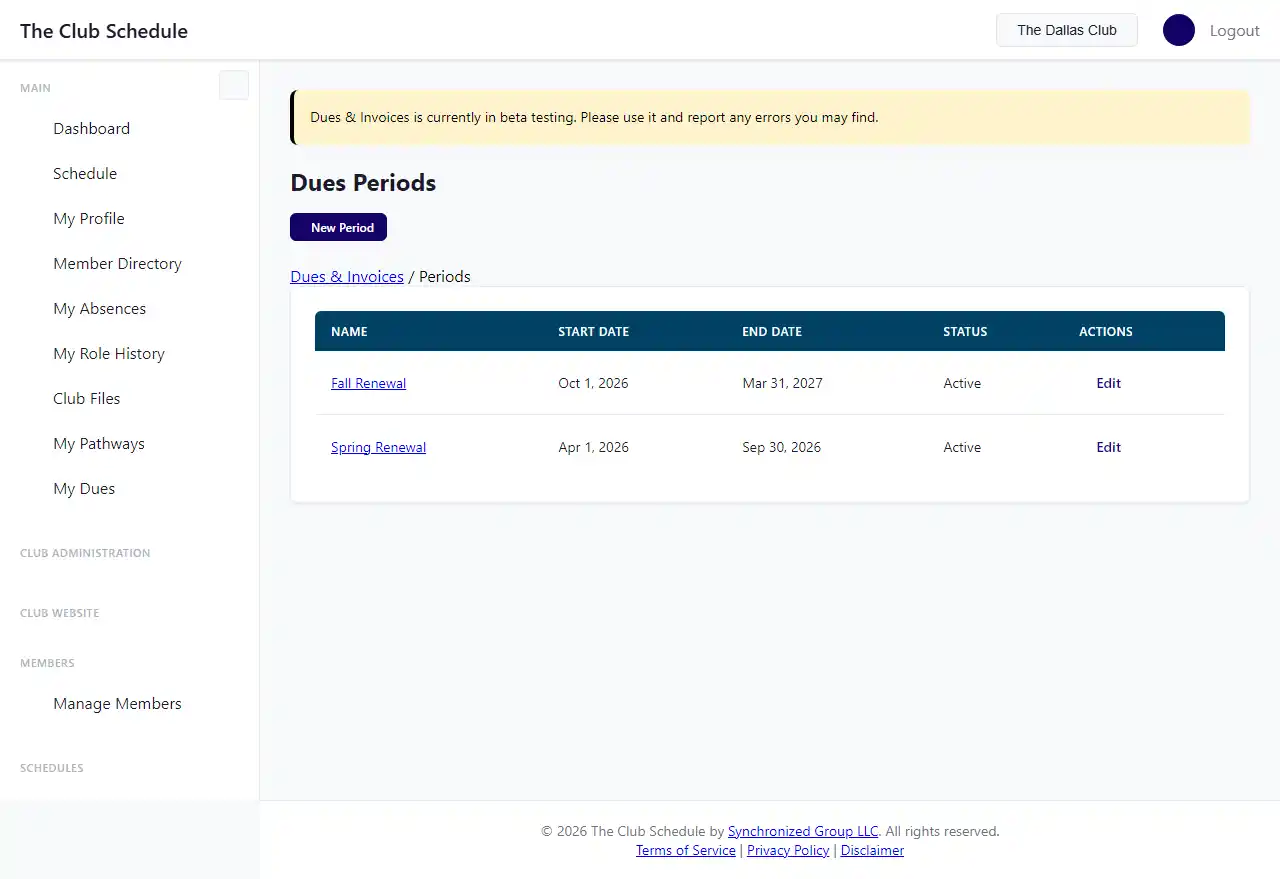
Create a Dues Period
- Go to Dues & Invoices in the left sidebar.
- Click New Period (on the dashboard) or go to Dues Periods and click Create Period.
- Enter a Name for the period (e.g., "Jan-Jun 2026 Dues").
- Set the Start Date and End Date for the billing cycle.
- Leave Active checked. Active periods accept new invoices.
- Click Save.
You will be taken to the period detail page, where you can see all members and their invoice status.
View a Dues Period
The period detail page shows:
- Date range and active/closed status.
- Expected vs. Collected totals across all invoices.
- Member Payment Grid listing every active member with their invoice status (No invoice, Draft, Sent, Paid, etc.).
- TI Dues column where you can confirm members who pay Toastmasters International directly.
Bulk-Create Invoices for a Period
If you have already set up an invoice template, you can create invoices for all uninvoiced members at once:
- Open the dues period.
- In the bulk actions area at the top, select an invoice template from the dropdown.
- Click Create All.
- Invoices will be created in Draft status for every active member who does not already have one.
Bulk-Send Draft Invoices
After reviewing the draft invoices, you can send them all at once:
- Open the dues period.
- Click Send All next to the draft invoice count.
- Each member will receive an email with their invoice.
Edit a Dues Period
- Open the dues period.
- Click Edit Period.
- Update the name, dates, or active status.
- Click Save.
Close a Dues Period
When a billing cycle is complete, uncheck the Active checkbox to close it. Closed periods still display all their invoices and payment history, but you cannot create new invoices against them.
Confirm TI Dues
Some members pay Toastmasters International dues directly and do not need a club invoice. To track this:
- Open the dues period.
- In the Member Payment Grid, find the member and click Mark Paid in the TI Dues column.
- A green checkmark will appear. The member's membership "through" date will be updated automatically.
To undo a TI confirmation, click the confirmed button again.
Tips
- Period names must be unique within your club.
- The start date must be before the end date.
- You can have multiple active periods at the same time, but the dashboard will show stats for the most recent one.
Troubleshooting
"All active members already have invoices for this period." This message appears when you try to bulk-create invoices but every active member already has one. Check the member grid to see if any invoices are in an unexpected status.
A member is missing from the grid. Only active members appear. If a member was deactivated, they will not show in the period grid.