Club Settings Overview
A complete guide to all configuration options in The Club Schedule and how they affect your club's operation.
Note: Only club officers (President, VP Education, Secretary, or Admin) can access and modify club settings.
Accessing Club Settings
- Log in as a club officer
- Click Settings in the navigation menu
- Or click Club Settings from your dashboard
You'll see several categories of settings organized into sections.
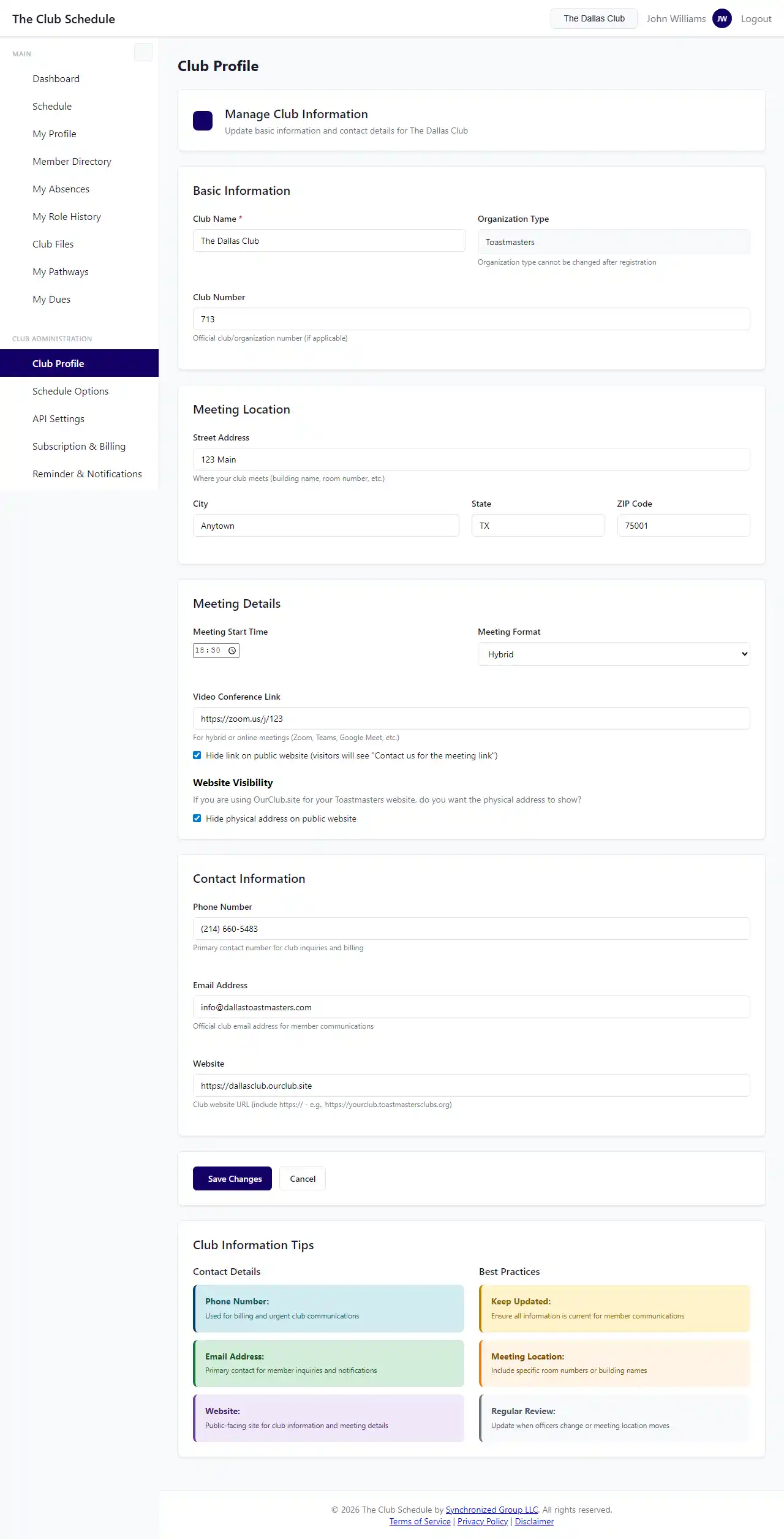
Club Profile Settings
Basic information about your club.
Club Name
- The name displayed throughout the application
- Shown on schedules, emails, and member dashboards
- Can be changed at any time
Club Type / Organization Type
- Set during initial registration (Toastmasters, Church, Rotary, etc.)
- Determines default roles and features available
- Contact support to change organization type
Timezone
- Controls how meeting times are displayed
- Important for email reminders and notifications
- US timezones only currently supported
- Change this if your club relocates
Club Slug
- The unique URL identifier for your club
- Used in public schedule links
- Example:
theclubschedule.com/club/your-club-slug - Cannot be changed after creation (contact support if needed)
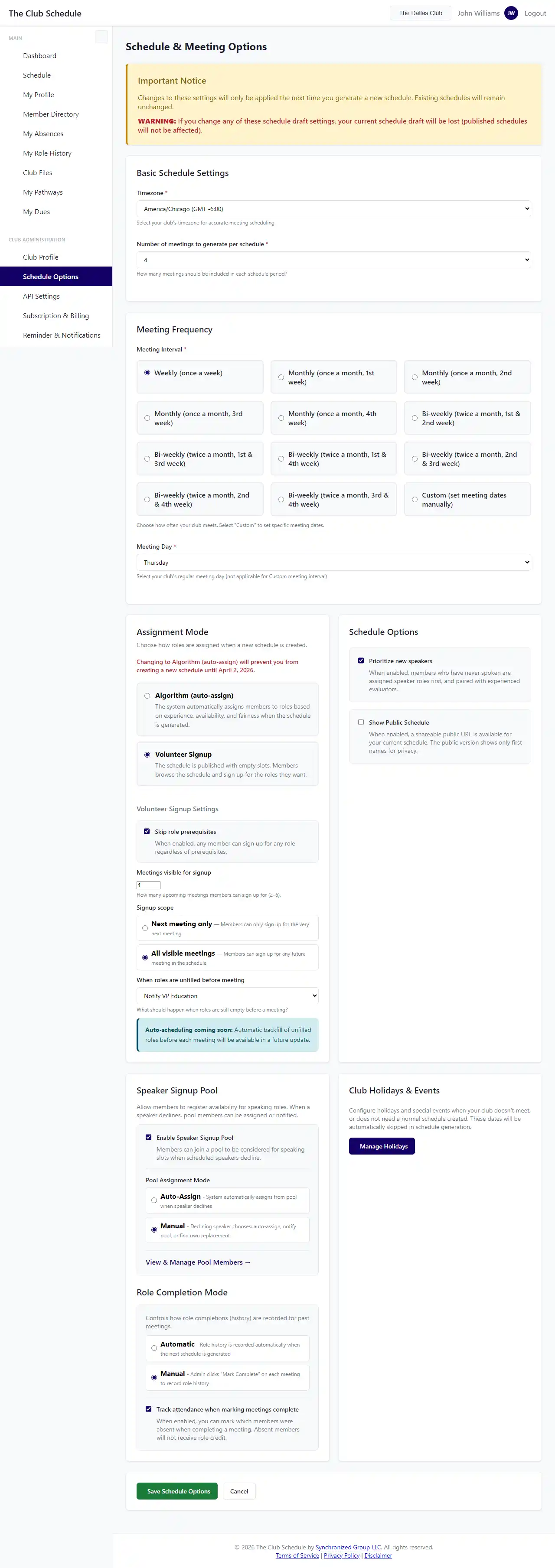
Schedule Settings
Control how schedules are created and managed.
Meeting Day
- Which day of the week your club meets
- Schedules automatically generate meetings on this day
- Common options: Monday through Sunday
- Change this if your meeting day changes
Meeting Interval
- How often your club meets
- Options:
- Weekly - Every week on the meeting day
- Bi-weekly - Every other week
- Monthly - Once per month (first, second, third, or fourth occurrence of the meeting day)
- Affects schedule generation
Meetings Per Schedule
- How many meetings to generate when creating a schedule
- Options: 2, 4, or 6 meetings
- Common setting: 6 meetings
- Adjust based on how far ahead you want to plan
Major Role Gap Weeks
- Minimum weeks required between major role assignments for the same member
- Prevents members from getting too many challenging roles too close together
- Typical settings: 2-4 weeks
- Set to 0 to disable gap restrictions (not recommended)
Prioritize New Speakers
- When enabled, uses experience-based assignment for speaker roles
- Prioritizes members who have done fewer speeches
- Helps newer members build speaking experience
- Advanced feature - test carefully before enabling
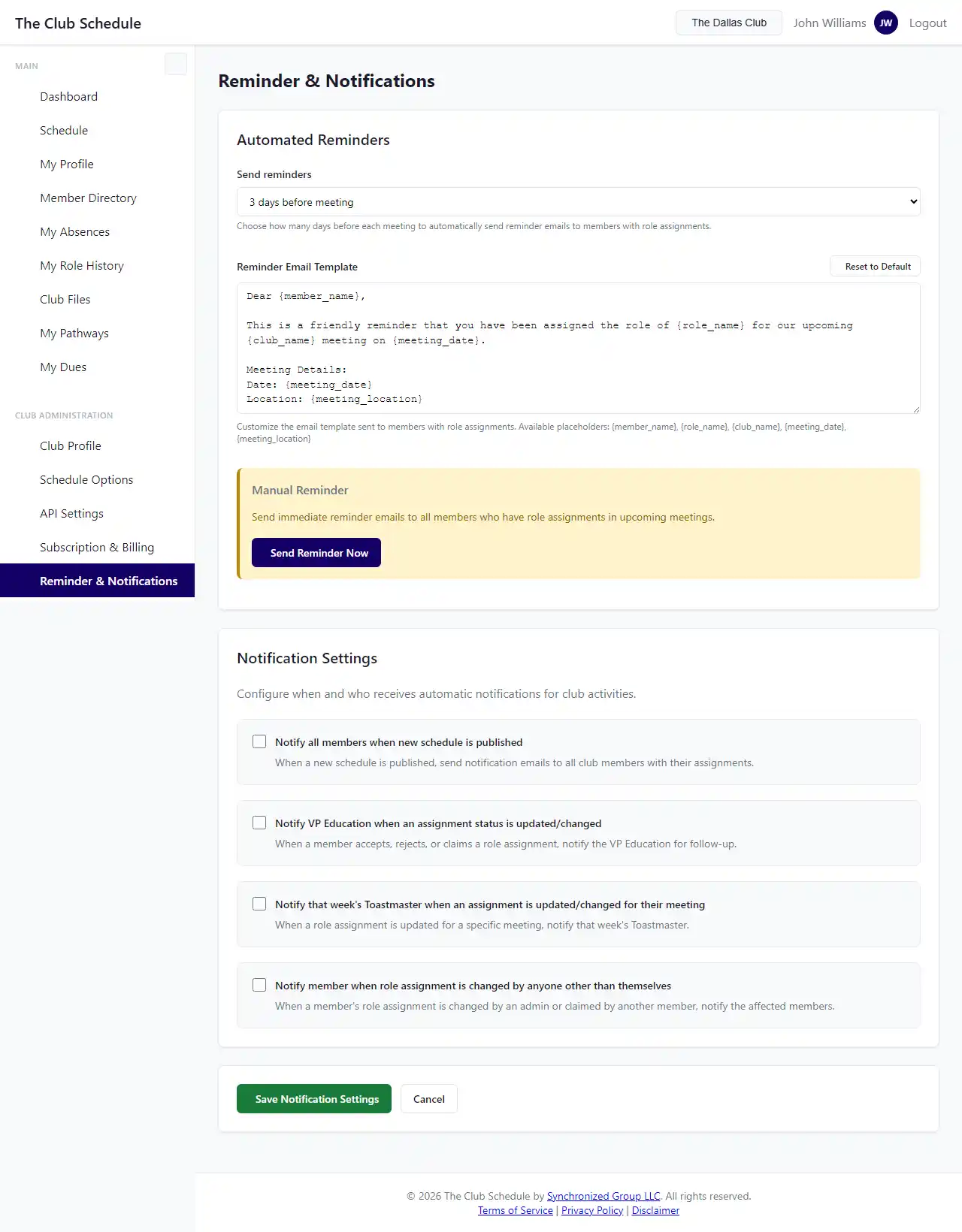
Email Preferences
Configure how and when emails are sent to members.
Notify All Members When Schedule Published
- Enabled: All members receive an email when you publish a schedule
- Disabled: No automatic email on publish
- Recommended: Enabled (keeps members informed)
- You'll still see a "send notification" option when publishing
Meeting Reminder Timing
- How many days before each meeting to send reminders
- Options: 1, 3, 5, 7, or 14 days
- Set to 0 to disable automatic reminders
- Most clubs use 3-7 days
Assignment Notification Preferences
- Controls when members receive emails about assignments
- Options:
- Immediate (when assigned)
- Daily digest
- Weekly digest
- Currently: Immediate only (digest options coming soon)
Role Claiming Settings
Control whether members can claim declined roles.
Allow Role Claiming
- Enabled: Members can claim roles that others have declined
- Disabled: Only officers can reassign declined roles
- Common setting: Enabled (reduces admin workload)
- Members must still meet role eligibility requirements
Role Claiming Notifications
- Whether to notify officers when a role is claimed
- Helps officers stay aware of changes
- Recommended: Enabled
Advanced Features
Additional capabilities for specific use cases.
Speaker Signup Pool
- Allows members to register as backup speakers
- Automatically fills speaker slots when someone declines
- Modes:
- Notify Only: Members are notified and can choose to accept
- Auto-Assign: Members are automatically assigned and confirmed
- See Speaker Signup Pool Guide for details
Public Schedule Sharing
- Generates a public link to your club's schedule
- Privacy-friendly version (no personal emails or phone numbers)
- Useful for posting on club websites
- Can be disabled for complete privacy
Import Role History
- One-time import of historical role data
- Useful when migrating from another system
- Helps the assignment algorithm make better decisions
- See Importing Role History
Meeting Types
- Create different meeting configurations for special events
- Modified Regular types use existing roles with customized slot counts
- Special Event types have custom roles for contests, awards nights, etc.
- Assign different meeting types to specific dates during schedule creation
- See Set Up Meeting Types for complete guide
Billing & Subscription Settings
Manage your club's subscription and payment information.
Access by clicking Billing & Subscription in settings menu.
What you can do: - View current plan and billing cycle - Change subscription plans - Update payment method - View billing history - Download invoices - Cancel or reactivate subscription
See Subscription and Billing Guide for complete details.
Data & Privacy Settings
Control how member data is handled.
Data Sharing Consent
- Required for GDPR compliance
- Members consent to sharing their information within the club
- Managed per-member on their profile
- Officers can view consent status
Public Data Display
- Controls what appears on public schedule PDFs
- Options to hide phone numbers, emails
- Balances transparency with privacy
Data Export
- Download all your club's data
- JSON format for technical use
- Useful for backups or migration
- Available even with lapsed subscription
Common Settings Configurations
For New Clubs
Recommended initial settings: - Meeting Day: Your actual meeting day - Meeting Interval: Weekly (most common) - Meetings Per Schedule: 6 meetings - Major Role Gap: 3 weeks - Notify on Publish: Enabled - Allow Role Claiming: Enabled
For Established Clubs
Review these quarterly: - Major role gap (adjust if members complain about frequency) - Meetings per schedule (increase if you want more advance planning) - Email preferences (based on member feedback) - Role claiming (enable if you trust members to self-manage)
For Small Clubs (Under 10 Members)
Consider: - Reduce major role gap to 2 weeks - Enable concurrent assignments on some roles - Keep meetings per schedule at 4 (less advance planning needed) - Disable role prerequisites (not enough members for strict progression)
For Large Clubs (Over 30 Members)
Consider: - Increase major role gap to 4+ weeks - Keep role prerequisites strict (ensures quality) - Increase meetings per schedule to 6 - Enable Speaker Signup Pool (if Toastmasters)
Tips for Managing Settings
Best Practices
- Make one change at a time - Easier to track impact
- Test before publishing - Create a draft schedule to see effects
- Communicate changes - Let members know about setting updates
- Document reasons - Keep notes on why you changed settings
- Review quarterly - Settings that worked may need adjustment as the club evolves
Common Mistakes to Avoid
- Setting major role gap too high (no one gets major roles)
- Setting meetings per schedule too low (constant schedule creation)
- Disabling all email notifications (members miss assignments)
- Changing meeting day without planning transition
- Over-restricting role prerequisites
When to Adjust Settings
Increase major role gap if: - Members complain about too many major roles - Assignment quality is suffering - You have plenty of members to rotate
Decrease major role gap if: - Roles aren't being filled - Members want more opportunities - You have a small membership
Change meeting interval if: - Club formally changes meeting frequency - Venue availability changes - Member attendance patterns shift
Troubleshooting
I changed a setting but schedules look the same - Settings only affect new schedule generation - Existing published schedules are not modified - Create a new draft schedule to see the changes
Members didn't get email notifications - Check if "Notify on publish" is enabled - Verify members have valid email addresses - Check spam/junk folders - Review email quota (if subscription lapsed)
Role claiming isn't working - Verify "Allow role claiming" is enabled - Check that the role was actually declined (not just pending) - Ensure member meets role eligibility requirements - Verify subscription is active
I can't find a setting - Check all sections in the Settings menu - Some features may be organization-specific - Contact support if a documented feature isn't visible